
Best Photo Editor Tools for Small and Micro Businesses in 2026
Looking for the best photo editing tools to create professional content? We've compared, reviewed and ranked the top rated tools to help you get started now and take your photos to the next level.
Last updated: September 2026

Free plan available
- Built for easy team collaboration
- Internal content scheduler and publisher
- Robust drag & drop
- 75 million+ accessible files
- 420,000+ free templates
- Easy to share option
- Automatic save
- Best features aren't available for free
- No phone, live chat, email or community support
- Its online version has more templates and design elements
Free plan available
- Built for easy team collaboration
- Internal content scheduler and publisher
- Robust drag & drop
- 75 million+ accessible files
- 420,000+ free templates
- Easy to share option
- Automatic save
- Best features aren't available for free
- No phone, live chat, email or community support
- Its online version has more templates and design elements
7-Days Free Trial
- Upgrade your photos with generative AI
- Step-by-step tutorials inside Lightroom
- Add, remove & extend content in any image
- Advanced editing features
- Great for beginners and professionals
- Free trial
- Incredible customer support
- Requires ongoing monthly payments
- Full features are available only with internet access
- Additional costs for more cloud storage
7-Days Free Trial
- Upgrade your photos with generative AI
- Step-by-step tutorials inside Lightroom
- Add, remove & extend content in any image
- Advanced editing features
- Great for beginners and professionals
- Free trial
- Incredible customer support
- Requires ongoing monthly payments
- Full features are available only with internet access
- Additional costs for more cloud storage

- Mobile-friendly tools for on-the-go edits
- Cloud-based for real-time team editing
- Batch editing & big template collection
- Intuitive interface and a minimal learning curve
- Powerful and fast AI functions
- Multiple tools to maximize value for money
- Cross-platform support for editing on the go
- AI image generation instructions need to be precise
- You only get limited credits for free
- No live chat support
- Mobile-friendly tools for on-the-go edits
- Cloud-based for real-time team editing
- Batch editing & big template collection
- Intuitive interface and a minimal learning curve
- Powerful and fast AI functions
- Multiple tools to maximize value for money
- Cross-platform support for editing on the go
- AI image generation instructions need to be precise
- You only get limited credits for free
- No live chat support
Free plan available
- Clean interface and simple learning curve
- Full suite for UI, UX, and marketing design
- Real-time co-editing improves teamwork and eliminates file chaos.
- Smart layout and prototyping tools reduce repetitive work.
- Flexible pricing suits both small teams and larger organizations.
- No native CMYK support, which limits print design workflows.
- Lacks advanced photo editing capabilities.
- Requires careful seat management to avoid paying for unused licenses.
Free plan available
- Clean interface and simple learning curve
- Full suite for UI, UX, and marketing design
- Real-time co-editing improves teamwork and eliminates file chaos.
- Smart layout and prototyping tools reduce repetitive work.
- Flexible pricing suits both small teams and larger organizations.
- No native CMYK support, which limits print design workflows.
- Lacks advanced photo editing capabilities.
- Requires careful seat management to avoid paying for unused licenses.
7-Days Free Trial
- Add movement & effects to still photos
- Sharpen & enhance old blurry photos
- Add, replace, or change objects in photos
- Advanced features including headshots, avatars & photo enhancement
- AI-based features for highly accurate results
- Discover feature to get inspired and break out of creative blocks
- Animate feature to create short-form videos from still images
- No cross-platform sharing
- Accessing all features requires payment
7-Days Free Trial
- Add movement & effects to still photos
- Sharpen & enhance old blurry photos
- Add, replace, or change objects in photos
- Advanced features including headshots, avatars & photo enhancement
- AI-based features for highly accurate results
- Discover feature to get inspired and break out of creative blocks
- Animate feature to create short-form videos from still images
- No cross-platform sharing
- Accessing all features requires payment

7-Days Free Trial
- Beautify your selfies with AI technology
- Enhance, brighten & retouch in seconds
- Over 200 million downloads
- Extremely easy to use
- Amazing filters and effects
- Intelligent AI editing options
- AI-powered styling and makeup
- Has limited support options
- No customization options for the app
7-Days Free Trial
- Beautify your selfies with AI technology
- Enhance, brighten & retouch in seconds
- Over 200 million downloads
- Extremely easy to use
- Amazing filters and effects
- Intelligent AI editing options
- AI-powered styling and makeup
- Has limited support options
- No customization options for the app
* Featured prices and terms can be updated. Free offers may include additional terms.
When you run a 2–5 person business, photo editing isn't a creative hobby - it's a Monday morning task between answering customer emails and updating your inventory. You don't have a designer. You don't have hours to learn layers and masks. You need product photos that don't look amateur, social graphics that actually convert, and you needed them ready 20 minutes ago.
The best photo editor tools for small and micro businesses in are2026Canva for non-designers handling marketing, Adobe Photoshop for serious product editing, Pixlr for browser-based teams, Figma for design-led businesses, Photoleap and Facetune for mobile-first content, and Adobe Premiere Pro for the video work that pairs with all of it. Each fits a different kind of small team, and the wrong pick costs weeks of frustration.
TL;DR
- Canva is the fastest path to professional-looking visuals when nobody on your team is a designer - its AI tools (Magic Edit, Background Remover, Magic Resize) replace tasks that used to need Photoshop.
- Adobe Photoshop is still the standard for serious retouching, e-commerce hero shots, and any team selling visual quality - Generative Fill cuts editing time roughly in half for product photo work.
- Pixlr is the browser-based option for remote teams and contractors - no installation, real AI features, and one of the cheapest team plans in the category.
- Figma is the surprise photo and visual content tool for small businesses doing pitch decks, social templates, and any visual work that needs real-time collaboration.
- Photoleap and Facetune are the mobile-first editors for small businesses creating content on phones - especially personal brands, beauty services, and lifestyle product brands.
- Adobe Premiere Pro is the serious video editor for small teams that have outgrown CapCut and Canva video - relevant for any business publishing weekly long-form video alongside its photo work.
How We Test Photo Editor Tools
We test as solo entrepreneurs and small teams (up to 5 employees) using each platform for actual business work - not staged scenarios. For this guide, we ran each editor through the same real-world checklist over 2–4 weeks per tool: editing 20 product photos for an e-commerce listing, creating a week's worth of Instagram posts, removing backgrounds from 10 lifestyle shots, color-correcting a folder of event photos, and exporting in the formats marketplaces and ad platforms actually accept.
We also tracked the boring stuff that matters when you're running a business: how long onboarding took, whether the AI features worked or just looked good in demos, how the tool handled a slow laptop, what happened when we needed to share a file with a freelancer, and whether the pricing scaled in a way a 3-person team could actually budget for. Every platform below was evaluated against the day-to-day reality of a small business operator, not a reviewer copying spec sheets. Pricing was verified against each vendor's official pricing page at the time of writing - subscription prices change frequently, so always confirm before purchasing.
Canva

Canva is a user-friendly graphic design platform that empowers individuals to create a wide array of visual content, including graphics, presentations, headers, documents, invitations, posters, and… Read more
Canva is a user-friendly graphic design platform that empowers individuals to create a wide array of visual content, including graphics, presentations, headers, documents, invitations, posters, and resumes. This all-in-one graphic design tool features a video and graphic maker, photo editor, and logo creator, making it accessible for both beginners and professionals. With its intuitive interface and extensive template library, Canva simplifies the design process, enabling users to produce stunning visuals with ease. In this Canva review, I'll discuss, graphic design features, performance, Canva pricing, and more.
Learn more in our full Canva review.
Pros & Cons
- AI tools for creating and editing designs
- 1M+ free templates
- Easy to share option
- Automatic save
- Best features aren't available for free
- No phone, live chat, email or community support
- Its online version has more templates and design elements
Features
- API
- Templates
- Image Database
- Collaboration Tools
- Content Import/Export
- Content Management
- Edits Vector & Raster Graphics
- Pro-Level Typography
- Print Management
- Publishing / Sharing
- Multi-Channel Marketing
- Multi-Language
- Multiple Format Support
- Social Promotion
- Animation
- Document Storage
- Access Controls/Permissions
- Search/Filter
- Photo Editing
- Video Editing
- Rich Text Editor
- WYSIWYG Editor
- Drag & Drop
Pricing
$0
mo/
month
$15
mo/
month
$21
mo/
month
Canva is the platform we recommend when nobody on your team is a designer - which is most small businesses. It's built for the founder who is also the marketer, the assistant who suddenly owns Instagram, and the operations person who has to make a flyer by Thursday.
Canva isn't a "real" photo editor in the Photoshop sense, but for 80% of what a small business does with images - cropping product shots, removing backgrounds, adding text overlays, designing social posts, building pitch decks - it's faster than anything else on this list. The drag-and-drop editor means you can teach a new hire how to use it in about 15 minutes, which is exactly what you need when you have 4 employees and turnover happens.
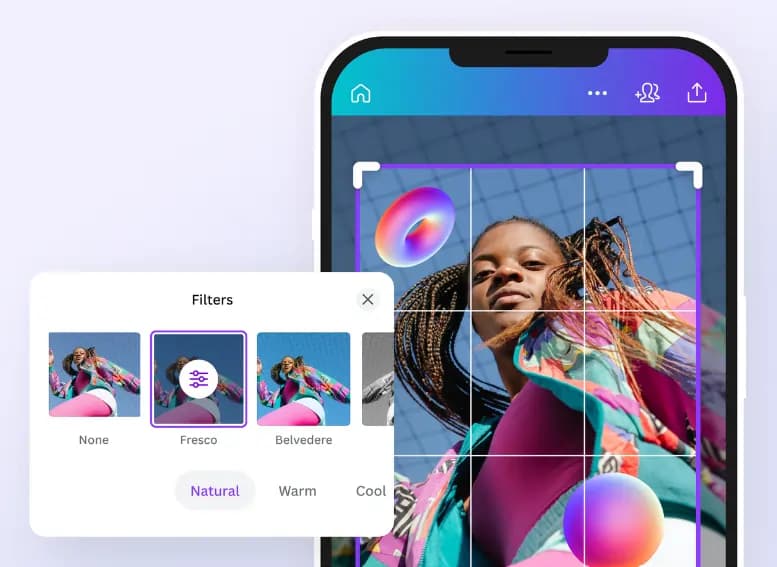
What pushed Canva ahead in is the AI suite. Magic Edit lets you click on any object in a photo and replace it by typing a prompt. Magic Eraser removes things from photos in two clicks. The Background Remover is instant and works on glass, hair, and fur, which used to be Photoshop's territory. Magic Resize takes one design and instantly reformats it for Instagram, TikTok, Facebook, LinkedIn, and email - a feature that genuinely saves a small team about 5 hours a week.2026
Canva Pricing for Small Teams (verified May )2026
The free plan handles real work, but most micro businesses upgrade to Canva Pro ($15/month, or $120/year billed annually - effectively $10/month) within the first month for the Brand Kit feature alone, which locks your colors, fonts, and logos so a new team member can't accidentally publish off-brand content. Canva Business (formerly Canva Teams - renamed in late 2024) is $10/user/month billed annually with a 3-user minimum, so the entry point is $30/month for 3 seats. It adds shared folders, brand approval workflows, and centralized template management - the sweet spot for a 3–5 person team.
Canva Integrations
Canva connects with a large library of third-party apps through its app marketplace - Shopify, WooCommerce, HubSpot, Mailchimp, Google Drive, Dropbox, and most social schedulers are all available. The Shopify integration is the standout for small e-commerce teams: you can pull product images directly into Canva, edit them, and push them back without leaving the editor.
Typical Small Business Setup: A 3-Person Skincare Brand
A common pattern we see with a 3-person indie skincare brand (founder, operations lead, part-time content creator) is paying a freelance designer roughly $400/month for social posts and product mockups, then moving everything to Canva Business. With all three users on shared brand assets, the content creator can produce 4 weeks of content in 2 days using Canva's Bulk Create feature and AI background removal for product shots. The founder uses Magic Edit to change product backgrounds for seasonal campaigns without reshooting. Realistic monthly savings: $300–$400. Realistic time savings on content production: 50–60%.
Adobe Photoshop

In the realm of design, Adobe Photoshop remains an essential tool for professionals, blending traditional design functionalities with cutting-edge AI enhancements. The introduction of AI-driven tools… Read more
In the realm of design, Adobe Photoshop remains an essential tool for professionals, blending traditional design functionalities with cutting-edge AI enhancements. The introduction of AI-driven tools like the improved Font browser helps designers manage and explore over 25,000 Adobe fonts with ease, enriching the creative process and ensuring a seamless workflow across devices and platforms. Adobe Photoshop, a leader in digital editing for over 30 years, offers powerful tools to support creatives across industries in produce detailed and complex designs effortlessly.
Learn more in our full Adobe Photoshop review.
Pros & Cons
- Can deeply customize almost every aspect of the design process
- Supports multiple file formats — essential for cross-platform design work.
- Tools for mobile and web design
- Adobe Suite integration for easy workflow
- Requires a powerful computer as it runs many processes
- Steep learning curve due to many features
- No option for a perpetual license
Features
- API
- Templates
- Image Database
- Collaboration Tools
- Content Import/Export
- Edits Vector & Raster Graphics
- Touch Interface Support
- Pro-Level Typography
- Print Management
- Publishing / Sharing
- Multi-Language
- Multiple Format Support
- Animation
- Document Storage
- Search/Filter
- Photo Editing
- Video Editing
- Offline Editing
- Drag & Drop
Pricing
$14.98
mo/
month
$22.99
mo/
month
$37.99
mo/
month
$59.99
mo/
month
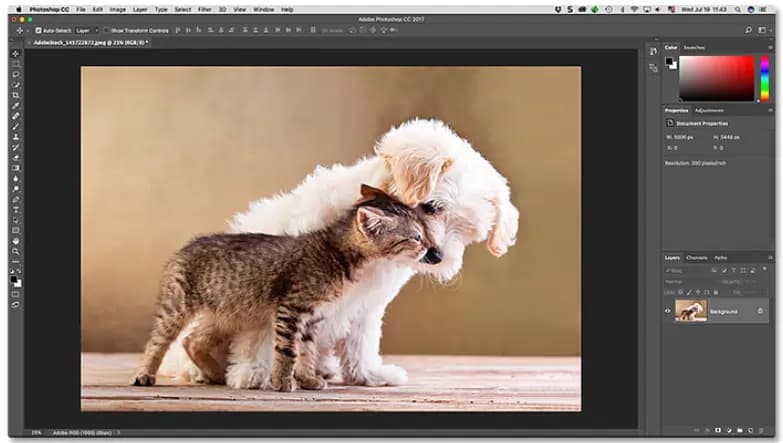
Photoshop is overkill for most small businesses - and absolutely essential for the rest. The question isn't whether Photoshop is good. The question is whether your business actually needs it. If you sell jewelry, clothing, food, art, or any product where the photo IS the sale, the answer is yes. If you mostly post on Instagram and need to crop and add text, the answer is no - use Canva.
What makes Photoshop worth the steep learning curve for the right business is precision. You can edit a single hair, remove a wrinkle from fabric, fix the color of one specific pixel in a product photo, and clone out the cable in the background of your studio shot. Generative Fill, which uses Adobe's Firefly AI, lets you extend backgrounds, remove objects, and even add new elements by typing a prompt - it's the single biggest change to Photoshop in 20 years and it works.
For a small team, the realistic Photoshop workflow looks like this: one person on the team becomes the "Photoshop person" (usually the founder or a designer-leaning employee), they handle the 10–20% of edits that need real precision, and everything else gets done in Canva or Pixlr. Trying to make everyone learn Photoshop is the mistake most small businesses make.
Photoshop Pricing for Small Teams (verified May )2026
The Photoshop Single App plan is $22.99/month (annual, billed monthly) and $263.88/year if you prepay annually. The month-to-month option is more expensive. Most small businesses don't buy it standalone - the Adobe Photography Plan at $19.99/month (annual, billed monthly) gets you Photoshop, Lightroom Classic, Lightroom, and 1TB of cloud storage. There's also a lower-cost Photography plan with 20GB of storage at $14.99/month. For teams needing the broader Adobe suite, Adobe restructured its plans in 2025: Creative Cloud Pro (formerly Creative Cloud All Apps) is now $69.99/month for individuals, with team pricing higher. Pricing for Creative Cloud for Teams varies by plan - verify on Adobe's website before committing.
Photoshop's AI Features Worth Knowing
Generative Fill, Generative Expand, Remove Tool, and the newer Distraction Removal (which finds and erases tourists, cables, and trash in one click) are the features that genuinely change how a small business uses Photoshop. The Neural Filters - especially Skin Smoothing and Smart Portrait - are useful for service businesses doing headshots and team photos.
Typical Small Business Setup: A 2-Person Handmade Jewelry Brand
A common pattern with a 2-person handmade jewelry brand (designer + part-time photographer) is selling on Etsy, a Shopify site, and to retail boutiques. Many start with Canva for product photos and lose wholesale accounts because the photos look amateur. Moving to the Adobe Photography Plan and learning Photoshop over 6–8 weeks using Adobe's free tutorials typically produces dramatically cleaner results - cleaning chains, fixing reflections in metal, and using Generative Fill to extend backgrounds for different marketplace aspect ratios. The $19.99/month is one of the highest-ROI software investments a visual-product small business will make.
Pixlr
Pixlr is a versatile online AI-powered photo editing suite. Photo Editor is its primary tool and offers a wide array of features for both beginners and experienced users. It provides capabilities… Read more
Pixlr is a versatile online AI-powered photo editing suite. Photo Editor is its primary tool and offers a wide array of features for both beginners and experienced users. It provides capabilities for image generation, background and object removal, collage creation, and more. Users can customize images with various editing tools such as cropping, adjusting hues, and applying filters. You can also try Express, Batch Editor, Remove BG, and Designer. For those looking to animate their designs, Pixlr includes animation presets and a timeline editor. The tool is free, but premium subscriptions unlock advanced features, unlimited use, and ad removal. The AI-powered photo editing tool streamlines content creation, enhancing your business’s marketing and design efforts without requiring extensive graphic design skills or resources.
Learn more in our full Pixlr review.
Pros & Cons
- Intuitive interface and a minimal learning curve
- Powerful and fast AI functions
- Multiple tools to maximize value for money
- Cross-platform support for editing on the go
- AI image generation instructions need to be precise
- You only get limited credits for free
- No live chat support
Features
- Text-to-Video
- Object Tracking
- Pre-Built Templates
Pricing
$1.49
mo/
month
$6.49
mo/
month
$11.99
mo/
month
Pixlr is the browser-based photo editor that small businesses don't realize they need until they're traveling, on a Chromebook, or trying to onboard a remote contractor who can't install software. There's nothing to download, it opens in 5 seconds, and the free tier handles real work.
Pixlr comes in two main flavors: Pixlr X (simplified, Canva-like interface for quick edits) and Pixlr E (a Photoshop-like interface with layers, masks, and advanced tools). For a small business, this matters - you can let the marketing person work in Pixlr X for social posts and let your more technical employee use Pixlr E for product photo retouching, on the same platform and the same files.
The AI features added over the last 18 months are surprisingly capable for the price. AI Background Removal, AI Generative Fill, AI Image Generator, AI Object Removal, and AI Image Expand all work in the browser without sending you to a different app. Output quality is below Adobe's, but for social-resolution images and most e-commerce thumbnails, the difference doesn't matter.
Pixlr Pricing (verified May )2026
Pixlr Free includes basic edits with ads and watermarked AI features. Pixlr Plus is $1.99/month monthly or $1.49/month billed yearly. Pixlr Premium is $7.99/month monthly or $6.49/month billed yearly, and unlocks all AI features, full export options, and 1,000 AI credits per month. The Pixlr Team plan is $16.99/month monthly or $11.99/month billed yearly, with 5 premium seats included. For a 3-person team, the annual Team plan ($11.99/month for 5 seats) is one of the cheapest team options in the category - significantly less than a single Canva Pro seat.
When Pixlr Beats Everything Else
Pixlr wins in three specific scenarios for small businesses: when you need to edit on a Chromebook or locked-down work computer, when you onboard a freelancer for a single project and don't want to set up Adobe licensing, and when you need a quick edit on a phone or tablet without downloading another app. It's the "good enough, available everywhere" option.
Typical Small Business Setup: A 2-Person Print-on-Demand Business
A common pattern with a 2-person print-on-demand business (founder + one virtual assistant in another country) is hitting a wall when the VA's laptop can't run Photoshop and another Adobe license isn't justifiable for someone working 20 hours a week. Moving the entire image preparation workflow to Pixlr Premium typically solves this: the VA preps mockups, removes backgrounds, and resizes designs for Printful and Redbubble directly in the browser. The founder uses Pixlr E for any final adjustments. Realistic software cost for a 2-person setup: $7.99/month or less for one Premium account they share. VAs in this setup are typically productive in their first week with zero installation issues.
Figma
Figma is a browser-based design platform built for collaboration. It combines vector design, prototyping, feedback, and developer handoff into one shared workspace. Instead of juggling multiple… Read more
Figma is a browser-based design platform built for collaboration. It combines vector design, prototyping, feedback, and developer handoff into one shared workspace. Instead of juggling multiple tools, small businesses can design websites, mobile apps, and marketing visuals in one place. With flexible pricing and smart seat types, Figma gives SMBs the same professional design power that large teams enjoy.
Learn more in our full Figma review.
Pros & Cons
- Real-time co-editing improves teamwork and eliminates file chaos.
- Smart layout and prototyping tools reduce repetitive work.
- Flexible pricing suits both small teams and larger organizations.
- No native CMYK support, which limits print design workflows.
- Lacks advanced photo editing capabilities.
- Requires careful seat management to avoid paying for unused licenses.
Features
- API
- Image Database
- Collaboration Tools
- Content Import/Export
- Content Management
- Edits Vector & Raster Graphics
- Touch Interface Support
- Pro-Level Typography
- Print Management
- Publishing / Sharing
- Multi-Channel Marketing
- Multi-Language
- Multiple Format Support
- Engagement Analytics
- Animation
- Document Storage
- Access Controls/Permissions
- Freelancer Screening & Profiles
- Search/Filter
- Photo Editing
- Offline Editing
- Rich Text Editor
- WYSIWYG Editor
- Drag & Drop
Pricing
$0
mo/
month
$16
mo/
month
Figma is the photo and visual content tool small businesses don't expect to use, until they try it. Yes, Figma started as a UI design tool for product teams - but over the past two years, marketing teams at small companies have been quietly running their entire visual content operation in Figma, and there are real reasons why.
For a small business, Figma's strength is collaboration. Two people can edit the same file at the same time, leave comments, lock components, and watch each other work in real time - which Canva only partially supports and Photoshop doesn't support at all. If you have a 3-person team where the founder reviews everything before publishing, Figma's comment-based approval flow saves the back-and-forth that usually happens in Slack.
Figma works well for photo-adjacent tasks: building social media templates that auto-resize, designing Instagram carousels with consistent grids, creating pitch decks with embedded images, and producing marketing one-pagers. The image editing inside Figma is basic (you can crop, adjust exposure, apply filters, and remove backgrounds with a plugin), so it's not a Photoshop replacement - but combined with the Remove BG community plugin and the Unsplash plugin, it handles most small business image work in one tool.
Figma Pricing for Small Teams (verified May )2026
Figma's free Starter plan gives you 3 Figma design files, 3 FigJam boards, and 3 Slides files per team - enough for genuinely small teams to test the platform without paying. The Professional plan is $16/user/month annual ($20/user/month if billed monthly) and unlocks unlimited files, shared libraries, and version history - this is the realistic plan for a 2–5 person business. Organization is $55/user/month annual (for businesses needing SSO, multiple teams, and design system governance) and Enterprise is $90/user/month. There's also FigJam (the whiteboard tool, included with paid plans) and Figma Slides (Figma's presentation tool that's quietly replacing Google Slides for design-conscious small teams).
Figma's Hidden Strength: Templates and Plugins
The Figma Community is where small businesses save the most time. There are thousands of free templates for social media kits, brand guidelines, pitch decks, business cards, and product mockups - all customizable in two clicks. The plugin library includes Remove BG (one-click background removal), Unsplash (free stock photos inside the editor), Iconify (100k+ free icons), and Image Tracer. A small team can replace 4–5 separate subscriptions with Figma plus 6 free plugins.
Typical Small Business Setup: A 4-Person B2B SaaS Marketing Team
A common pattern with a 4-person marketing team at an early-stage B2B SaaS company (head of marketing, content lead, demand gen, designer) is juggling Canva for social posts, Google Slides for presentations, Photoshop for hero images, and Figma for product mockups - four tools with four logins and constant version control problems. Consolidating most visual work into Figma Professional (roughly $64/month for 4 users on annual billing) with one Photoshop license retained for the lead designer is the typical fix. The designer builds a master file with brand components, templates for every social channel, and reusable image frames. The team then produces a full quarter of marketing content from one Figma file, and non-designers can publish 70–80% of social content without designer involvement.
Photoleap
Photoleap by Lightricks costs $0 for the free plan (with a watermark on AI features), $7.99/month for Pro, $39.99/year on the annual plan (about $3.33/month), or $129.99 for a lifetime license. The… Read more
Photoleap by Lightricks costs $0 for the free plan (with a watermark on AI features), $7.99/month for Pro, $39.99/year on the annual plan (about $3.33/month), or $129.99 for a lifetime license. The annual plan is the only one most creators should pick , it saves about 58% versus monthly and unlocks every AI feature, including text-to-image, AI background removal, and AI scenes. The catch: Photoleap is mobile-only and the desktop equivalent (Photoshop Express) is cheaper if you do not need the AI scene tools.
Learn more in our full Photoleap review.
Pros & Cons
- Advanced features including headshots, avatars & photo enhancement
- AI-based features for highly accurate results
- Discover feature to get inspired and break out of creative blocks
- Animate feature to create short-form videos from still images
- No cross-platform sharing
- Accessing all features requires payment
Features
- Image Editing Capabilities
- Video Editing Capabilities
- JPG
- MP4
- PNG
- TIF
- RAW
- Free Trial
- Monthly subscription
- Annual subscription
- iOS
- Android
- Windows
- macOS
- Web
- Offline Capabilities
- Filters and Effects
- Layer Support
- Color Correction
- Audio Editing Tools
Pricing
$6.99
mo/
month
$37.99
yr/
year
$79.99
/Billed only once/
/Billed only once
Photoleap is the mobile-first photo editor for small businesses that create content on phones - which, by , is most of them. Built by Lightricks (the same company behind Facetune and Videoleap), Photoleap focuses on creative, AI-powered photo edits that go beyond basic adjustments: replacing skies and backgrounds, adding double exposures, generating AI artwork from text, removing objects, and creating composites that used to require Photoshop.2026
What makes Photoleap relevant for small businesses is the speed of creative editing on a phone. A boutique owner can shoot a product on their iPhone, remove the background, add an AI-generated lifestyle scene behind it, and post to Instagram - all in 5 minutes, without ever opening a laptop. The AI features include AI Transform, AI Expand, AI Backgrounds, AI Avatars, text-to-image, and Object Removal. For founders running content on the go, this is the fastest path from "I had an idea" to "it's posted."
The trade-off is that Photoleap is built for creative and stylized edits, not clean e-commerce product shots. If you need a white-background product photo for Amazon, Photoleap is the wrong tool. If you need a creative Instagram post with a product floating in a surreal landscape, it's faster than anything on a desktop.
Photoleap Pricing (verified May )2026
Photoleap is free to download with limited features, watermarks on AI exports, and a 7-day free trial of the Pro version. Photoleap Pro starts from $6.99/month with annual plans at around $37.99/year (often the better value for any business using it regularly), and includes unlimited AI generations, no watermarks, and full export quality. Lightricks also offers an App Store bundle that combines Photoleap with Videoleap for businesses that need both photo and video editing on mobile - check the App Store or Google Play for current bundle pricing in your region.
When Photoleap Replaces a Designer
For small lifestyle brands, content creators, and personal brand businesses, Photoleap genuinely replaces a meaningful share of the design work that used to require a freelancer. The combination of AI Backgrounds and Object Removal alone produces social content that looks professional without any design training - which is what small businesses on Instagram, TikTok, and Pinterest actually need.
Typical Small Business Setup: A 3-Person Lifestyle Candle Brand
A common pattern with a 3-person lifestyle candle brand (founder, social manager, fulfillment lead) struggling to keep up with Instagram's content demands - 4–5 posts a week and no time for laptop-based editing - is moving the entire Instagram workflow to Photoleap on a single iPad. Product photos get shot in 10 minutes on an iPhone, run through Photoleap for background replacement and creative composites, and posted directly. Output typically goes from 2 posts a week to 4–5, with no additional hires. Realistic annual cost: under $40 for one Photoleap Pro account. The output improvement is most visible in posting consistency and visual cohesion across the feed.
Facetune
Facetune is one of the most advanced AI-driven photo editing apps on the market; it’s an easy-to-use app that allows you to do everything - from removing blemishes to adding makeup, hair, and blemish… Read more
Facetune is one of the most advanced AI-driven photo editing apps on the market; it’s an easy-to-use app that allows you to do everything - from removing blemishes to adding makeup, hair, and blemish filters - in a matter of seconds!
Learn more in our full Facetune review.
Pros & Cons
- Extremely easy to use
- Amazing filters and effects
- Intelligent AI editing options
- AI-powered styling and makeup
- Has limited support options
- No customization options for the app
Features
- Image Editing Capabilities
- JPG
- Free Trial
- Monthly subscription
- Annual subscription
- iOS
- Android
- Offline Capabilities
- Filters and Effects
- Layer Support
- Color Correction
- Audio Editing Tools
- Direct Social Media Sharing
- Cloud Storage Integration
- MP4
- PNG
- TIF
Pricing
$25
mo/
month
$40
mo/
month
$77.99
yr/
year
Facetune is the portrait and selfie editor that became unexpectedly useful for small businesses, particularly any business that revolves around a person - personal brands, coaches, real estate agents, beauty professionals, service-based founders. It's built to retouch faces and bodies in photos, which sounds vain until you remember that small business owners are now the face of their own marketing.
The features that matter for small business use are skin smoothing, teeth whitening, lighting adjustment for portraits, blemish removal, AI Headshots, AI clothes changer, virtual hair and makeup, and AI beard filters. For a real estate agent who needs to update their profile photo every 6 months, Facetune does in 2 minutes what would otherwise mean booking a paid headshot session. For a coaching business where the founder posts on LinkedIn weekly, Facetune turns iPhone selfies into polished professional content.
There's a real conversation to be had about overuse - Facetune can absolutely make people look unnatural, and the brands that use it best dial the effects way back. Used subtly, it produces "good lighting and good day" versions of photos, not "different person" versions.

Facetune Pricing (verified May )2026
Facetune is free to download with a 7-day free trial of the full feature set. Subscription pricing on facetuneapp.com starts at $25/month for monthly billing, $40 per quarter, or $77.99/year (which works out to roughly $6.50/month and saves about 50% versus monthly billing) - the annual plan is the obvious choice for any small business using it regularly. App Store pricing may differ slightly by region. All plans unlock the full AI tool suite including AI Headshots, AI Clothes Changer, Photo Retouch, and Virtual Hair & Nails.
Where Facetune Genuinely Helps Small Businesses
The AI Headshot feature is the standout. Upload a batch of selfies, and Facetune generates professional-quality headshots in different settings (office, outdoor, studio) for use across LinkedIn, About pages, podcast appearances, and press kits. For a service business founder who needs varied headshots across many platforms a year, this replaces hundreds of dollars in photographer fees.
Typical Small Business Setup: A 2-Person Personal Branding Studio
A common pattern with a 2-person personal branding studio (founder + assistant) helping coaches and consultants build their LinkedIn presence is offering a service that delivers fresh headshots every 2–3 weeks. The standard setup: clients send 15 iPhone selfies a month, the studio generates 30+ varied "professional" portraits using Facetune AI Headshots, lightly edits them, and delivers a content calendar. With one annual Facetune subscription (~$78/year) supporting the workflow, this can become a high-margin offering - the software cost is trivial relative to what clients pay for the service.
Adobe Premiere Pro
Adobe Premiere Pro has been a leading video editing software for over three decades and is a favorite among professionals in the film, TV, and web content industries. It is renowned for its powerful… Read more
Adobe Premiere Pro has been a leading video editing software for over three decades and is a favorite among professionals in the film, TV, and web content industries. It is renowned for its powerful features and seamless integration with the Adobe Creative Cloud ecosystem. The software offers advanced color correction, multi-cam editing, VR capabilities, robust audio tools, and extensive customization options. It supports collaborative projects, making it an invaluable asset for creative teams. With tools like Auto Reframe and Lumetri Color, Premiere Pro enhances productivity and creative flexibility, allowing businesses to create professional videos at scale.
Learn more in our full Adobe Premier Pro review.
Pros & Cons
- Advanced editing features such as color correction, multi-cam editing, and VR support
- A vast library of video and audio effects
- Auto-Reframe tool automatically adjusts aspect ratios for different platforms
- Incredible customer support
- Mastering all the advanced features can take time
- Expensive if paid monthly
- Requires powerful hardware to run smoothly
Features
- Video Editing Capabilities
- MP4
- Free Trial
- Monthly subscription
- Annual subscription
- iOS
- Android
- Windows
- macOS
- Offline Capabilities
- Filters and Effects
- Layer Support
- Color Correction
- Cloud Storage Integration
- JPG
- PNG
- TIF
Pricing
$19.99
mo/
month
$22.99
mo/
month
$37.99
/mo per license/
/mo per license
Premiere Pro is the video companion that pairs with every photo editor on this list. We're including it because by , most small businesses are publishing video alongside photos - Instagram Reels, TikTok, YouTube Shorts, LinkedIn video, and short-form ads - and the question for a small team isn't "do we need video," it's "how serious are we about it."2026
Premiere Pro is the right answer when you've outgrown CapCut and Canva video. The features that matter for small businesses are multi-cam editing (for podcast and interview content), automatic transcription and caption generation, Generative Extend (which uses AI to add seconds to a clip when your B-roll is too short), and color matching across clips (essential when you film in different rooms or lighting). The integration with Adobe's Enhance Speech is a game-changer for businesses recording themselves on iPhone - it turns bad audio into broadcast-quality audio with one click.
The honest assessment: Premiere Pro has a steeper learning curve than the photo editors on this list. Plan on 20–30 hours of tutorials before you're efficient. For a small team, the realistic approach is the same as Photoshop - one person learns it well, everyone else uses CapCut or Canva for quick social cuts.
Premiere Pro Pricing for Small Teams (verified May )2026
The Premiere Pro Single App plan is $22.99/month (annual, billed monthly), $21.99/month if prepaid annually ($263.88 upfront), or $34.49/month on the month-to-month plan. For a small business that needs Photoshop AND Premiere Pro AND broader Adobe tools, the Creative Cloud Pro plan (renamed from Creative Cloud All Apps in 2025) at $69.99/month is the better math than buying two single-app plans. Adobe Teams plans for Premiere Pro are higher per seat - verify on Adobe's website before committing.
Premiere Pro's AI Features Worth Knowing
Generative Extend (introduced in 2024 and improved through 2025) extends video clips by up to 2 seconds using AI, which sounds small but solves the "my B-roll is 4 seconds and I need 6" problem that small business creators hit constantly. Enhance Speech makes bad recording audio sound professional. Auto Reframe converts a horizontal video to vertical (or square) by automatically tracking the subject. Text-based editing lets you edit a video by editing the transcript - delete a word, the video deletes that section.
Typical Small Business Setup: A 4-Person Real Estate Marketing Agency
A common pattern with a 4-person real estate marketing agency (founder, two creators, one editor) producing 8 listing videos a week with CapCut is hitting a quality ceiling when luxury clients demand "broadcast-quality" listings. The typical fix: move serious video production to Premiere Pro for the editor only, keep CapCut for the creators doing rough social cuts, and add a Creative Cloud Pro plan for the editor's seat (around $70/month). The editor learns Premiere through Adobe's free tutorials over 6–10 weeks. Video output quality typically jumps enough to win the kind of luxury accounts that justify the cost several times over.
Free Photo Editor Tools Worth Using
If you're not ready to pay for any of the platforms above, there are three free tools that handle real small business work.
GIMP
GIMP is the free, open-source desktop alternative to Photoshop. It's been around since 1996 and does about 90% of what Photoshop does - layers, masks, RAW editing, color correction, filters, plugins. The interface looks dated and the learning curve is steeper than commercial tools because tutorials are scattered across forums and YouTube. There's no AI Generative Fill or one-click sky replacement. For a small business in its first year on a true zero-budget, GIMP is the answer to "is there a free Photoshop." Plan on 10–15 hours of tutorials before you're productive.
Photopea
Photopea is the browser-based Photoshop clone that nobody talks about enough. It opens Photoshop PSD files, supports layers and masks, runs entirely in your browser, and is genuinely free (with optional paid tier for ad removal). For small businesses that occasionally need to open a PSD file from a designer without buying Photoshop, Photopea is the right answer. The interface is almost identical to Photoshop's, so Photoshop tutorials work.
Snapseed
Snapseed is the free mobile photo editor from Google. It's been around for years, gets quietly updated, and is one of the best free options for serious mobile photo editing. The Selective tool lets you adjust specific areas of a photo with finger gestures, RAW editing works on iPhone and Android, and there's no upsell or ad model. For a small business owner editing product photos on a phone, Snapseed handles much of what you'd otherwise pay Photoleap or Facetune for.
See also: Best free graphic design software
How to Pick the Right Photo Editor for Your Small Business
The decision usually comes down to three questions. First, what's the editing skill level of the person who'll use it most? If the answer is "none," start with Canva. If the answer is "comfortable on a phone," go with Photoleap or Facetune. If the answer is "comfortable with software," Pixlr or Figma. If the answer is "design background," Photoshop or Premiere Pro for video.
Second, what does your business actually produce? Product-heavy e-commerce needs Photoshop or Pixlr. Service businesses doing social media and headshots need Canva plus Facetune. Personal brand businesses need Photoleap plus Facetune. Marketing teams need Figma plus Canva. Video-heavy businesses need Premiere Pro plus one photo editor.
Third, where do you work? Desktop-only teams should pick Photoshop, Figma, or Premiere Pro. Mobile-first founders should pick Photoleap, Facetune, and Snapseed. Hybrid teams with remote contractors should pick Pixlr or Canva.
Conclusion
For most small and micro businesses, the right answer isn't one tool - it's two or three. A simple editor for daily marketing work (Canva, Pixlr, or Figma), a serious editor for the work that matters (Photoshop), a mobile editor for on-the-go content (Photoleap or Facetune), and Premiere Pro when video becomes serious. Buying just one tool to do everything is the mistake that wastes the most time. Pick the easy one for 80% of your work, pick the powerful one for the other 20%, and don't try to make your marketing assistant learn Photoshop.
FAQ
What's the best free photo editor for small businesses?
Canva Free and Pixlr Free are the most practical free options because they're browser-based and ready in under a minute. For desktop work, GIMP and Photopea are the most capable free tools, with Photopea being faster to learn if you've ever used Photoshop. For mobile, Snapseed is the best free editor available. Most small businesses end up using a combination: Canva Free for social, Photopea when they need a Photoshop-style edit, and Snapseed on their phone.
Is Canva good enough for professional photo editing?
Canva is good enough for most professional small business use cases - social media, marketing materials, basic product photos, presentations, and team headshots. It's not good enough for high-end retouching, magazine-quality product photography, or any work where pixel-level precision matters. If you sell visual products like jewelry, fashion, or art, you'll need Canva for marketing and Photoshop for hero product shots.
Can I use Figma as a photo editor?
Figma is not a true photo editor - it can crop, adjust exposure, apply basic filters, and remove backgrounds with a plugin, but it can't do real retouching, masking, or pixel-level editing. Where Figma works for small businesses is photo-adjacent design: social media templates, pitch decks, marketing graphics, and any visual where the image is a component inside a larger design. Pair Figma with Photoshop or Pixlr for the actual photo editing.
Photoleap vs Facetune - which one do I need?
Photoleap is for creative, AI-powered photo edits like background replacement, object removal, and double exposures - useful for product brands and lifestyle content. Facetune is specifically for faces and bodies - portraits, headshots, and selfies - useful for personal brands, coaches, and any business where the founder appears in marketing. Many small businesses use both - Photoleap for product and lifestyle content, Facetune for founder headshots and personal-brand work.
Is Adobe Premiere Pro worth it for a small business?
Premiere Pro is worth it for small businesses that publish weekly long-form video, run a podcast with video, produce client video content, or have outgrown CapCut and Canva video. For businesses publishing only short-form social video, CapCut and Canva are sufficient and free. The learning curve is real - plan on 20–30 hours before you're efficient - so make sure your video volume justifies the $22.99/month single-app investment.
What photo editor do most small e-commerce businesses use?
Most small e-commerce businesses use Canva for marketing and social, Photoshop or Pixlr for product photos, and Photoleap for lifestyle content shot on phones. The Shopify ecosystem has pushed many small e-commerce teams toward Canva as the primary tool (because of the Shopify integration), with Photoshop reserved for hero product shots that drive conversions.
Do I need photo editing skills to run a small business?
You need basic image skills - cropping, resizing, removing backgrounds, adding text - which any small business owner can learn in a weekend using Canva or Photoleap. Advanced photo editing skills are only necessary if visual quality is core to what you sell. A bookkeeper doesn't need them. A jewelry brand does. Most small businesses fall in the middle and benefit more from learning one easy tool deeply than from trying to master Photoshop part-time.
Can AI photo editors replace a designer for a small business?
For small marketing tasks, mostly yes - Canva, Photoleap, and Pixlr now produce results that small businesses used to hire designers for. For brand identity, logo design, complex print materials, and high-end visual work, you still need a designer. The realistic answer for small businesses is that AI tools have replaced a meaningful share of the freelance design work small teams used to pay for, and the remaining work is more valuable and worth paying more for.2026
See also
- Editing software is one purchase among many for a small team, and the best marketing tools for small business page maps the other categories you will end up buying.
- Fixing a shot on a phone between shifts is a different workflow, covered by photo editing apps for iPhone and Android.
- Layered layouts with logos, prices and headlines are a design job rather than a retouching job, so start from best free graphic design software.
- Product clips need a timeline and an audio track instead of layer masks, which is where the best video editing software comparison comes in.
- With no usable source shot at all, the best AI image generators can produce a base picture for you to retouch afterwards.