
Canva vs CapCut: Which is better for small business video in 2026?

Canva vs CapCut, after six months of editing social posts and paid-ad videos in both: pick CapCut for element-heavy, flexible edits — many layers, effects, and animated pop-ups. Pick Canva for fast, on-brand short videos that need to fit every platform’s size. Both free plans are strong; the real split is editing depth (CapCut) versus speed and simplicity (Canva).
Think of it this way: Canva is your all-in-one marketing office. It’s a “design suite” where you can create social media graphics, sales presentations, print flyers, and edit high-quality videos, all in one place. Its strength is keeping your entire brand looking consistent.
CapCut, on the other hand, is a specialized, high-tech video studio. It was built by ByteDance (the parent company of TikTok) specifically for creating engaging, trend-driven, short-form videos. For many social content creators, CapCut is the go to video editor thanks to its user-friendly interface and powerful features. Its strength is in advanced video-first features, like viral effects and best-in-class automatic captions.
So, are you looking for an all-in-one tool to manage your brand’s entire visual identity, or a specialized, high-powered tool to win at social media video? This data-driven comparison will give you a clear, eye-level answer on which is the right fit for your business.
How did we test Canva vs CapCut?
We tested both tools on MacBook and Windows — CapCut’s desktop app and Canva’s web app — on the free and Pro plans, roughly 15 hours a month for six months, editing real social posts, Reel ads, and explainer videos. Last updated July 2026.
We used both tools in day-to-day production, not a one-off demo. Over six months we built the kinds of videos small businesses actually ship: short-form social posts, Reel-style paid ads, and explainer videos — adding voiceover, subtitles, on-screen icons, and animated pop-ups. We ran CapCut on desktop and Canva on the web, and we worked on both the free and Pro tiers so we could see where each paywall lands.
Three examples we produced with this exact Canva + CapCut workflow: example one, example two, and example three.
Canva vs CapCut: Key points
- Choose CapCut if your videos are element-heavy — multiple layers, effects, and animated pop-ups — and you want fine editing control.
- Choose Canva if you need fast, on-brand short videos and easy resizing to fit each platform.
- Ease of use: Canva is more intuitive and runs more smoothly; CapCut has more power but a steeper curve.
- Pricing: both have free plans. Canva Pro is about $12.99/month; CapCut Pro is $19.99/month after its early-2026 restructure (Standard is $9.99). Prices as of July 2026.
- Most small teams use both: Canva for speed and brand consistency, CapCut for complex edits.

Starting from: $0/month
Free
Monthly plan
- 75 million+ accessible files
- 420,000+ free templates
- Easy to share option
- Automatic save
- Best features aren't available for free
- No phone, live chat, email or community support
- Its online version has more templates and design elements

Starting from: $0/month
Free
- Powerful free plan
- Affordable Pro plan
- Very easy to use
- Integrated music library
- Lack of customer support
- Limited frame rate
What did we measure? (our hands-on results)
One-line answer: CapCut was faster and deeper for raw editing; Canva was quicker to finalize and easier to run.
What we measured | Canva (web) | CapCut (desktop) |
Time to first exported 30-sec video | ~1 hour (we explored its large template/feature library) | ~30 minutes |
Auto-captions on a ~45-sec clip | ~10 sec to edit and finalize | ~30 sec to generate, then ~15 min to fine-tune wording/styling |
Auto-caption errors (English, ~90 words) | Minor only | Minor only |
Max export resolution (plan we used) | 4K MP4 | HD (CapCut’s 2026 Pro tier adds 4K) |
Watermark on free export? | Yes (removable on paid) | Yes (removable on paid) |
Learning curve (1–5, 5 = hardest) | 2 | 3 |
Two things surprised us. First, Canva was slower to a first export — but mostly because its template and asset library pulled us into options; the core editing is quick. Second, CapCut generates captions in seconds and offers far more caption styles, yet we spent longer fine-tuning the wording and look; Canva’s caption editing was faster to finalize. Both were accurate in English.
Which is better for social media video?
One-line answer: CapCut for complex, element-rich edits; Canva for fast, on-brand clips sized per platform.
If a video needs many moving parts, layered effects, precise cuts, animated pop-ups, timed sound, CapCut’s multi-track timeline gives you the control to do it cleanly. If you need to ship the same short video on-brand and resize it for a Reel, a Story, and a YouTube Short, Canva does that in a few clicks and keeps your colors and logo consistent. For publishing straight to social, our guide to editing TikTok videos pairs well with either tool.
Which is easier to learn and faster day-to-day?
One-line answer: Canva, it’s more intuitive and runs more smoothly.
Across six months, Canva was the tool we could hand to anyone. The interface is cleaner, the app feels faster, and the template-first approach means a non-editor can produce something good quickly (learning curve 2 of 5). CapCut is more powerful but busier; expect a short ramp-up before the timeline feels natural (3 of 5). Both have plenty of free tutorials on Google and YouTube if you get stuck.
How do captions compare?
One-line answer: CapCut has more caption styles and speed; Canva is faster to finalize.
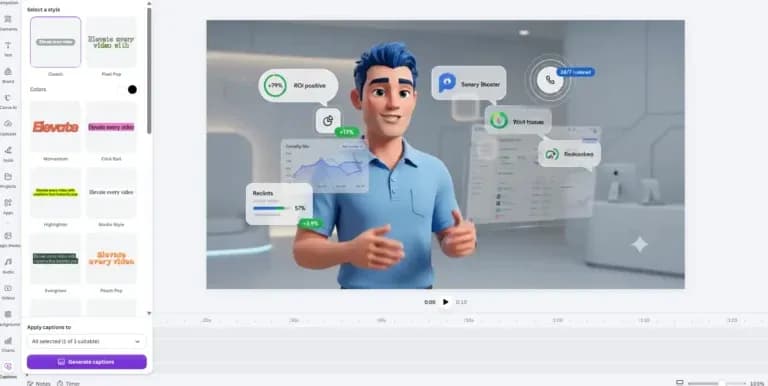
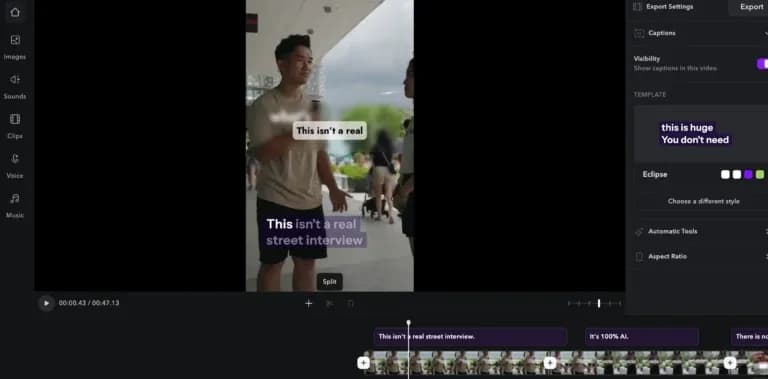
CapCut auto-generates captions in about 30 seconds and gives you a wide range of trendy, animated styles, great for social. In our tests, we then spent around 15 minutes tightening wording and matching the look. Canva’s captions took roughly 10 seconds to edit into their final state, with fewer styles but a quicker path to done. Accuracy was strong for both English.
How do exports and resolution compare?
One-line answer: on the plans we used, Canva exported 4K, and CapCut exported HD, but CapCut’s new 2026 Pro tier adds 4K.
Canva exported clean 4K MP4 files. CapCut, on the plan we tested, topped out at HD; note that CapCut’s restructured 2026 Pro plan now includes 4K export, so this gap closes if you’re on the current Pro tier. Both free plans add a watermark, and both let you remove it on a paid plan.
How does Canva vs CapCut pricing compare?
One-line answer: CapCut’s free plan is the stronger pure video editor; Canva’s paid plan gives more all-round value if you also design.
Plan | Canva | CapCut |
Free | Generous; thousands of templates, basic video, watermark on some assets | Very powerful; multi-track timeline and AI captions (watermarked) |
Entry paid | Pro ~$12.99/month | Standard $9.99/month |
Top paid | Teams/Business (higher, per user) | Pro $19.99/month ($179.99/year) — 4K, full AI toolkit, 1TB storage |
Note | Price varies by region | Mobile in-app runs higher (~$21.99–$22.99); web is cheaper |
Pricing as of July 2026. CapCut restructured its plans in early 2026: the old Pro tier became Standard ($9.99), and a new Pro ($19.99) added 4K export and the full AI toolkit.
How do the AI features compare?
One-line answer: CapCut’s AI is tuned for video (captions, background removal, upscaling); Canva’s Magic Studio is tuned for content creation (scripts, image and video generation).
In practice, we leaned on CapCut’s AI for caption generation and cleaning up footage, and on Canva’s Magic Studio when we needed to spin up on-brand graphics or generate assets from a prompt. Both keep adding tools; for a wider view, see our roundup of AI features for small businesses. CapCut also has a solid AI background remover for quick cleanups.
Which should you pick?
One-line answer: Canva as your everyday driver; CapCut when edits get complex.
- Skip CapCut if you mostly need quick, on-brand short videos and value a smooth, simple tool. Canva will be faster for you.
- Choose CapCut if your videos are element-heavy and you want deep control over layers, effects, and timing.
- Skip Canva if you need frame-precise, multi-layer editing; you’ll outgrow its simpler timeline.
- Choose Canva if you want speed, brand consistency, and easy resizing across platforms.
Read our full Canva review and CapCut review for a deeper breakdown.
What does our real workflow look like?
We use both, and that is the honest recommendation for most small businesses. We design and storyboard in Canva , it’s the fastest way to get an on-brand base and to size a video for each platform. When a piece needs heavy editing , stacked layers, animated pop-ups, tightly timed effects, like the explainer examples above , we move it into CapCut, where the multi-track timeline earns its keep. Canva keeps us consistent and fast; CapCut lets us go deep when a video calls for it.
Canva vs CapCut: Head-to-head comparison
Here is a high-level summary of the key differences before we dive into the detailed breakdown.
Factor | Canva | CapCut |
Primary use case | All-in-one marketing & brand design (graphics, video, print). | Specialized video editing, especially for social media. |
Active users | 240+ million monthly active users. | 200+ million monthly active users (and 1B+ downloads). |
Best for | On-brand marketing videos, presentations, video ads. | Trend-driven TikToks, Instagram Reels, YouTube Shorts. |
Core tools | Brand Kit, Magic Studio (AI), 100M+ stock assets. | Multi-track timeline, 99% accurate Auto Captions. |
Video templates | 610,000+ premium templates (Pro). | Thousands of (mostly user-generated) trendy templates. |
Platform | Web, Desktop, and Mobile. | Mobile, Desktop, and Web (mobile is the most popular). |
User rating (Capterra) | 4.7 / 5.0 (over 11,000 reviews). | 4.4 / 5.0 (over 100 reviews). |
Market position & ideal use cases
Canva is a dominant force in the design world, with over 240 million monthly active users as of early 2025. Its philosophy is to “empower the world to design.” Its video editor is an extension of this. It’s built for a marketing manager who needs to create a professional video ad using their official brand colors, or an HR person creating a branded onboarding presentation. The goal is to be on-brand and multi-platform. Data shows over 1 billion videos have been created with Canva, proving its adoption for this use case. Canva’s advanced editing capabilities and resource libraries enable high quality content creation for businesses seeking polished, professional videos.
CapCut is a video-first rocket ship, boasting over 200 million active users and over 1 billion downloads, fueled by its connection to TikTok. Its philosophy is video-first, trend-first. It’s built for creating content that looks and feels native to TikTok and Instagram Reels. Its ideal user is a content creator or social media manager who needs to quickly add trendy effects, accurate captions (a key feature), and fast-paced cuts.
Platform & ecosystem: All-in-one vs. video-first
This is not a hardware comparison, but a platform one.
- Canva operates as a single, unified ecosystem. You can be designing a static Instagram post, then click “Animate” to turn it into a video. You can use your saved Brand Kit (logos, fonts, colors) in every design, whether it’s a PDF, a presentation, or a video. Its ecosystem is its breadth of creation tools. Canva is also a powerful graphic design tool, suitable for both beginners and experienced designers, enabling the creation of visually appealing graphics, presentations, and social media content.
- CapCut is a specialized video editing ecosystem. It’s available as a surprisingly powerful mobile app, a full-featured desktop app, and a capable web editor. The platforms sync, allowing you to start an edit on your phone and finish it on your desktop. Its ecosystem is its depth in video features and its direct integration with TikTok.
Core features & video editing capabilities: Brand vs. trend
Feature | Canva | CapCut |
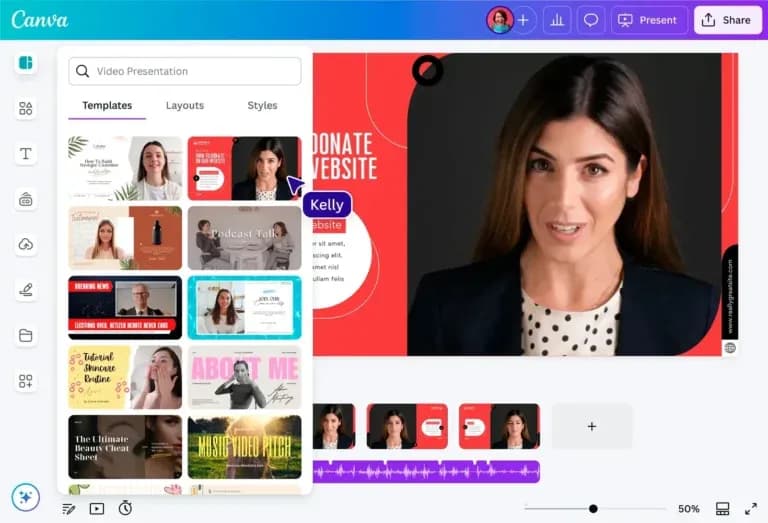
Video timeline | Simple, single-track (with layering). Very easy for beginners. | Advanced multi-track timeline. Allows for complex layering of video, audio, text, and effects. |
Templates | 610,000+ premium, polished, professional templates (Pro plan). | Thousands of trendy, viral-style templates, many user-generated. |
Captions | Manual captions, or AI-powered captions via “Magic Studio.” | Best-in-class “Auto Captions.” Claims 99% accuracy in 90+ languages, with tons of trendy styles. |
Text & effects | Professional fonts, simple text animations. | Viral-style text effects, “text-to-speech” (AI voices), and thousands of trendy filters/transitions. |
Stock library | Massive: 100M+ premium stock photos, 6M+ videos, and audio tracks (Pro plan). | Good: A large, but unquantified, library of royalty-free music and effects, many geared for social media. |
Both Canva and CapCut make editing videos accessible with a wide range of editing features and video editing capabilities. Users benefit from drag and drop tools and intuitive tools that simplify the editing process, making them suitable for both beginners and experienced creators. Both platforms provide access to design elements, static images, image backgrounds, and adjustment tools for refining and customizing content. CapCut also offers advanced features like a green screen editor and an AI-powered image generator. By offering comprehensive media libraries, both platforms reduce the need for external resources, streamlining content creation within the application.
Reporting, analytics & insights: Brand control vs. creator workflow
Canva is built for business teams. With Canva for Teams, you get:
- Brand kits & controls: You can lock parts of a template so team members can only edit the text or video clip, ensuring brand consistency.
- Team folders: A central asset library for all your official logos, videos, and graphics.
- Approval workflows: A manager can review and approve designs before they are published.
CapCut is built for creators. Its “Pro” plan offers 100GB of cloud storage and shared “Spaces” for teams to collaborate on video projects. CapCut also supports real time collaboration, allowing multiple users to work on the same project simultaneously and streamline teamwork. Its workflow is less about brand approval and more about a creator sending a draft to their editor or manager for feedback.
Integrations, connected tools & customizable video templates
Canva‘s integrations are focused on marketing and productivity. You can link your social media accounts (Instagram, Facebook, LinkedIn, etc.) to schedule posts directly from the Content Planner. It also connects to Google Drive, Dropbox, and a large marketplace of marketing apps.
CapCut‘s main integration is its “secret weapon”: a seamless connection to TikTok. You can edit a video in CapCut and share it directly to TikTok, often with access to trending sounds before they are widely available. For seamless sharing and collaboration, a reliable internet connection is essential when using CapCut’s cloud-based features.
Scalability & growth potential
Canva scales perfectly for a growing brand. As your business hires more people, Canva for Teams enables you to maintain brand consistency across all your marketing materials, from sales decks to social media videos.
CapCut scales perfectly for a growing content creator. As your social media presence becomes more sophisticated, CapCut’s advanced features (like keyframing, color grading, and speed curves) grow with you, allowing you to create more professional-looking videos without needing to learn complex software.
Final verdict & recommendation table
For small-business video in 2026, Canva and CapCut serve different purposes. After six months in both, we reach for Canva as the everyday driver — it’s more intuitive, faster to finalize, exports 4K, and resizes cleanly for every platform. We switch to CapCut when a video is element-heavy and needs deep, layered editing. Both free plans are strong enough to start today, so the smartest move for most small teams is to run both: design and resize in Canva, edit complex pieces in CapCut.
Factor | Best Choice | Reason |
Ease of use (for beginners) | Canva | The simple, template-first interface is the easiest to learn. |
All-in-one brand design | Canva | The clear winner. Video, graphics, print, and branding all in one place. |
Advanced video editing | CapCut | The multi-track timeline, keyframing, and effects are far superior. |
AI “Auto Captions” | CapCut | Best-in-class. Claims 99% accuracy and has trendy styles. |
Stock asset library | Canva | Unbeatable. The Pro plan’s 100M+ assets save time and money. |
Best for social media trends | CapCut | It’s built by TikTok. It’s the king of trendy templates and effects. |
Best for corporate/brand video | Canva | The Brand Kit and 610,000+ professional templates are built for this. |