How to Post a YouTube Video on Instagram: Build Trust and Brand Awareness



Small business owners know that creating high-quality video content takes a massive amount of time and effort. When you finally hit publish on a new video, you need to squeeze every drop of value out of it to build trust with your audience. However, Instagram does not make it obvious how to share your external links or video files directly to your followers.
To post a YouTube video on Instagram, you can use the Link sticker to share the video URL directly in an Instagram Story, or download the YouTube video, resize it to a 9:16 aspect ratio using an editing app, and upload it natively as an Instagram Reel or Feed post.
Let us break down the exact step-by-step processes for Stories, Reels, and Feed posts so you can stop wasting time and start turning your video content into a powerful brand awareness tool.
Key Takeaways
- Native video wins engagement: Downloading your YouTube video and uploading it to Instagram ensures the video autoplays, which captures attention faster.
- Links are for warm audiences: Use the Instagram Story Link sticker to send your existing followers directly to your YouTube channel.
- Resize for success: Standard YouTube videos are horizontal (16:9), but Instagram prefers vertical (9:16) formats for Reels and Stories.
- Systemize your growth: Use social media marketing to drive traffic, and capture those leads using reliable business software.
Why is sharing YouTube videos on Instagram important for small businesses?
If you run a micro or small business, trust is your most valuable currency. People do not buy from faceless corporations when they shop small; they buy from you. Video is the absolute fastest way to build a parasocial relationship with your target audience. It lets them see your expertise, hear your voice, and understand your brand values.
However, relying strictly on YouTube means you are waiting for people to search for your content. Instagram acts as a megaphone. By taking your long-form educational or promotional videos and sharing them on Instagram, you are actively pushing your message into the daily feeds of your potential customers.
This cross-promotion strategy increases your brand awareness. When prospects see your content repeatedly across different platforms, you become an authority in your niche. Once you build this awareness and start generating inquiries, you need a system to manage those relationships. Implementing proper software tools, which you can research at https://sonary.com/, ensures that the leads you generate from your new Instagram visibility are tracked and converted into paying customers.
Instagram has over 2.4 billion users, making it a prime platform to reach a larger audience. Knowing how to share YouTube videos to Instagram helps:
- Drive traffic to your YouTube channel.
- Increase engagement on Instagram.
- Repurpose content for more visibility.
A well-optimized YouTube video post on Instagram can attract new followers, boost interactions, and improve your brand’s social media presence.
Legal Considerations Before Downloading
Before downloading and sharing YouTube videos to Instagram, it’s crucial to understand copyright laws:
- Copyright strikes on Instagram: Instagram can remove videos that violate copyright, and repeated infractions can lead to account suspension.
- Fair use exceptions: Some content may be allowed under fair use if it’s for commentary, critique, or educational purposes.
- Royalty-free content: Use sources like Canva, Pexels Videos or Pixabay for videos that don’t require copyright permissions.
How to share a YouTube video on Instagram Story step-by-step
Instagram Stories are temporary posts that disappear after 24 hours. They are shown primarily to people who already follow you. Because of this, Stories are the perfect place to nurture your existing audience and share direct links to your full YouTube videos.
There are two highly effective methods for sharing your content to a Story.
Method 1: The Direct Link Sticker Strategy
This is the fastest method. It requires no video editing and no downloading. It simply uses Instagram’s built-in tools to send your followers straight to your YouTube channel.
- Open the YouTube app on your smartphone and find the video you want to promote.
- Tap the three dots located next to the video title.
- Tap the “Share” button and select “Copy Link”.
- Open your Instagram app and tap your profile picture in the top left corner to create a new Story.
- Select a background for your Story. You can snap a quick photo, upload your YouTube video thumbnail from your camera roll, or use a solid brand color.
- Tap the sticker icon at the top of the screen (it looks like a square smiley face with a peeling corner).
- Scroll down and tap the “Link” sticker.
- Paste the YouTube link you copied earlier into the URL field.
- Tap “Customize sticker text” and write a clear call to action, such as “Watch the Full Tutorial” or “See Behind the Scenes”.
- Place the sticker prominently on your screen and tap the arrow to share it to your Story.
Method 2: The Screen Record Teaser Strategy
If a static image with a link is not generating enough clicks, you need to show your audience exactly what they are missing. Sharing a short, exciting clip of the video builds curiosity.
- Open your YouTube video on your phone and turn your device sideways to view it in fullscreen.
- Activate your phone’s built-in screen recording feature. On an iPhone, swipe down from the top right corner to access the Control Center. On Android, swipe down to access the Quick Settings panel.
- Hit record and let the most exciting 10 to 15 seconds of your video play.
- Stop the recording. The video file will automatically save to your phone’s photo gallery.
- Open your photo gallery and edit the video clip. Crop the frame so that the YouTube interface, your battery life, and the time are removed. You only want the video itself to be visible.
- Open Instagram and create a new Story. Select your freshly cropped screen recording.
- Add the “Link” sticker exactly as described in Method 1 so users can tap to keep watching.
- Share the Story with your audience.
Visual Evidence: Instagram Video Formats Compared
Understanding the difference between the areas of Instagram is vital for small business marketing. Each format serves a different purpose in your customer journey. Use this table to decide where your video snippet belongs.
| Instagram Format | Aspect Ratio | Maximum Length | Primary Business Goal | Where It Lives |
| Stories | 9:16 (Vertical) | 60 seconds (per slide) | Nurturing existing followers, driving immediate link clicks. | Disappears after 24 hours (unless saved as a Highlight). |
| Reels | 9:16 (Vertical) | 90 seconds | Reaching non-followers, explosive brand awareness, viral growth. | Permanently on your Reels tab and main profile grid. |
| Feed Posts | 1:1 (Square) or 4:5 (Portrait) | 60 minutes | Building a professional aesthetic, saving tutorials for profile visitors. | Permanently on your main profile grid. |
How to post a YouTube video on Instagram Reels or Feed
If you want your video to live permanently on your profile and reach new customers, you must post it as an Instagram Reel or a traditional Feed post. Because standard YouTube videos are shot in a widescreen (16:9) format, they look terrible if you just upload them directly to a vertical Instagram feed.
You must download and repurpose the video file. Here is the step-by-step process.
Step 1: Download the Video File
If you are the original creator of the video, simply locate the original MP4 file on your computer hard drive or cloud storage.
If you do not have the original file, you will need to download it from YouTube. You can use desktop software like 4K Video Downloader or browser-based tools. Please remember that you must legally own the content or have explicit, documented permission from the creator before downloading and re-uploading someone else’s intellectual property.
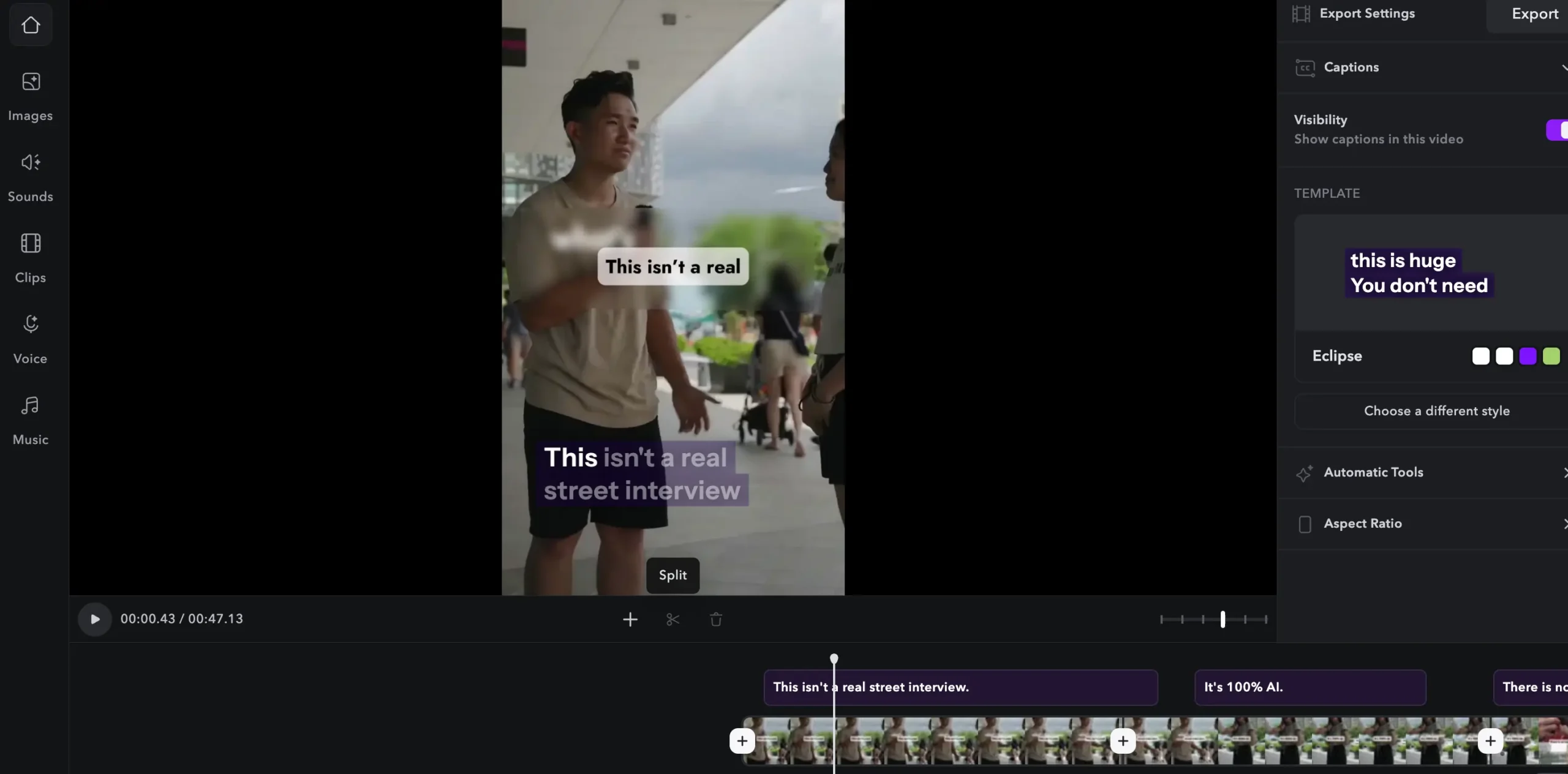
Step 2: Resize and Edit the Video
You cannot upload a 10-minute horizontal video to Instagram and expect good results. You need to use a video editing app to format the content for mobile viewing.
- Download an editing app like CapCut, VEED, or InShot to your phone or computer.
- Import your downloaded YouTube video file into a new project.
- Change the canvas size (aspect ratio). If you are creating a Reel, select 9:16. If you are creating a Feed post, select 4:5 (Portrait) or 1:1 (Square).
- Because your horizontal video will now have empty space at the top and bottom of the vertical canvas, you must scale the video up to fill the screen. Ensure the most important visual elements remain in the center of the frame.
- Trim the video. Find a highly valuable, punchy segment that lasts between 15 and 60 seconds. Delete the rest of the footage.
- Add captions. Many people watch Instagram on silent. Using your editor’s auto-caption feature ensures your message is communicated even without sound.
- Export the final video to your device in 1080p resolution.
Step 3: Upload and Optimize Your Post
Now that you have a perfectly sized, engaging video clip, it is time to publish it.
- Open the Instagram app and tap the “+” icon at the bottom of the screen.
- Select “Reel” or “Post” depending on your strategy.
- Choose your newly edited video from your gallery.
- Select an attractive cover image (thumbnail) so it looks professional on your profile grid.
- Write a compelling caption. Start with a hook that addresses your customer’s pain point. Explain the value of the video clearly.
- Include a strong Call to Action. Tell them exactly what to do next, such as “Click the link in our bio to watch the full video” or “Save this post for your next project”.
- Add 5 to 10 relevant hashtags to help the Instagram algorithm categorize your content.
- Tap “Share” to publish.
Related Articles
Leveraging Video for Long-Term Business Growth
Posting a video is a great first step, but how does it impact your bottom line? Digital marketing is an interconnected ecosystem.
When a local customer or online shopper sees your Reel, they begin to recognize your brand. When they click over to your Story and follow the link to your YouTube channel, they spend 10 minutes listening to your expertise. They are now a highly qualified, warm lead.
From YouTube, you should be directing these viewers to your website to sign up for a newsletter, download a free guide, or request a consultation. Once they enter their email address, they enter your CRM and email marketing pipelines. Having reliable software infrastructure is critical here. You can explore the best business software options to streamline this process at https://sonary.com/. By bridging the gap between social media awareness and backend customer management, you turn simple video views into predictable revenue.
Conclusion
Sharing your YouTube videos on Instagram is not a feature natively built into the apps, but the workarounds are straightforward and incredibly powerful for small businesses. By using the Story Link sticker for immediate traffic, and taking the time to properly resize your content for Reels and Feed posts, you maximize your visibility without having to film brand new content every single day.
Stop letting your hard work collect dust on a single platform. Start by grabbing the link to your most popular YouTube video right now, paste it into an Instagram Story sticker, and give your audience a clear reason to click.
FAQ
Can I share a YouTube video on Instagram directly without a third-party app?
No, there is no native “Share to Instagram Feed” button on YouTube. You must manually copy the link for a Story or download the video file to upload it as a post.
What is the best format for an Instagram Reel?
Instagram Reels require a 9:16 vertical aspect ratio. The recommended resolution is 1080 x 1920 pixels to maintain high visual quality.
How do I make a YouTube link clickable on an Instagram Feed post?
You cannot put clickable links in Instagram Feed captions. You must tell users to “click the link in our bio” and place the YouTube URL in your profile link section.
Why does my YouTube video look blurry on Instagram?
Instagram compresses large files. If you upload a 4K video, the compression can ruin the quality. Export your edited videos at 1080p before uploading to Instagram.
How long should a YouTube teaser be for Instagram?
For maximum retention, keep your teaser clips between 15 and 30 seconds. You want to provide enough value to capture interest but leave them wanting more.
Do I need permission to post someone else’s YouTube video on my business page?
Yes. Downloading and re-uploading copyrighted content without explicit permission can result in your Instagram account being penalized or banned.
Can I put a YouTube link in my Instagram bio?
Yes. Go to your profile, tap “Edit Profile”, go to the “Links” section, and tap “Add external link”. Paste your YouTube channel or specific video URL there.
Is IGTV still an option for long YouTube videos?
No, Instagram retired the standalone IGTV brand. All video posts under 60 minutes are now simply categorized as Instagram Videos and show up on your main profile grid.
Should I leave the YouTube watermark on the video when posting to Reels?
No. The Instagram algorithm penalizes videos that contain obvious watermarks from other platforms. Use the clean, original video file whenever possible.
How do I track if people are clicking my YouTube link from Instagram?
You can look at your Instagram Story Insights to see “Link Clicks”. Additionally, you can check your YouTube Studio analytics to see how much traffic is coming from external sources like Instagram.