9 Web Design Tips That Directly Grow Your Revenue (2026 Guide)



Most web design articles tell you what looks good. This one tells you what makes money– and why each specific change leads to more revenue.
If you’re a small or micro business owner in the US, your website has one job: turn visitors into paying customers. Every design decision either helps or hurts that outcome. This guide breaks down the 9 highest-impact web design changes, the dollars-and-cents reason each one works, and exactly how to do it yourself.
The 9 web design changes most proven to increase website revenue are:
- Fix your above-the-fold message and CTA
- Fix page speed
- Place social proof next to your CTA
- Add trust signals near every purchase decision
- Use visual hierarchy to guide buyers
- Design for mobile first
- Eliminate page clutter
- Use a single focused CTA per page
- Build a lead capture page.
Each tip below includes the revenue reason, effort level, and exact DIY steps.
How to Read This Guide
Each tip includes four things:
- 💰 Why it makes you more money– the real revenue mechanism behind the design change
- 📊 The stat– a verified, sourced figure so you know this isn’t guesswork
- ⚙️ Effort level– honest time and skill estimate
- 🛠️ Do it yourself– the exact tools and steps, starting at $0
Tip #1: Fix What Visitors See Before They Scroll
💰 Why It Makes You More Money
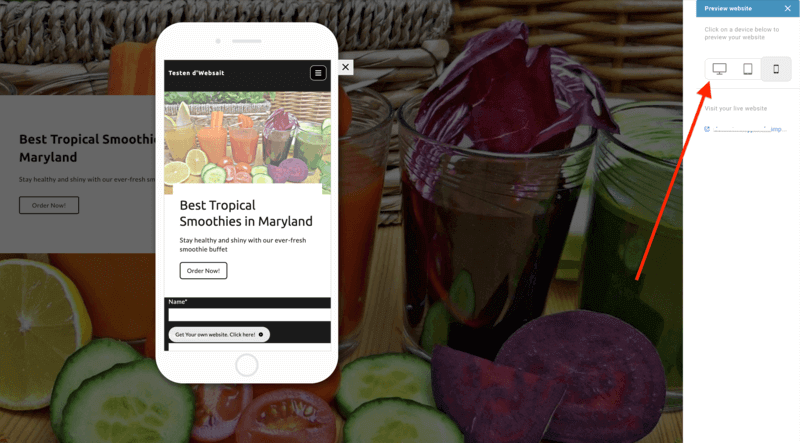
The space visible before a visitor scrolls- called “above the fold”- is where nearly all buying decisions are made or lost. If a new visitor can’t answer three questions within 5 seconds of landing on your page, most will leave without ever reading your offer:
- What exactly do you do?
- Is this for someone like me?
- What should I do right now?
Every visitor who bounces because your headline is vague, your CTA is buried, or your hero section is cluttered with stock photos is a lost sale. There’s no ad spend, no SEO work, and no social media post that can fix a broken landing message.
📊 The Stat
According to research compiled by Nielsen Norman Group, users spend 57% of their page-viewing time above the fold. The top of your page does the heavy lifting- everything below it is secondary.
⚙️ Effort Level: Low- 2 to 4 Hours
This is a copywriting and layout audit- no new design skills required.
🛠️ Do It Yourself
The rewrite formula for your hero headline:
[What you do] + [for whom] + [the main outcome]
| ❌ Before (vague) | ✅ After (revenue-driving) |
| “Welcome to ABC Plumbing” | “Same-Day Plumbing Repairs in Chicago- Licensed & Insured” |
| “We help businesses grow” | “SEO for Small US Businesses- More Google Traffic in 90 Days” |
| “Professional cleaning services” | “Home Cleaning in Austin, TX- Book Online in Under 2 Minutes” |
| Generic stock photo of a handshake | Real photo of you or your team doing the actual work |
| Three competing buttons |
On WordPress (Gutenberg):
- Open your homepage editor and click into your hero/header section
- Rewrite the headline using the formula above- be specific about location, outcome, or audience
- Change your CTA button text from something vague (“Learn More,” “Submit”) to something specific (“Get a Free Quote,” “Book My Appointment,” “Start My Free Trial”)
- Delete any secondary CTA buttons that compete with the main one
On WordPress with Elementor:
- Click the hero widget → Content tab → rewrite heading and button text
- Use the “Button” widget settings to make your CTA button at least 50px tall- larger tap area means more clicks, especially on mobile
Using Figma before building:
- Design your revised hero section in Figma first (use a 1440px desktop frame + a 375px mobile frame side-by-side)
- Install the free Figma to WordPress plugin from the Figma Community- design visually in Figma, then push directly to your WordPress site without manually rebuilding in the page editor
- Use Figma Mirror on your phone to preview exactly how the hero looks on mobile before committing
On Wix or Squarespace:
- Click directly on your hero text to edit it- no code needed
- In Wix, use the Strip settings to ensure your hero fills 100% of viewport height on all screen sizes
Tip #2: Fix Your Page Speed Before Anything Else
💰 Why It Makes You More Money
Slow pages are one of the most expensive problems a small business website can have- and most owners don’t even know they have it.
The math is direct: a faster site means more visitors complete the actions you want them to- calling, buying, booking, or filling out a form. Every second of delay is a percentage of revenue walking out the door.
A real-world example: Walmart reported that every 1-second improvement in load time increased conversions by 2%. For a small business generating $8,000/month online, a 2-second speed improvement could add $160–$320/month in additional revenue- from the same traffic, with zero additional marketing spend.
📊 The Stats
- Aberdeen Group research found a 1-second delay in load time causes a 7% drop in conversions, an 11% drop in page views, and a 16% drop in customer satisfaction
- Google research shows that as load time goes from 1 to 3 seconds, bounce probability increases 32%
- 53% of mobile visitors abandon a page that takes longer than 3 seconds to load on their phone
⚙️ Effort Level: Low to Medium- 1 Hour for quick wins, half a day for full optimization
Image compression alone (the biggest culprit) can be done in 30 minutes.
🛠️ Do It Yourself
Step 1- Get your current score (free, 5 minutes):
- Go to PageSpeed Insights– free from Google
- Enter your homepage URL- you’ll get separate scores for Mobile and Desktop
- Scores below 50 are urgent. Below 70, you’re leaving money on the table
- The report gives you a prioritized fix list- work from the top down
Step 2- Fix images (biggest win, fastest result):
- Go to TinyPNG.com– free, no account needed
- Drag and drop all images on your site- it compresses them 50–80% with no visible quality loss
- Re-upload the smaller versions to your site
On WordPress:
- Install the free Smush plugin- it auto-compresses every image you upload going forward
- Install WP Rocket (~$59/year) or the free W3 Total Cache– either can cut your load time by 30–40% through caching alone
Using Figma for new images:
- When exporting from Figma, always choose WebP format (File → Export → change PNG/JPG to WebP)
- WebP files are 25–35% smaller than JPEG/PNG with identical visual quality
- The Figma to WordPress plugin exports in WebP by default when using the “web optimized” export setting
Step 3- Cut unnecessary plugins and scripts:
- In WordPress, go to Plugins → Installed Plugins
- Deactivate any plugin you haven’t used in 3+ months- every active plugin adds page load time
- Remove social media feed embeds (they are speed killers that also send visitors away from your site)
Step 4- Upgrade hosting if images are already optimized and speed is still poor:
- Compare hosting options on Sonary’s web hosting comparison– switching from shared hosting to managed cloud hosting can cut load times by 50%+
Tip #3: Place Social Proof Where Buyers Feel Doubt – Not on a Separate Page
💰 Why It Makes You More Money
Most small business websites bury their testimonials on a “Reviews” page that almost nobody visits. This is one of the most common and most expensive web design mistakes.
Social proof doesn’t work because it exists on your site. It works because it appears at the exact moment a potential buyer is deciding whether to trust you.
That moment isn’t on a testimonials page. It’s right before they click your CTA button, right next to your pricing, and right above your contact form. Put your social proof there- next to the doubt- and it removes the doubt in real time.
📊 The Stats
- VWO A/B testing data found a 34% conversion lift from placing testimonials on landing pages near CTAs
- A case study from Augmentive found that adding a review widget directly below their landing page CTA increased their conversion rate by 68%
- 93% of consumers say online reviews impact their purchase decisions
⚙️ Effort Level: Low- 2 to 3 Hours
Your reviews already exist- you’re just moving them to where they work.
🛠️ Do It Yourself
Where to place social proof by page type:
| Page | Doubt moment | What to place there |
| Services page | “Will this actually work for me?” | A short quote from a client in a similar situation, placed mid-page before the CTA |
| Pricing page | “Is it worth the money?” | “Best $X I’ve spent on my business- [Name, Company, City]” next to each tier |
| Contact/booking form | “Will they actually follow up?” | “We respond to every inquiry within 2 business hours” + a 5-star Google review count directly above the Submit button |
Collect your social proof (if you don’t have enough yet):
- Email your 5 best clients: “Would you share 1–2 sentences about working with us? It would mean a lot.” Most will say yes
- Request more Google reviews at business.google.com– Google reviews show star ratings in search results, which drives clicks before someone even hits your site
Add it in WordPress:
- Install the free Smash Balloon Google Reviews plugin– it pulls your Google reviews directly into any page or widget area and auto-updates as new reviews come in
- For manual quotes: use the Gutenberg “Quote” block and place it as its own section directly above your CTA or contact form- not in a sidebar
Using Figma:
- Design a “Testimonial Card” component in Figma (name, quote, star rating, optional headshot)
- Save it as a Figma Component so you can reuse it across pages- edit the master and it updates everywhere
- Export via the Figma to WordPress plugin as a reusable Gutenberg block
Tip #4: Add Trust Signals at Every Point Where Money Changes Hands
💰 Why It Makes You More Money
Social proof (tip #3) builds general trust. Trust signals do something different- they prevent the specific, last-second anxiety that kills a sale: “Is it safe to give them my credit card information? Is this website legitimate?”
This anxiety spikes at the exact moment a visitor is about to enter their payment details, phone number, or email address. A well-placed trust signal at that moment reduces abandonment and directly increases completed transactions.
📊 The Stats
- Blue Fountain Media’s A/B test found that adding a Verisign trust badge to a checkout form increased conversions by 42%– the only change made was adding the badge
- Baymard Institute research found that nearly 1 in 5 shoppers abandon checkout specifically because they don’t trust the site with their credit card
- 61% of shoppers say they have decided not to make a purchase because there were no visible trust badges on a website
⚙️ Effort Level: Very Low- 1 to 2 Hours
This is adding elements to existing pages- no redesign needed.
🛠️ Do It Yourself
The trust signal starter kit (all free or low-cost):
| Trust Signal | Where to Place It | How to Add It |
| 🔒 “Secure checkout” text or lock icon | Directly below every payment form | Add as a text block under your form in Gutenberg or Elementor |
| ⭐ Google star rating count | Below your main CTA on homepage | Use Smash Balloon Google Reviews (free plugin) |
| 💳 Payment method icons (Visa, Mastercard, PayPal) | Checkout page, footer | Download free SVG icons from Brandfetch.com and add as an image block |
| 🔄 “Money-back guarantee” badge | Near pricing and CTA | Free badge templates on Canva- export as PNG, add as image block |
| 📍 Real business address + phone | Footer + Contact page | Plain text- costs nothing, signals you’re a real business |
| 🪪 Real photo of you or your team | About page + Homepage | A professional phone photo beats a stock photo every time |
For WooCommerce (WordPress e-commerce):
- Install the free WooCommerce Trust Badges plugin- it adds payment icons and security indicators to your cart and checkout pages automatically
- In your checkout template, add “🔒 100% Secure Checkout. Your data is protected.” as text directly above the payment fields
For lead gen forms (contact, quote request, booking):
- Add a single line below every form: “We never share your information. View our [Privacy Policy].”
- This “doubt remover” directly below the submit button works just like a trust badge for non-ecommerce sites- and one case study saw a 124% conversion lift just from adding doubt-removing text next to a CTA
Tip #5: Use Visual Hierarchy to Walk Visitors Toward a Purchase
💰 Why It Makes You More Money
Visual hierarchy is the design system that controls where a visitor’s eye goes first, second, and third on your page- guiding them from curiosity to confidence to action. Without it, every element on the page competes equally for attention. With it, visitors follow a path you’ve designed and arrive at your CTA feeling ready to click.
It’s the difference between a page that converts visitors and one that just informs them.
The three-step buying journey, your visual hierarchy should match:
- Hook → Large, specific headline that speaks to their exact situation
- Convince → Supporting visuals and copy that prove you can solve it
- Convert → One prominent CTA that feels like the obvious next step
📊 The Stat
A/B testing across multiple platforms shows that layout redesign tests produce the largest conversion lifts of any test type- between 18% and 40%, making visual hierarchy one of the highest-leverage design investments you can make.
⚙️ Effort Level: Medium- 3 to 5 Hours
Requires rethinking your page layout, but no advanced design skills needed.
🛠️ Do It Yourself
Apply these visual weight rules to every key page:
- Your H1 headline should be the physically largest text on the page (minimum 2× body text size)
- Your CTA button should be the highest-contrast element on the page- if it blends in, it converts less
- Use whitespace aggressively around your headline and CTA. Empty space creates emphasis- it’s free and severely underused by small business sites
- Use your brand’s most prominent color only for CTAs and links- not decoratively- so it signals “click here” every time it appears
In WordPress (Gutenberg):
- Use the “Cover” block for your hero- gives you a full-width headline layer over an image with built-in size control
- Use the “Group” block with padding settings to create breathing room around your CTA section
- Use the “Spacer” block between sections- 40–80px of spacing between sections makes pages feel organized and scannable
Using Figma:
- Install the free Stark plugin– it tests visual contrast and accessibility across your entire design
- Use Figma’s “Frames” with Auto Layout to enforce consistent spacing rules- set your padding values once and they apply everywhere
- Create a simple hierarchy wireframe in Figma before building: H1 → subheadline → CTA (top section), then benefits → social proof → CTA (mid-section), then FAQ → final CTA (bottom). Export it as a PDF reference before you start building in WordPress
Check your hierarchy with the blur test:
- Take a screenshot of your page
- Apply a heavy blur filter to it (any photo editor works)
- The elements that still stand out when blurry are what your eye actually sees first- your CTA button should be one of them
Tip #6: Design for Mobile First- Your Revenue Depends on It
💰 Why It Makes You More Money
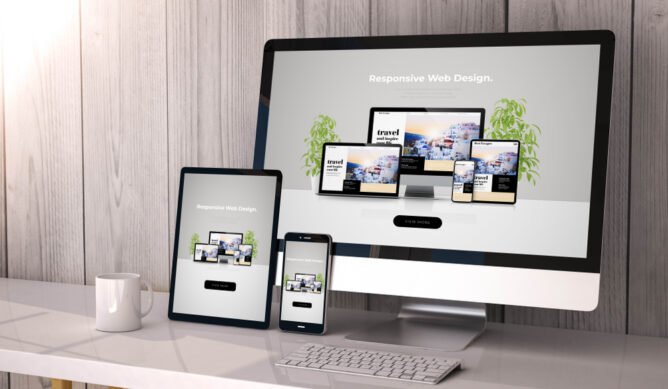
More than 60% of US web traffic now comes from mobile devices. If your mobile experience is slow, your buttons are too small to tap, or your CTA is buried below three sections of desktop-optimized content, you are losing the majority of your potential customers before they even read your offer.
There’s also a direct SEO consequence: Google uses mobile-first indexing, meaning it ranks the mobile version of your site. A broken mobile layout directly suppresses your search rankings- reducing both the traffic you get and the percentage of it that converts.
📊 The Stat
Mobile-optimized landing pages convert 26% higher than non-optimized ones. Combined with the majority of US traffic coming from phones, fixing mobile is the single highest-traffic-volume conversion lever available to most small businesses.
⚙️ Effort Level: Medium- Half a day to a full day
Modern builders handle much of this automatically- the effort is testing and targeted fixes.
🛠️ Do It Yourself
Test first- do this right now:
- Open your website on your actual phone (not a desktop browser preview window)
- Try to complete your primary action- book, call, buy, or fill out a form- in under 30 seconds
- Write down every friction point. Those are your fix targets
The most common mobile design problems and their fixes:
| Problem | Fix |
| Buttons are too small to tap easily | Set the button minimum height to 48px in your CSS or page builder settings |
| Text requires pinching to read | Use a minimum 16px base font size for all body text |
| CTA is below multiple content sections | In mobile view, move your CTA block to above the fold |
| Images cause a slow load on cellular | Compress images to under 100KB using TinyPNG, and use the WebP format |
| Navigation is cluttered | Reduce to 5 items max; use a hamburger menu on mobile |
| Pop-ups cover the whole screen | Disable full-screen pop-ups on mobile entirely- Google penalizes them too |
In WordPress with Elementor:
- Click the mobile icon at the bottom of the editor to switch to mobile editing mode
- Every setting (font size, padding, element visibility) can be set per device– desktop changes don’t affect mobile
- Right-click any decorative element → “Hide on Mobile” to reduce mobile clutter without affecting desktop
In Figma:
- Always design with a 375px mobile frame alongside your 1440px desktop frame
- Use Auto Layout in Figma components so they reflow intelligently at different widths
- When using the Figma to WordPress plugin, select “responsive export”- this preserves your mobile layout rules in the WordPress output rather than only exporting the desktop version
Tip #7: Remove Everything on Your Page That Isn’t Earning Its Keep
💰 Why It Makes You More Money
Every element on your page that doesn’t move a visitor toward your CTA is competing with the elements that do. Carousels, social media feeds, “latest posts” widgets, competing navigation CTAs, auto-play videos, and sidebar widgets all steal attention from your conversion goal- and each one slightly reduces the probability that a visitor clicks what you actually want them to click.
Minimalism isn’t a design style preference. For small businesses, it’s a revenue strategy.
📊 The Stat
Wordstream research found that a single, focused CTA in an email increases clicks by over 371% and sales by 1,617% compared to emails with multiple CTAs. The same principle applies to web pages: landing pages with a single CTA convert 32% better than pages with two or more competing CTAs.
⚙️ Effort Level: Low- 2 to 4 Hours
You’re removing things, not adding them. This is the most underrated lever in small business web design.
🛠️ Do It Yourself
The 5-second test- do this first:
- Open your most important page (usually your homepage or main service/product page)
- Set a 5-second timer
- Ask: can a brand-new visitor immediately identify exactly what to do next?
- If the answer isn’t instant and obvious, you have a clutter problem
What to cut from most small business websites:
- [ ] Carousels/sliders → Replace with one static hero image. Sliders have near-zero engagement after the first slide and slow down your page significantly
- [ ] Sidebar widgets on service and landing pages → Remove sidebars on pages where you want conversions. In WordPress: Page Attributes → Template → “Full Width”
- [ ] Social media feed embeds → They load slowly and actively send visitors away from your site before they convert
- [ ] Multiple CTAs in your navigation header → One navigation CTA max- usually “Get a Quote,” “Book Now,” or “Shop Now”
- [ ] “Latest Blog Posts” block on your homepage → On high-intent pages, this distracts service buyers from your primary CTA
See what visitors actually interact with (free):
- Install Microsoft Clarity (free WordPress plugin)- it gives you session recordings and heatmaps showing exactly where visitors click, scroll, and stop
- After one week of data, remove every element in your heatmap that shows zero or near-zero click activity- if nobody’s using it, it’s only hurting you
Tip #8: Use One Clear CTA Per Page- And Make It Impossible to Miss
💰 Why It Makes You More Money
Your call-to-action button is the one element that converts a visitor into revenue. If it’s vague, small, low-contrast, or buried below competing content, you are losing sales at the final yard.
The good news: CTA optimization is the highest-return, lowest-effort design change most small businesses can make. You’re not rebuilding a page- you’re improving the one element that triggers everything.
📊 The Stats
- HubSpot research on 330,000+ CTAs found personalized CTAs convert 202% better than generic defaults
- Placing a CTA directly after testimonials increases conversions by 25–68%– because the visitor is at peak trust right after reading a positive review
- Adobe research found high-contrast CTA buttons improve visibility by 50% compared to low-contrast ones
⚙️ Effort Level: Very Low- 30 to 60 Minutes
This is a copy change and a color check- two of the fastest wins in web design.
🛠️ Do It Yourself
The CTA copy upgrade formula:
| ❌ Generic (low-converting) | ✅ Specific (high-converting) |
| “Submit” | “Send My Free Quote Request” |
| “Contact Us” | “Talk to a Real Person- Call Us Now” |
| “Learn More” | “See How It Works in 2 Minutes” |
| “Sign Up” | “Start My 14-Day Free Trial” |
| “Buy Now” | “Get [Product Name]- Ships in 24 Hours” |
Check your button contrast right now (free, 2 minutes):
- Go to WebAIM Contrast Checker
- Enter your button color and your page background color
- You need a minimum ratio of 4.5:1- aim for 7:1+ for maximum visibility
- If your button blends into the page, it converts less, period
In WordPress:
- In Gutenberg: click your button block → Block settings → Background color. Change it to your highest-contrast brand color
- In Elementor: click the button widget → Style tab → Button background color
- Add whitespace around every CTA button- in Gutenberg, use the Spacer block above and below; in Elementor, use padding settings in the Advanced tab
Using Figma:
- Install the free Color Contrast plugin in Figma Community- it checks all button contrast ratios in your design before you build
- Use Figma’s Variables feature to store your CTA color as a global variable- change it once and it updates across your entire design
The CTA placement rule: On any page longer than one screen, place your CTA in three locations: at the top (above the fold), in the middle (after your strongest benefit or testimonial), and at the bottom. Pages with CTAs at both top and bottom convert 25% better than single-placement pages.
Tip #9: Build One Lead Capture Page With a Free Resource
💰 Why It Makes You More Money
On any given month, roughly 97–98% of your website visitors leave without taking action. Without an email address, those people are gone forever- you have no way to follow up, no way to stay top of mind, and no way to convert them when they’re finally ready to buy.
A lead capture page with one genuinely useful free resource lets you collect email addresses in exchange for value- and email remains the highest-ROI marketing channel for small businesses, generating an average of $36 for every $1 spent according to Litmus research.
This is a one-time setup that compounds in value every month.
📊 The Stat
The average ecommerce conversion rate is 2.9%– meaning 97% of visitors don’t buy on their first visit. A lead capture funnel converts the “not yet” visitors into a list you can nurture until they become buyers.
⚙️ Effort Level: Medium- 4 to 8 Hours One-Time Setup
Once built, it runs on its own with zero ongoing effort.
🛠️ Do It Yourself
Step 1- Create the free resource (2–4 hours, $0):
The best free resources are short (1–3 pages), specific, and immediately useful. They should solve one real problem your ideal customer has right now.
Ideas by business type:
| Business Type | Free Resource (US-Focused) |
| Accountant or bookkeeper | “2026 Small Business Tax Deadline Calendar” (1-page PDF) |
| Contractor or home services | “5 Questions to Ask Any Contractor Before Signing a Contract” |
| Personal trainer | “7-Day Beginner Workout Plan- No Gym Required” |
| Real estate agent | “First-Time Buyer’s Checklist for [City Name] in 2026” |
| Restaurant | “Our Top 3 Recipes- Exclusive for Email Subscribers” |
| Web designer or consultant | “Homepage Audit Checklist- 10 Things Killing Your Conversions” |
How to create it:
- Go to Canva (free tier) → search “lead magnet checklist” or “ebook template”
- Customize with your content and branding- colors, logo, font
- Export as PDF
Step 2- Build the lead capture page (1–2 hours, $0):
On WordPress:
- Install MailerLite (free up to 1,000 subscribers- includes landing page builder and email automation)
- OR use Elementor free tier → choose a “Landing Page” template → add your headline, 3 benefit bullet points, and a form block connected to your email list
- Set up a welcome email that automatically delivers the PDF download link- MailerLite has free automation for this
On Wix or Squarespace:
- Both have built-in landing page templates- choose “Lead Capture” style
- Connect the form to their native email marketing tools (Wix Ascend or Squarespace Email Campaigns)
- Upload your PDF to a hidden page and link to it in the automated welcome email
Step 3- Drive traffic to the page (30 minutes setup, zero ongoing cost):
- Add a banner or subtle pop-up on your homepage: “Free: [Resource Name] for US Small Business Owners → Download Now”
- Add one line to your email signature: “Free [Resource]: [link]”
- Post about it on LinkedIn or your primary social platform once per week
Using Figma:
- Design your landing page in Figma first (1440px desktop + 375px mobile frame, side by side)
- Use the Figma to WordPress plugin to push the finished design directly to a new WordPress page
- This preserves your layout, spacing, and typography exactly as designed- saving 2–3 hours of manual rebuilding in the WordPress block editor
Revenue Priority Matrix: Where to Start
Not all 9 tips deliver equal returns for equal effort. Use this to sequence your work:
| Priority | Tip | Time to Implement | Revenue Impact | Start Here If… |
| 🔥 1st | Fix above-the-fold CTA (#1) | 2–4 hours | Very High | Your bounce rate is above 60% |
| 🔥 2nd | Fix page speed (#2) | 1–4 hours | Very High | Your Google PageSpeed score is below 60 |
| 🔥 3rd | Add trust signals to forms (#4) | 1–2 hours | High | You have a payment or contact form |
| ⭐ 4th | Reposition social proof (#3) | 2–3 hours | High | You have reviews but they’re buried on a separate page |
| ⭐ 5th | One focused CTA per page (#8) | 30–60 min | Medium-High | You have multiple competing buttons |
| ⭐ 6th | Mobile-first design (#6) | Half day | High | Mobile is 50%+ of your traffic |
| 📈 7th | Remove clutter (#7) | 2–4 hours | Medium-High | Your pages feel busy or overwhelming |
| 📈 8th | Apply visual hierarchy (#5) | 3–5 hours | Medium-High | Visitors scroll past your CTA without clicking |
| 📅 9th | Lead capture page (#9) | 4–8 hours | Compounds over time | You want long-term email list growth |
FAQ
What web design changes make the biggest difference to revenue? The three highest-impact changes are: (1) fix your above-the-fold headline and CTA so visitors immediately know what to do, (2) improve page speed- especially on mobile, and (3) place social proof directly next to your conversion points. These three alone can meaningfully move revenue without a full redesign.
How do I redesign my website without hiring a developer? Use a page builder like Elementor (WordPress), Wix, or Squarespace for visual editing with no code. For design work, use Figma (free tier) and the Figma to WordPress plugin to design pages visually and push them to your site directly. For graphics, use Canva. Compare full options on Sonary’s web design software page.
What does a website redesign cost for a US small business in 2026? With modern tools, the entire setup can cost $0–$150/year. Free: Figma, Canva, TinyPNG, Microsoft Clarity, MailerLite (under 1,000 subscribers), Smush, WP Rocket (~$59/year), Elementor Pro (~$59/year). Full professional setup with these paid tools: under $150/year. Compare platform options on Sonary’s website builders for small businesses comparison.
What is the Figma to WordPress plugin? A free plugin available in the Figma Community that lets you design your web pages in Figma and push them directly to WordPress as blocks- without manually rebuilding them in Gutenberg or Elementor. It preserves your layout, typography, and spacing exactly as designed, saving hours of rebuild time.
How do I know which pages on my site are hurting conversions? Install Microsoft Clarity (free WordPress plugin)- it gives you heatmaps and session recordings showing exactly where visitors click, scroll, and abandon. Also check Google Analytics (free): look for pages with bounce rates above 70% and session durations under 30 seconds- those are your priority fix pages.
Do these tips apply to service businesses or only e-commerce? All 9 tips apply to both. For service businesses (plumbers, consultants, lawyers, contractors), the “conversion” is typically a form submission, phone call, or booking- and the same design principles around trust signals, CTA clarity, and social proof apply equally.
Bottom Line
Your website isn’t a brochure- it’s a 24/7 sales system. Every design decision either supports or undermines that system. The 9 tips in this guide aren’t about aesthetics; they’re about removing every obstacle between a visitor and a conversion.
Start with the fastest, highest-leverage changes: your above-the-fold message, your page speed, and your trust signals. These three alone- implementable in a weekend with the free tools listed above- can meaningfully grow your revenue from the same traffic you’re already getting.
Then layer in the rest over the following weeks. Visual hierarchy, mobile optimization, clutter removal, and eventually a lead capture funnel that turns your traffic into an owned audience you can market to forever.
Tools referenced in this guide- compare them on Sonary:
- Website builders for small businesses– Wix, Hostinger, Squarespace, and more
- Graphic design tools– including Canva, Adobe Express
- Web design software– full comparison of design tools
- Web hosting services– for speed improvements
- SEO tools– for tracking rankings after your design improvements
Last updated: March 2026 | Written for small and micro business owners in the United States
All statistics linked to original sources. DIY instructions verified for WordPress (Gutenberg + Elementor), Wix, Squarespace, and Figma.