Best Project Management Software for 2026

Find the best project management software. Compare top project management providers by features, prices, and benefits. Dive into our project management comparison list to find the best tools & software suited for your business needs
- Affordable plans suitable for all businesses
- Free training & 24-hour support
- 100+ customizable features
- Instantly organize with 200+ templates
- 40+ integration apps including Zoom
- Free, fully functional mobile app
- Track progress with real-time dashboards
- Custom tools fit your work at any scale
- Access proejct templates and Gantt charts
- Easy-to-use & intuitive interface
- Trusted by great brands
- Automate tasks and save time
- Trusted by 20,000+ customers worldwide
- Secure data with enterprise-grade tools
- Custom dashboards give instant insights
- One place for all your tasks and files
- Pre-made templates for quick setup
- Supports third-party app integrations
- Team workload tracking
- Mobile app to track on-the-go
- Automated project & task workflows
- 17+ years industry experience
- Award-winning software
- Personal to-do lists & automatic reminder emails
- Trusted by 20,000 companies
- Start immediately with pre-built templates
- 30-day free trial
- Integrated communication tracking tools
- Forecast revenue with powerful insights
- Automate workflows to save time
Let’s be honest: “Project Management” sounds intimidating. It conjures images of complex charts, certification exams, and people in suits talking about “synergy.”
But if you’ve ever planned a birthday party, renovated a kitchen, or just tried to get three people to agree on a meeting time, you are a project manager.
The only difference between you and the “pros” is the toolkit. While you might be juggling mental notes, email threads, and a frantic group chat, professional teams use Project Management (PM) Software to keep their sanity intact.
Key Takeaways:
- AI is standard, not optional: In 2025, the best tools (like ClickUp and Asana) use AI not just to write text, but to predict project delays and summarize meeting notes automatically.
- Specialization wins: Generic tools are great, but industry-specific platforms (like Teamwork for client work or Pipedrive for sales-led projects) often provide better ROI for niche businesses.
- Pricing is shifting: While many tools offer free plans, “per-user” costs for advanced features like Gantt charts and resource workload views have stabilized around the $9–$12/month mark.
- Integration is king: The ability to sync with CRMs (HubSpot, Salesforce) and communication tools (Slack, Teams) is now a primary deciding factor for SMBs.
- Best Overall: ClickUp and monday.com lead the pack with a balance of power and usability.
- Best for Client Work: Teamwork includes built-in billing and invoicing features essential for agencies.
- Best for Sales Teams: Pipedrive and HubSpot offer project tools directly tied to your CRM, preventing data silos.
- Trend to Watch: 2026 sees a massive shift toward AI automation—tools that don’t just list tasks but predict risks and draft updates for you.
Recommended free project management tools
These are some of the most recommended online to do lists apps:
 Affordable plans suitable for all businesses
Free training & 24-hour support
Track progress with real-time dashboards
Custom tools fit your work at any scale
Trusted by 20,000+ customers worldwide
Secure data with enterprise-grade tools
Easy-to-use & intuitive interface
Trusted by great brands
Affordable plans suitable for all businesses
Free training & 24-hour support
Track progress with real-time dashboards
Custom tools fit your work at any scale
Trusted by 20,000+ customers worldwide
Secure data with enterprise-grade tools
Easy-to-use & intuitive interface
Trusted by great brands What Is Project Management Software?
You can certainly manage a project using Google Sheets, email threads, or even sticky notes. But while those tools capture data, they don’t capture workflow.
Project management software is a specialized operating system for your work. It solves the complexity that arises when teams grow beyond three or four people—where “who is doing what?” becomes a difficult question to answer.
Unlike a static spreadsheet, these tools are dynamic:
- They provide perspective: Engineers can view tasks on a Kanban board, while executives view the same data on a timeline or Gantt chart.
- They automate administration: Instead of manually emailing a colleague when you finish a task, the software notifies them automatically, moving the project forward instantly.
- They monetize progress: For agencies, they track billable hours against budgets in real-time, ensuring you actually get paid for the work you do.
Why You Need It (Even for Small Projects)
You might think, “I can just use a spreadsheet.” And you can—until you can’t. Spreadsheets are static (they just sit there). PM software is active:
- It Nags You (So You Don’t Have To): It sends automatic reminders when due dates approach.
- It Protects You: It keeps a history of every change, so you can always see who deleted that important file.
- It Connects the Dots: It links the “To-Do” item directly to the document you need to finish it, saving you from digging through Google Drive.
The “Views” Explained: How to Visualize Your Work
Most software today offers multiple “Views.” Don’t let the names scare you. Here is the plain-English translation of what they are and when to use them.
1. The List View (The “Grocery List”)
- What it is: A simple vertical checklist.
- Best For: Your daily personal to-dos or quick admin tasks.
- Why use it: It’s fast, simple, and satisfying to check things off. It offers the highest “information density” (you can see 50 tasks on one screen).
2. The Kanban Board (The “Sticky Note Wall”)
- What it is: Vertical columns like “To Do,” “Doing,” and “Done.” You drag a card from left to right as you work.
- Best For: Continuous workflows where tasks don’t depend on each other. Think: Customer Support Tickets or Blog Posts.
- Why use it: It’s visual. You can instantly see if the “Doing” column is overloaded (a bottleneck) while the “Done” column is empty.
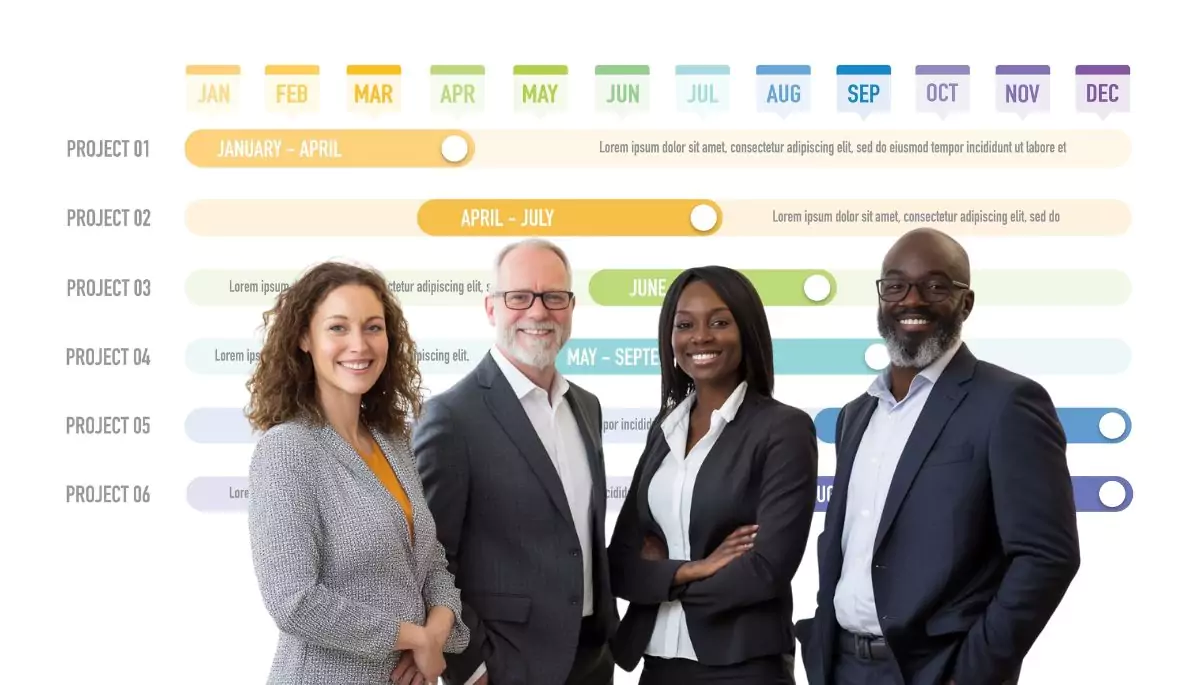
3. The Gantt Chart (The “Construction Timeline”)
- What it is: A horizontal timeline that shows how tasks overlap.
- Best For: Projects where Order Matters. You can’t put the roof on a house (Task B) until the walls are up (Task A).
- Why use it: It prevents disaster. If “Wall Building” gets delayed by a week, the Gantt chart automatically pushes “Roofing” back a week, so you don’t have a roofing crew standing around with nothing to do.
Comparison Table: The 2026 “Shortlist”
| Tool | Best For… | The “Vibe” | AI Smarts? |
| monday.com | Visual Learners | Colorful, fun, and button-pushing satisfaction. | Yes |
| ClickUp | The “Do It All” | Power-user heaven. Replace your Docs & Chat apps. | Yes (Brain) |
| Smartsheet | Excel Lovers | Serious, structured, and data-heavy. | Yes |
| Teamwork | Agencies | Client-focused. Tracks billable hours like a pro. | Yes |
| Asana | Team Clarity | Zen-like, calm, and very structured. | Yes |
| Trello | Simplicity | The ultimate digital sticky-note wall. | Yes |
| Zoho Projects | Budget Conscious | Enterprise features at a “coffee shop” price. | Yes (Zia) |
Top Project Management Reviews
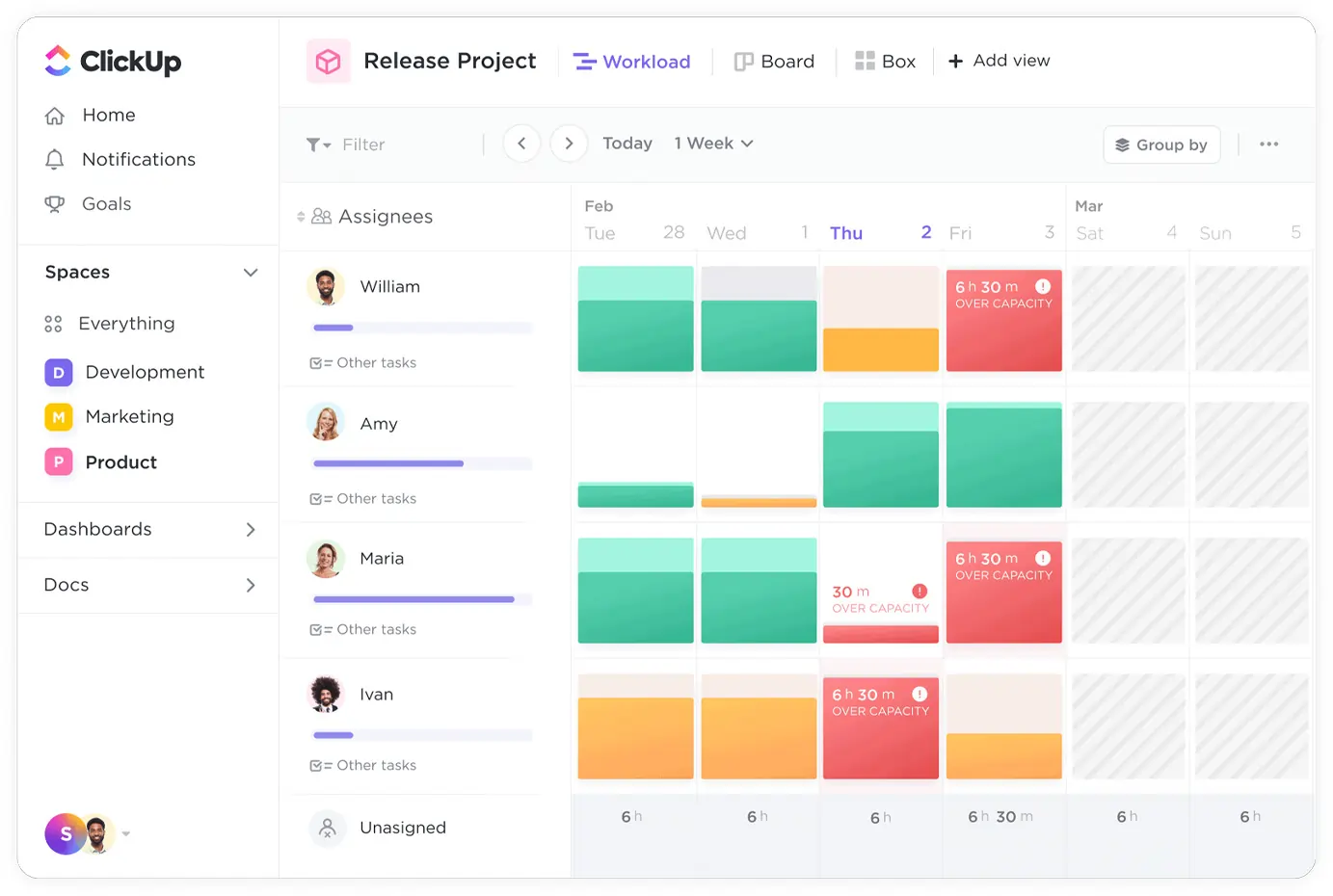
ClickUp: Best for All-in-One Productivity
ClickUp positions itself as the “one app to replace them all.” It combines tasks, docs, goals, and whiteboards into a single highly customizable platform. It is particularly strong for teams that want to granularly configure their workspace views.


Features
General Features

Communication
Productivity
Analytics & Reports
Pros & Cons
Pros
Cons

Key Features:
-
Everything view (see tasks across all projects).
-
Built-in Docs and Whiteboards.
-
ClickUp Brain (AI) for summaries and task generation.
-
15+ custom views (Gantt, Box, Mind Map).
Pros:
-
Extremely feature-rich even on low tiers.
-
Highly customizable interface.
-
Frequent updates and new feature releases.
-
Cost-effective for small teams.
Cons:
-
Steep learning curve due to the sheer number of options.
-
Mobile app can feel cluttered compared to desktop.
-
Occasional performance lag with very large datasets.
-
Setup requires time to configure correctly.
Best For: Startups and Agile teams who want to consolidate multiple apps (Docs, Jira, Slack) into one.
Expert Insight: “Best value for startups that want flexibility and won’t outgrow their tool anytime soon.”
monday.com: Best for Visual Project Tracking
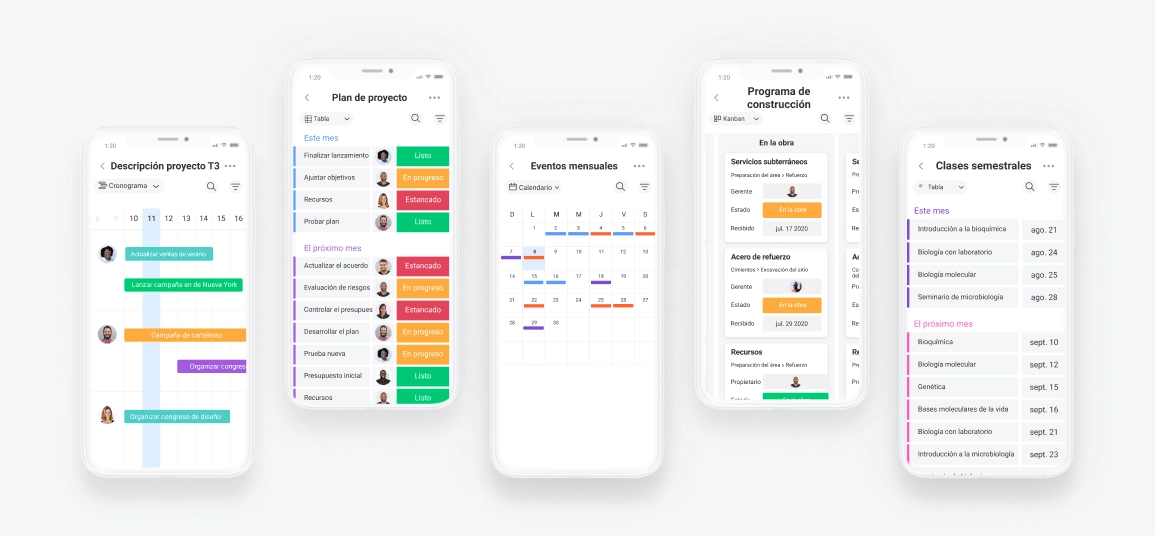
monday.com is a Work OS that excels in visual clarity. Its color-coded boards and intuitive drag-and-drop interface make it a favorite for marketing and creative teams who need to see project status at a glance.

Features
General Features
Communication
Productivity
Analytics & Reports
Pros & Cons
Pros
Cons
Key Features:
-
Highly visual customizable dashboards.
-
200+ templates for instant setup.
-
Automations center (low-code workflow building).
-
Integration with Zoom, Slack, and Google Drive.
Pros:
-
Extremely intuitive and easy to adopt.
-
Excellent automation capabilities.
-
Great mobile app experience.
-
Strong community support and templates.
Cons:
-
Pricing can get expensive as you add seats/features.
-
Gantt charts are gated behind higher tiers.
-
Task dependencies can be finicky to set up.
-
Guest access can significantly increase costs.
Best For: Marketing teams, HR, and non-technical departments who value visuals over complex data.
Expert Insight: “The most user-friendly option if your team hates complex software.”
Smartsheet: Best for Spreadsheet Lovers
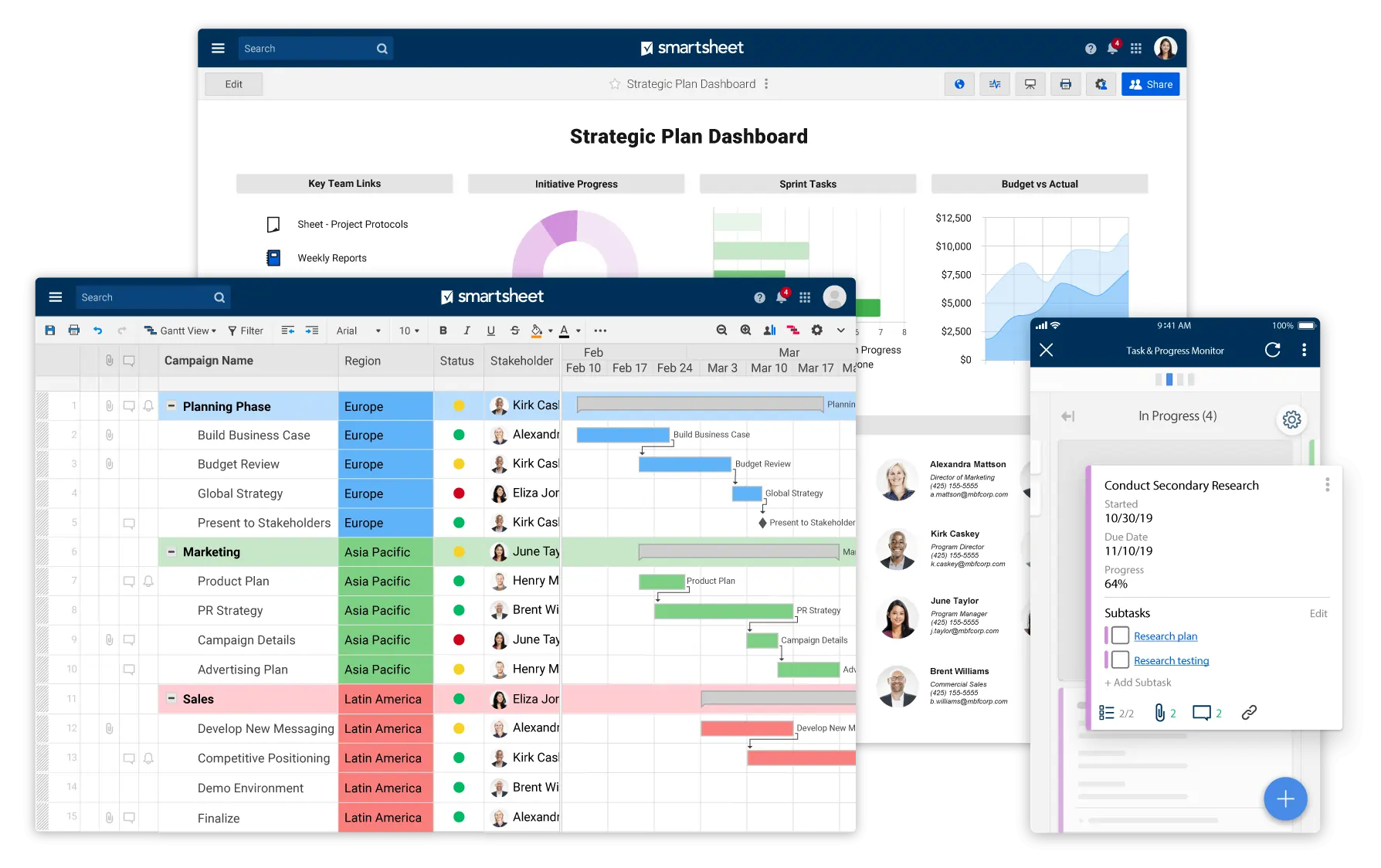
If your team runs on Excel but needs more power, Smartsheet is the logical next step. It retains the familiar grid view but adds powerful project management features like Gantt charts, automation, and reporting.

Features
General Features
Communication
Productivity
Analytics & Reports
Pros & Cons
Pros
Cons
Key Features:
-
Grid, Gantt, Card, and Calendar views.
-
Critical Path analysis.
-
Automated workflows based on cell changes.
-
Strong enterprise-grade security.
Pros:
-
Zero learning curve for Excel users.
-
Powerful reporting across multiple projects.
-
Highly flexible data management.
-
Secure enough for large enterprises.
Cons:
-
Interface feels dated compared to modern tools like Monday or Asana.
-
Real-time collaboration is less fluid than in ClickUp.
-
Not ideal for creative/visual workflows.
-
Auto-save features can sometimes be tricky.
Best For: Operations teams, construction managers, and enterprise users migrating from spreadsheets.
Expert Insight: “The bridge between Excel chaos and structured project management.”
Zoho Projects: Best for Budget-Conscious Teams
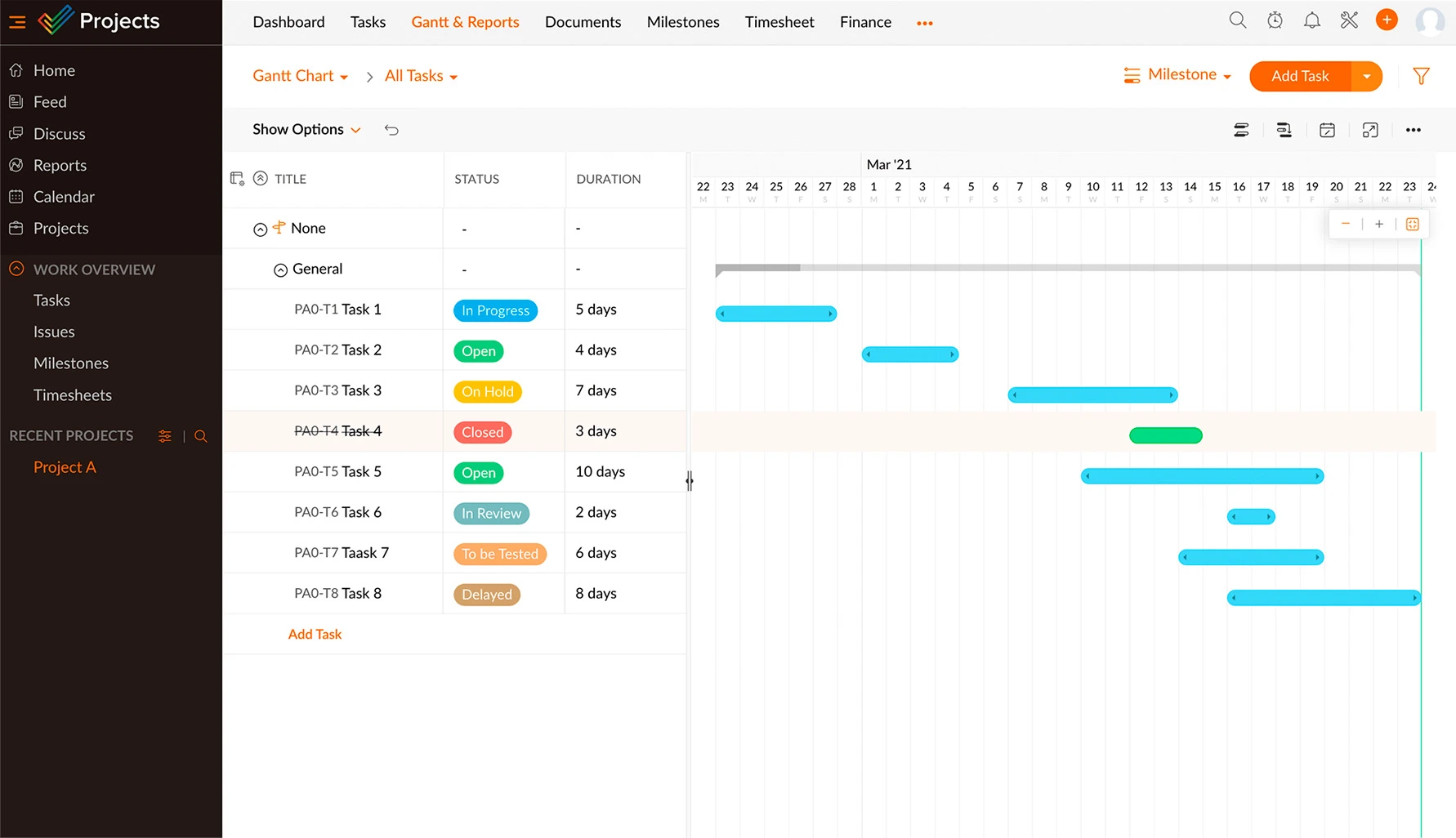
Zoho Projects offers a robust set of classic project management tools (Gantt chart, timesheets, bug tracking) at a very aggressive price point. It integrates natively with the massive Zoho ecosystem (CRM, Books, Mail).
Features
General Features
Communication
Productivity
Analytics & Reports
Pros & Cons
Pros
Cons
Key Features:
-
Task dependency management.
-
Built-in chat and forums.
-
Issue/Bug tracking included.
Pros:
-
One of the most affordable options on the market.
-
Seamless integration if you already use Zoho CRM.
-
Includes time tracking (often a paid add-on elsewhere).
-
Good mobile app functionality.
Cons:
-
Interface is functional but not inspiring/modern.
-
Setup can be complex for non-technical users.
-
Customer support response times can vary.
-
Storage limits on lower plans.
Best For: Small businesses on a tight budget and existing users of the Zoho ecosystem.
Expert Insight: “Unbeatable value for money if you need core PM features without the bells and whistles.”
Wrike: Best for Complex Custom Workflows
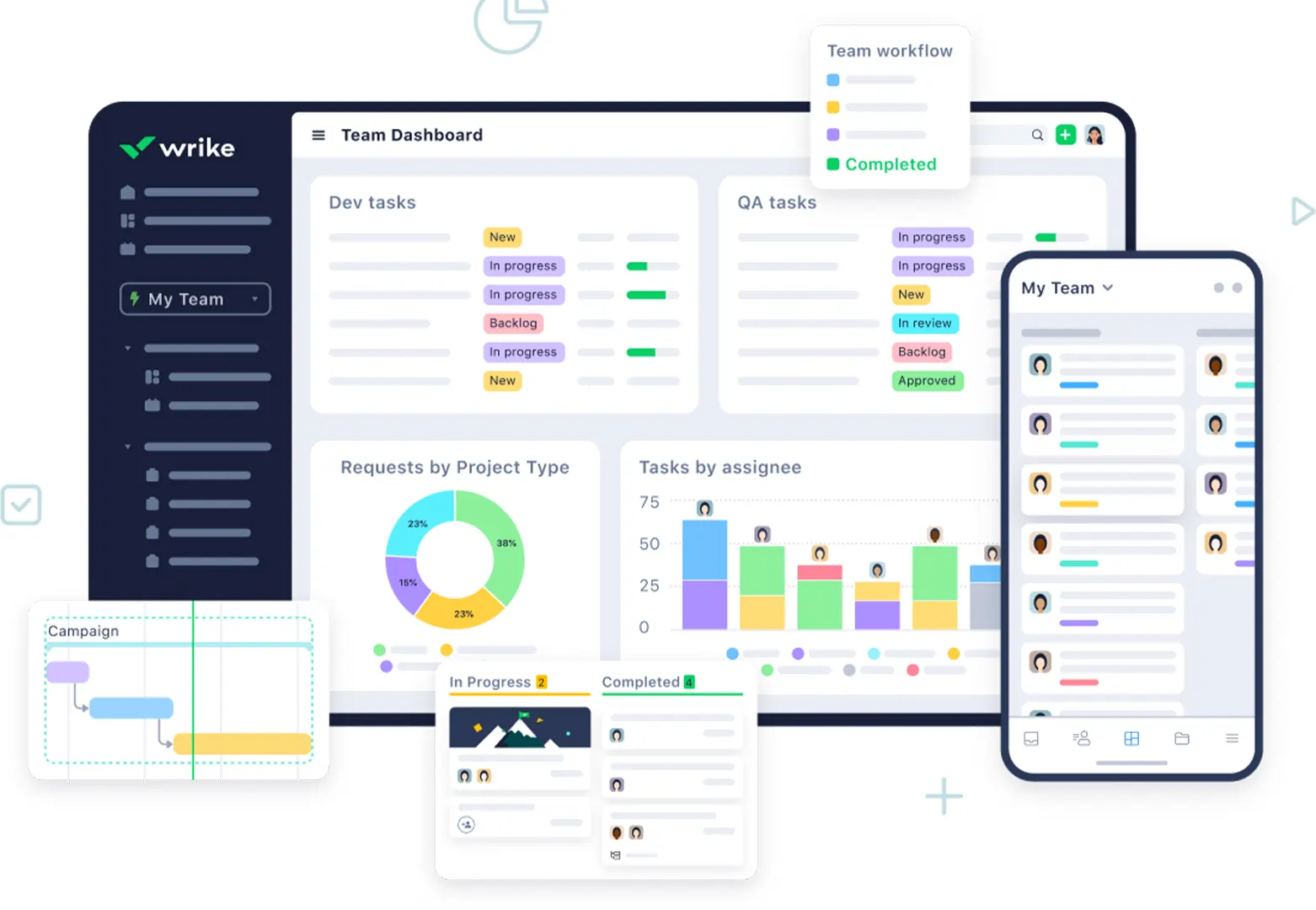
Wrike is a powerhouse for teams that need detailed reporting, proofing, and strict workflow governance. It is widely used by marketing agencies and professional services who need to approve assets within the tool.

Features
General Features
Communication
Productivity
Analytics & Reports
Pros & Cons
Pros
Cons
Key Features:
-
Customizable request forms.
-
Visual proofing and approval tools.
-
Detailed time tracking and budgeting.
-
Cross-tagging (tasks can live in multiple folders).
Pros:
-
Excellent for creative approval workflows.
-
Scales very well for mid-to-large enterprises.
-
Versatile folder/project structure.
-
Strong security features.
Cons:
-
Interface can feel dense and overwhelming.
-
Steeper learning curve than Asana.
-
Onboarding often requires training.
-
Free plan is somewhat limited.
Best For: Marketing agencies and creative teams requiring proofing and approvals.
Expert Insight: “The go-to choice for creative teams that need to manage digital asset approvals.”
HubSpot: Best for Sales & Marketing Alignment
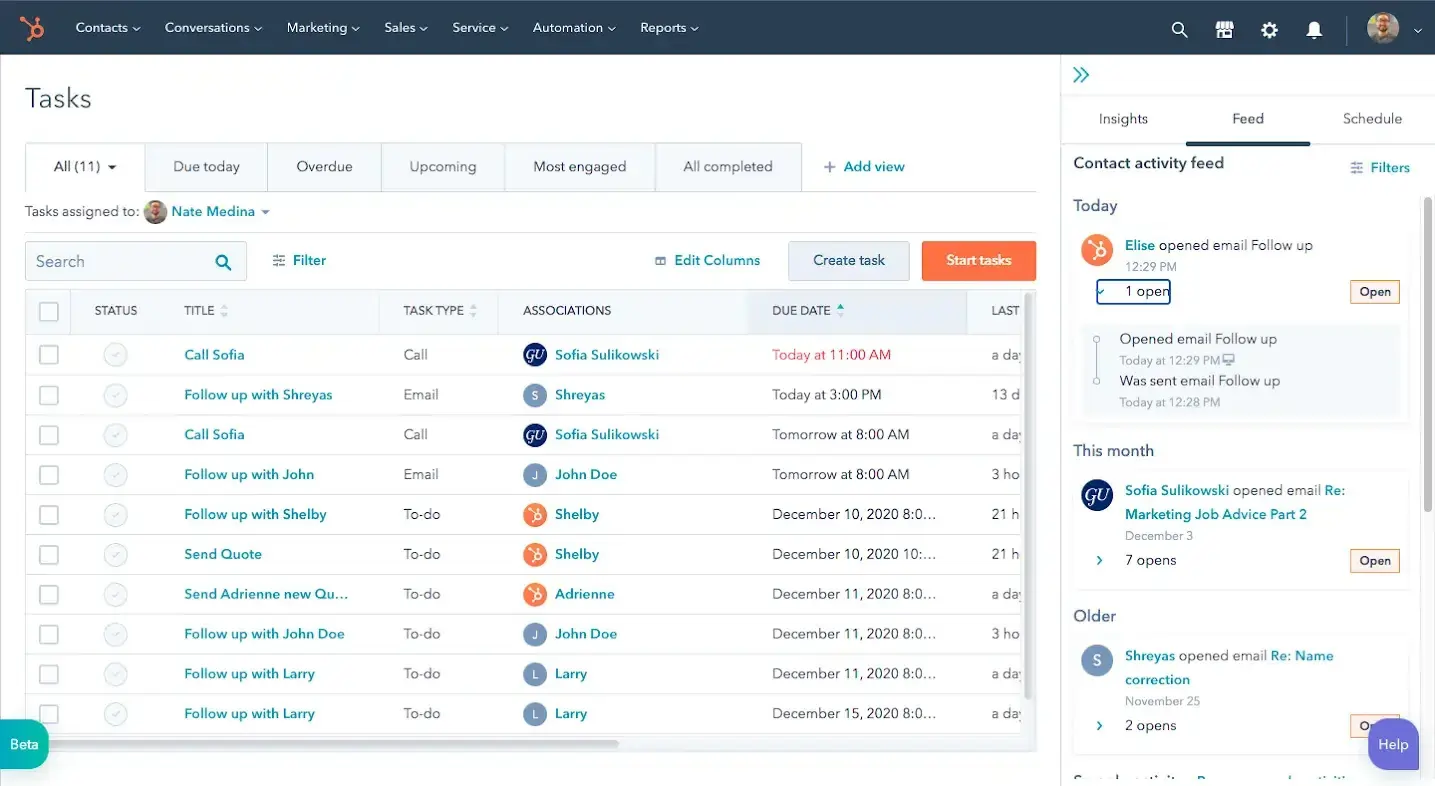
While primarily a CRM, HubSpot has introduced a dedicated “Projects” object. This allows marketing and sales teams to manage campaigns and customer onboarding without leaving the CRM platform.

Features
General Features
Communication
Productivity
Analytics & Reports
Pros & Cons
Pros
Cons
Key Features:
-
Native integration with Marketing & Sales Hubs.
-
Tasks linked directly to Deals and Contacts.
-
Marketing campaign templates.
-
Automated task creation based on deal stage.
Pros:
-
Unifies customer data and project work.
-
Eliminates the need for a separate PM tool for marketers.
-
Familiar interface for HubSpot users.
-
Strong automation capabilities.
Cons:
-
Lacks advanced PM features like Critical Path or complex resource leveling.
-
Can be expensive if purchased solely for PM.
-
Reporting is focused on marketing metrics, not project efficiency.
-
Not suitable for software development teams.
Best For: Marketing and Sales teams already living in the HubSpot ecosystem.
Expert Insight: “Perfect for keeping sales and delivery teams on the same page without data silos.”
Asana: Best for Team Collaboration
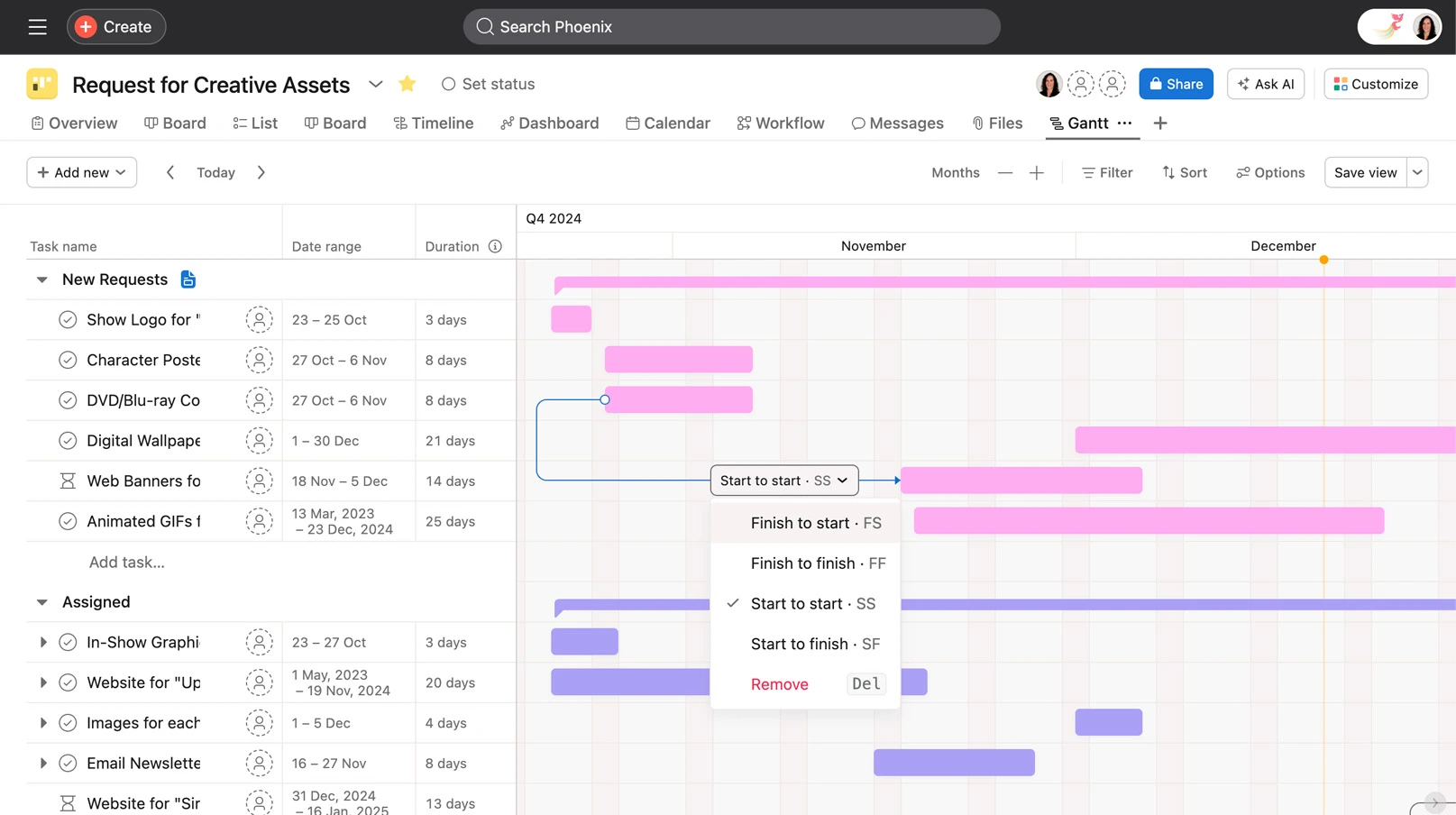
Asana is the gold standard for “user experience” in project management. It focuses on reducing “work about work” with a clean, friendly interface that encourages team adoption. It handles lists, boards, and timelines effortlessy.

Features
General Features
Communication
Productivity
Analytics & Reports
Pros & Cons
Pros
Cons
Key Features:
-
Workflow Builder for automating processes.
-
Portfolios (monitor status of multiple projects).
-
Workload management view.
-
Strategic Goals tracking.
Pros:
-
Beautiful, intuitive design boosts team adoption.
-
Excellent for managing complex dependencies.
-
Strong “Portfolios” feature for managers.
-
Huge library of integrations.
Cons:
-
Can get pricey ($24.99+) for features like Portfolios.
-
No native time tracking (requires integration).
-
Assigning a task to multiple people is difficult (by design).
-
Can feel “too open” without strict permissions.
Best For: General business teams, design teams, and remote organizations.
Expert Insight: “The tool your team will actually enjoy using.”
WorkZone: Best for Operational Control
WorkZone is the “heavy lifter” designed for teams that need more than basic tools but less complexity than Microsoft Project. It excels in operational stability, offering robust project templates and strict approval pathways.

Features
General Features
Communication
Productivity
Analytics & Reports
Pros & Cons
Pros
Cons
Key Features:
-
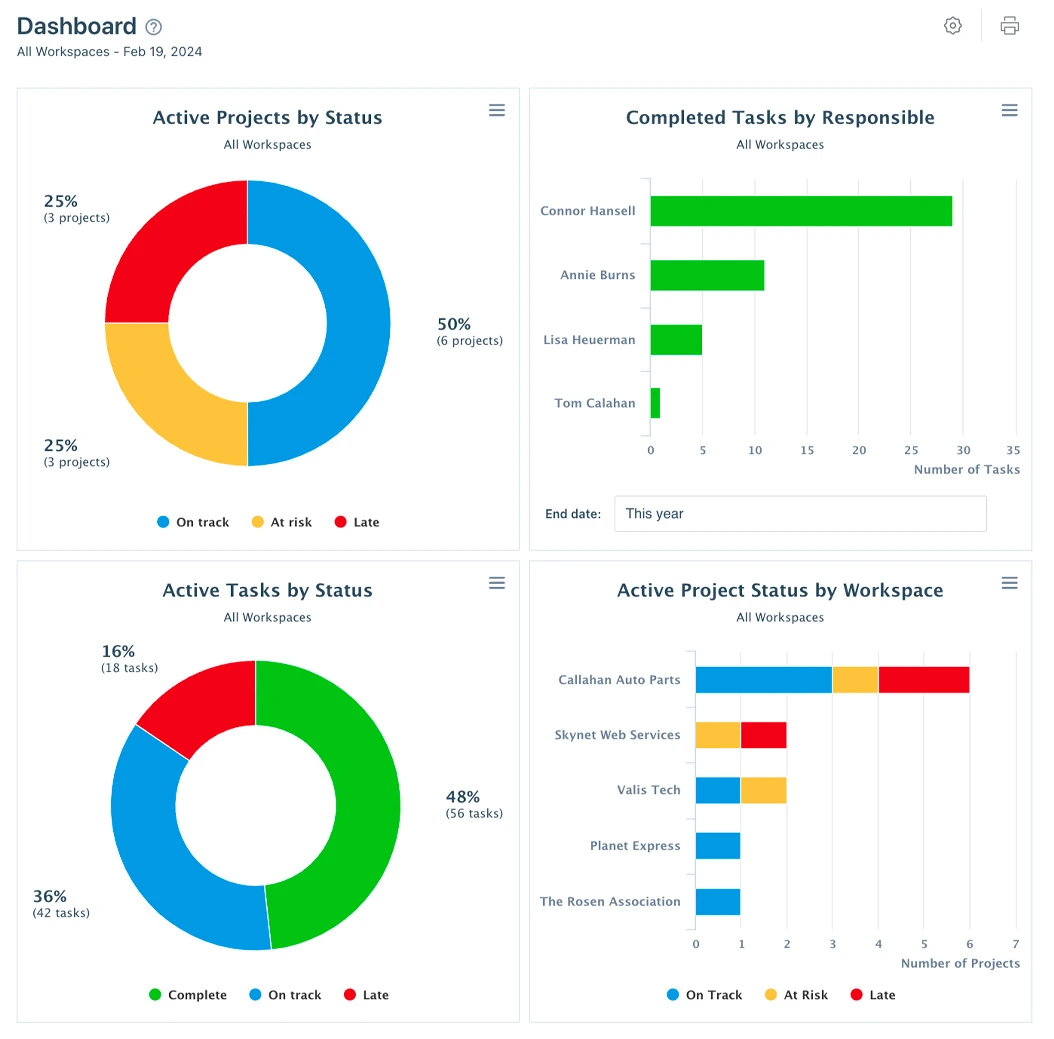
Project Dashboard across all clients.
-
Secure file sharing and image markup.
-
Expense tracking.
-
Group calendars.
Pros:
-
Very stable and reliable.
-
Excellent customer support (often cited as a differentiator).
-
Great for agencies needing client portals.
-
Simple, no-nonsense interface.
Cons:
-
Interface feels older compared to ClickUp/Monday.
-
No free plan for small teams.
-
Mobile app is limited.
-
Price point is higher than entry-level competitors.
Best For: Mid-sized agencies and operational teams needing stability over flashiness.
Expert Insight: “A reliable workhorse for agencies that need to get approvals done fast.”
Teamwork: Best for Client Services
As the name suggests, Teamwork is built for collaboration, specifically for client-facing work. It includes native time tracking, billing, and “client users” features that make it easy to run an agency or consulting firm.

Features
General Features
Communication
Productivity
Analytics & Reports
Pros & Cons
Pros
Cons
Key Features:
-
Billable vs. non-billable time tracking.
-
Client intake forms.
-
Retainer management.
-
Profitability reporting.

Pros:
-
Designed specifically for billable work.
-
Unlimited free client users.
-
Detailed financial reporting per project.
-
Integrates well with QuickBooks/Xero.
Cons:
-
Chat features are separate (Teamwork Chat).
-
Interface can get cluttered with financial data.
-
CRM features are a separate add-on.
-
Steeper learning curve for simple task management.
Best For: Agencies, consultants, and professional services firms.
Expert Insight: “The best choice if you bill your clients by the hour.”
Pipedrive: Best for Sales-Driven Projects
Pipedrive is a sales-first CRM that has expanded into project management. Its “Projects” add-on allows sales teams to convert a “won deal” directly into a project, ensuring a smooth handoff from sales to delivery.

Features
General Features
Communication
Productivity
Analytics & Reports
Pros & Cons
Pros
Cons
Key Features:
-
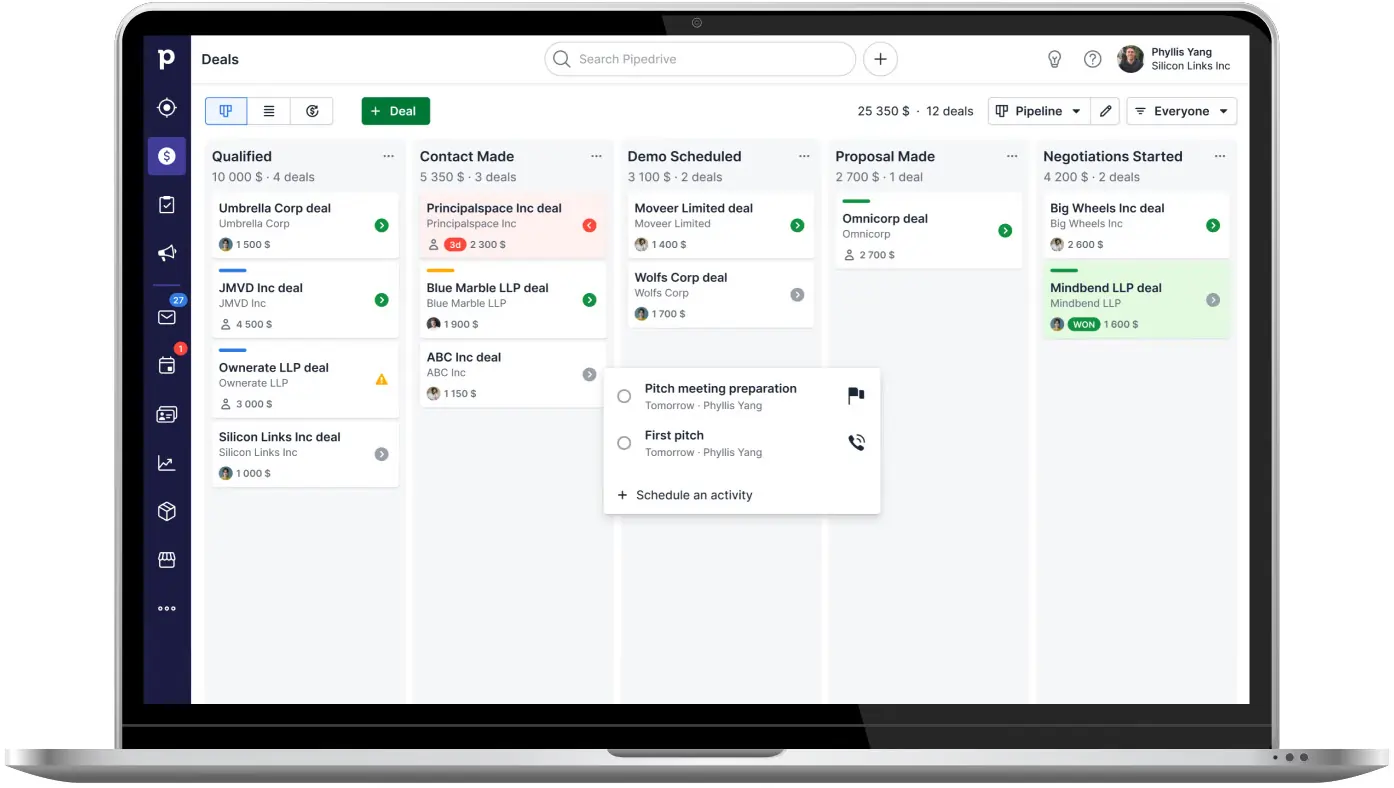
Kanban boards for projects (similar to deals).
-
Automated transition from Deal to Project.
-
Activity and email sync.
-
Mobile app with project access.
Pros:
-
Keeps everything in one system for sales teams.
-
Prevents data loss during the sales-to-support handoff.
-
Extremely easy to use interface.
-
Strong mobile functionality.
Cons:
-
Not a full-featured PM tool (lacks Gantt/heavy resource mgmt).
-
Requires the Pipedrive CRM subscription.
-
Limited customization compared to ClickUp/Asana.
-
Reporting is sales-focused.
Best For: Small businesses where the sales team also manages delivery.
Expert Insight: “Keeps your sales team focused on closing, and your delivery team focused on execution.”
How To Choose The Best Project Management Software For Your Business
The best project management tool isn’t about features; it’s about matching the tool to your team’s “personality.”
- The “Spreadsheet” Factor: If your team lives in Excel and hates change, don’t force them into a complex visual tool. Use Smartsheet, which upgrades the spreadsheet experience without breaking their habits.
- Agency vs. Internal: If you bill clients by the hour, generic tools like Asana will frustrate you because they lack native invoicing. Look for Teamwork or Zoho Projects that treat time as money.
- Methodology Matters: Agile development teams need robust Kanban boards and Sprint planning (like ClickUp or Jira), while construction teams need critical path analysis and Gantt charts (like monday.com or Smartsheet).
- The Integration Check: Ensure the tool talks to your existing stack. If your sales team is in HubSpot, using HubSpot’s own project tools keeps data in one place rather than fracturing it.
2026 Trends: The “AI Intern” Era
If you haven’t looked at these tools in a year, you’re in for a surprise. The big trend in 2025 isn’t just “organizing” tasks, it’s doing them.
- The “AI Intern”: Tools like ClickUp Brain and Asana Intelligence now act like a smart assistant. You can ask them, “Summarize this 50-comment thread for me,” or “What tasks are blocking the website launch?” and they will give you a plain-English answer.
- Drafting Updates: Instead of spending Friday afternoon writing a status report, you can click a button, and the AI will scan your completed tasks and draft the email for you.
- Consolidation: We are tired of switching tabs. The best modern tools now include Documents (like Google Docs) and Whiteboards (like Miro) inside the project app, so your planning and your doing happen in the same place.
The Project Management Tools Market
Since each project is a golden opportunity to earn revenue while building long-term relationships with clients that offer you the chance to repeat business, you need to pick out the best project management tool.
The global project management market of today is valued at $4 billion, with a CAGR of 6.9%, which is an impressive number. So, with several different types of project management software available in the market today, you need to get the one that aligns with your business goals.
Project tracking tools are available in several forms, varied according to their scope and how they deploy them.
On-Premise Tools
These project management tools are installed on your desktop, laptop, or server you can access them at any time. It also means that these tools can only be accessed by a device that is connected to the local servers. Your files remain with you wherever you go and you get to wield more control over on-premise software.
Cloud-Hosted Tools
Cloud-based program management tools are hosted on cloud servers which means that they can only be accessed through the internet by paying a subscription fee to the vendor. With this software, you don’t have to hire an IT specialist or development team to oversee the software. That’s because the vendor takes care of troubleshooting.
Single-User Tools
This project management software is meant for personal use by one user at a time. These tools are lightweight and only meant for small-scale projects that have a defined process with a clear beginning, middle, and end.
Collaborative Tools
Collaborative tools allow multi-users to access or edit the project plan simultaneously and give the ability to manage permissions. Also, the changes are integrated with the entire system, and the project plan is updated. These tools are meant for more complex projects where entire teams are involved with various processes involved in the project.
Collaborative tools also help in team management by allowing the project leaders to monitor each individual’s performance as well as the sequential or parallel activities happening in the project.
Integrated Tools
This type of software easily integrates with other work management tools or business operations, such as the CRM of a company. Integrated tools are suitable for projects that involve other business activities such as marketing, customer service, etc.
Scheduling Software
These best project management tools are specialized in tracking the project’s deliverables, essential for projects with fixed schedules. This software is perfect for projects that are meant to run on a specific schedule such as product launches or concerts. It allows you to get a good grip on the planning and scheduling of the entire project.
Issue Tracking Tools
These tools are designed to highlight gaps or hindrances in the project’s progress to ensure that the project runs on the right track. This makes them perfect for projects where several technical specifications are involved and a single malfunction can hinder the progress of the entire project.
Project Portfolio
This specialized software offers certain features that allow organizations to manage multiple projects at the same time. They come with an intuitive and easy-to-use dashboard with other options that provide the project’s details.
Project portfolio tools are suitable for organizations that have to manage multiple projects, simultaneously. With more robust team management, tracking, and editing features, these tools run on advanced infrastructure and this is why they are more expensive than other tools.
Considerations When Searching For The Best Project Management Software
The following are essential elements you need to keep in mind while searching for the best project management software.
Easy To Use
The tool must be simple to use and understand to minimize the costs and time taken to train the employees.
Scheduling Features
To make sure that you deliver the projects on time, you need scheduling tools such as Gantt charts to manage complicated tasks easily.
Prompt Reporting
It would help if you had software that collects data from each corner of the software and converts it into insightful reports displaying the project’s current status.
Customization Abilities
Your project management tool must align with your preferences and give you the power to make specific changes such as deleting comments, changing the external interface colors to look like your brand colors, or changing the logo.
Key Buying Considerations / Editor’s Picks
When choosing software, remember that “more features” isn’t always better. Adoption is the biggest hurdle—if your team finds the tool too complex, they won’t use it.
- How to compare pricing: Always look at the annual billing price versus monthly. Most vendors (like ClickUp and Monday) show the annual price in big bold letters, which is usually 20% cheaper than paying month-to-month. Also, check for “minimum user” requirements (e.g., Smartsheet requires 3 users for Business).
- Where businesses overspend: Paying for “Enterprise” tiers just to get one feature (like SSO or Gantt charts). Often, a mid-tier plan combined with a 3rd party integration (like Zapier) is cheaper.
Expert Picks:
- Best Overall: ClickUp (Unbeatable feature-to-price ratio).
- Best for Beginners: monday.com (Easiest to start using today).
- Best for Agencies: Teamwork (Built-in billing saves hours of admin work).
Cost Breakdown
- Software Costs: Expect to pay $10–$15 per user/month for a standard functional plan. Free plans are great for individuals but usually limit history or automations.
- Implementation: For complex tools like Wrike or Smartsheet, you might spend $0 to $2,000 on initial setup or training if you have a large team.
- Add-ons: Tools like Pipedrive or HubSpot may charge extra for the “Project” module or for advanced reporting features.
Trends or Emerging Features (2025 Insight)
- Predictive AI: In 2025, tools are moving beyond “generative” text. Platforms like Asana and Celoxis are using AI to predict project delays based on historical data before they happen.
- HubSpot Projects: HubSpot’s introduction of a dedicated Projects object is a major shift, signaling that CRM platforms are trying to eat the market share of traditional PM tools.
- Consolidation: Teams are tired of toggling between apps. The trend is “All-in-One” (docs + chat + tasks), which is why ClickUp and Teamwork are gaining ground.
Real-World Example
-
The Agency Scenario: A 15-person creative agency switched from using email and Trello to Teamwork. By using the “Client Users” feature, they reduced client update emails by 40% because clients could log in and check status themselves. They also recovered approximately $1,500/month in previously unbilled hours by using the native time-tracker.
Software Components: Their Deployment And Benefits
Some of the typical components of project management software include:
Scheduling Abilities
The project management tool’s scheduling feature arranges the activities in sequential order, scheduled to be delivered by a particular date.
Allocation Of Resources
The tool determines the types of resources a specific project requires in terms of money, human resources, equipment, documents, and other important material.
Cost Controlling Features
Since money is an essential aspect of managing projects, the project management software informs you of each element’s cost. Along with this, they compare the cost with the pre-determined standards and scrutinize the factors that led to a variation in the total project costs.
Collaboration And Communication
It has been reported that nearly two-thirds of companies communicate with their clients using project management software.
So, the right software must have a sound collaboration system. To facilitate communication, look for features such as file sharing, emails, real-time chat options, audio and video conferencing, and discussion forums. This enables you to keep the team updated with the latest developments in the project and oversee their progress.
Hardware Components Of A Project Management Tool
Specific hardware components can streamline your daily project management and administrative tasks and enable you to stay organized and at the top of your game.
These hardware products include:
- Desktop computer or a laptop
- External hard drives
- Network servers
- Wireless routers
How to “Shop” for Your Digital Office
Don’t buy a Ferrari if you just need a bicycle.
- The “Grandma Test”: If your team isn’t tech-savvy, pick a tool with high usability like monday.com or Trello. If the interface is too complex, no one will use it, and you’ll be back to email chains in a week.
- The “Wallet” Test: Many tools charge per user.
- Tip: If you have 20 people but only 3 “managers,” look for tools (like Teamwork) that let you add “read-only” users for free. Don’t pay $20/month for someone who just needs to look at a calendar.
- The “Ecosystem” Test: If your sales team lives in HubSpot, using HubSpot’s built-in project tools might be smarter than buying a separate app. Data silos are the enemy of speed.
Conclusion
Project management involves carefully strategized techniques and seamless tools to deliver the best solutions and functionality to the clients. While every project manager employs personalized strategies to lead a project to completion, they can be ineffective if the right tools are not incorporated.
The right project management software enables managers to overlook each aspect of the project with complete transparency while assessing and preparing for any obstacles beforehand. These tools come with several features that further streamline the project’s workflow and pave the way for enhanced collaboration among the team.
FAQ
Do I really need software if I’m just one person?
Yes, because your brain isn’t a hard drive. Using a tool like Trello or ClickUp (Free) acts as external memory. It holds your ideas, due dates, and files so you can focus on doing the work rather than remembering it.
What is the best free project management software?
Asana (up to 10 users) and ClickUp (unlimited users but limited features) are the top contenders. If you just want a simple board, Trello is the best free option that requires zero learning curve.
Monday.com vs. ClickUp: Which one is easier?
monday.com is generally considered easier and more visual. ClickUp is more powerful but has a steeper learning curve because it has so many features packed into one screen.
Can I use these tools for personal life (like a wedding)?
Absolutely. Many people use Trello or Notion to plan weddings, renovations, or vacations. They are perfect for tracking vendors, budgets, and to-do lists in one place.
Why is everyone talking about ‘Agile’?
Agile is just a fancy word for ‘flexible.’ Instead of planning the whole year in advance (which always changes anyway), Agile teams plan in short 2-week bursts called Sprints. Tools like Jira and ClickUp are built for this style.
Will AI replace my Project Manager?
Not yet. AI can handle the admin—like summarizing notes or shifting dates—but it can’t handle the human side, like negotiating with a stakeholder or motivating a tired team.
Is Excel a project management tool?
Technically yes, but it’s a dangerous one. Excel doesn’t send reminders, it doesn’t track chat history, and if two people edit it at once, files get broken. Dedicated software is safer.
How do I get my team to actually use the software?
Start small. Don’t enforce 10 new rules at once. Pick one problem to solve (e.g., ‘All content requests go into Monday.com’). Once they see it saves them time, they will adopt the rest.
What is the difference between a Task and a Project?
A Task is a single action (e.g., ‘Write email’). A Project is a goal that requires multiple tasks to complete (e.g., ‘Launch Winter Sale’). If it takes more than one step, it’s usually a project.
Can I invite clients without them seeing everything?
Yes. Most tools like Teamwork and Monday.com have ‘Guest’ roles. You can let clients see the timeline but hide your internal chats and budget numbers.