

Adobe Photoshop Review 2026: Graphic Design, Web Design Software, Creative Tools, AI Tools
Overall Rating
4.5
Last updated: September 2026
In the realm of design, Adobe Photoshop remains an essential tool for professionals, blending traditional design functionalities with cutting-edge AI enhancements. The introduction of AI-driven tools like the improved Font browser helps designers manage and explore over 25,000 Adobe fonts with ease, enriching the creative process and ensuring a seamless workflow across devices and platforms. Adobe Photoshop, a leader in digital editing for over 30 years, offers powerful tools to support creatives across industries in produce detailed and complex designs effortlessly.
Plans & Pricing
- 1TB of cloud storage or 20GB for a reduced cost ($9.99 per month).
- 500 generative credits
- 20K+ fonts
- 1M+ free photos, drawings, video clips, audio clips, and templates
- Tutorials
- 100 GB of cloud storage
- 500 generative credits
- 20K+ fonts
- 1M+ free photos, drawings, video clips, audio clips, and templates
- Tutorials
- 1TB of cloud storage500 generative credits 20K+ fonts
- 1M+ free photos, drawings, video clips, audio clips, and templates
- Tutorials
- Admin dashboard to manage licenses
- 1:1 sessions with product experts and advanced tech support
- 100 GB of cloud storage
- 1000 generative credits
- 20+ mobile and desktop apps
- 20K+ fonts
- 1M+ free photos, drawings, video clips, audio clips, and templates
- Tutorials
* Featured prices can be updated and free offers may include additional terms.
Pricing for Adobe Creative Cloud is on a subscription model. Users can choose full one-year access paid all at once. There is also the option of an annual plan with monthly installments or a single monthly subscription. Adobe offers a free seven-day trial that allows you to test out the software's features before committing. Subscription pricing is the sticking point for occasional users, and the best free graphic design software covers cropping, retouching and export without a monthly charge.
Expert Score
Pros
- Can deeply customize almost every aspect of the design process
- Supports multiple file formats — essential for cross-platform design work.
- Tools for mobile and web design
- Adobe Suite integration for easy workflow
Cons
- Requires a powerful computer as it runs many processes
- Steep learning curve due to many features
- No option for a perpetual license
Customer Support
Adobe’s tools are generally stable and reliable, which is something I’ve come to appreciate. However, on the rare occasion I’ve encountered a bug, Adobe’s robust customer support has been quick to help me resolve the issue. The Adobe graphic design software also benefits from one of the best community forums and help centers I’ve seen. There’s a wealth of valuable information, including tutorials and guides, that have helped me troubleshoot and improve my skills. Community Forum I find Adobe’s Creative Cloud community forum to be incredibly helpful. It’s an active space where I can ask questions about tools like Adobe Illustrator and other Adobe products, and receive advice from experienced users and Adobe experts. Blog Adobe’s blog is another fantastic resource. It’s interactive and filled with helpful articles, tips, and inspiration. Whether I’m looking for the latest updates on Adobe tools or insights into graphic design features, the blog always has something useful. For a comprehensive support experience, I recommend visiting the Adobe Help Center or exploring the Adobe Community Forum.These resources have been invaluable to me when working with Adobe’s graphic design tools.
Phone Support
Adobe offers robust phone support
Email support is available
24/7 Help & Support
Adobe offers 24/7 online support in different languages
FAQ
There is a FAQ section on the Adobe website
Live Online Chat
There is a live chat feature on the Adobe website
Video Tutorials
https://www.adobe.com/learn
Ease of Use
As a first-time user of Adobe's graphic design software, I found the array of buttons, panels, and tools in Creative Cloud quite overwhelming. The multitude of interfaces required a significant adjustment period. However, I discovered that Adobe offers a wealth of tutorials and training resources, both within the programs and online, which greatly facilitated my learning process. With dedicated practice, I became proficient in the functionalities I use most frequently, though I recognize that many advanced features remain unexplored. Mastering this graphic design tool has been a journey, but the extensive capabilities it offers make the effort worthwhile. For beginners like me, Adobe provides step-by-step tutorials to get up to speed. Just opening an app and watching a tutorial can help in getting started. Additionally, Adobe's official collection of manuals, tutorials, and FAQs, known as Adobe Learn, is available to help learn the essentials of each application and connect with other Creative Cloud users. These resources have been instrumental in navigating the initial learning curve and unlocking the full potential of Adobe's graphic design features. Here's a quick tutorial:
Performance
In my experience, Adobe's graphic design software delivers robust performance across its suite of applications. The tools are generally stable and responsive, enabling me to work efficiently on complex design projects. However, I've noticed that working with large files or intricate compositions can sometimes lead to slower performance or occasional crashes, which can be frustrating during intensive tasks.
Adobe continuously updates its software, introducing new features and performance enhancements that contribute to a smoother user experience. These regular updates ensure that I have access to the latest tools and improvements, keeping my workflow current and efficient.
Additionally, Adobe's integration of AI-powered tools, such as Adobe Sensei, has significantly enhanced performance in tasks like image editing and content-aware fills, allowing me to complete complex edits more quickly and accurately.
Overall, while there are occasional performance hiccups, Adobe's graphic design tools provide a powerful and reliable platform for my creative projects, supported by regular updates and innovative features that enhance my productivity.
Features & Functionality
Design Features
Photoshop has a huge selection of tools, I've used most of them and got some incredible results. Here are the features available:
- Layer Management
- Adjustment Layers
- Layer Masks
- Selection Tools
- Creative Cloud Libraries
- Adobe Stock Integration
- Alignment Tools
- Artboards
- Shape and Vector Tools
- Color Tools
- Typography Tools
- Smart Objects
- Smart Filters
- Brush Tool
I'll go into more detail:
Layer Management
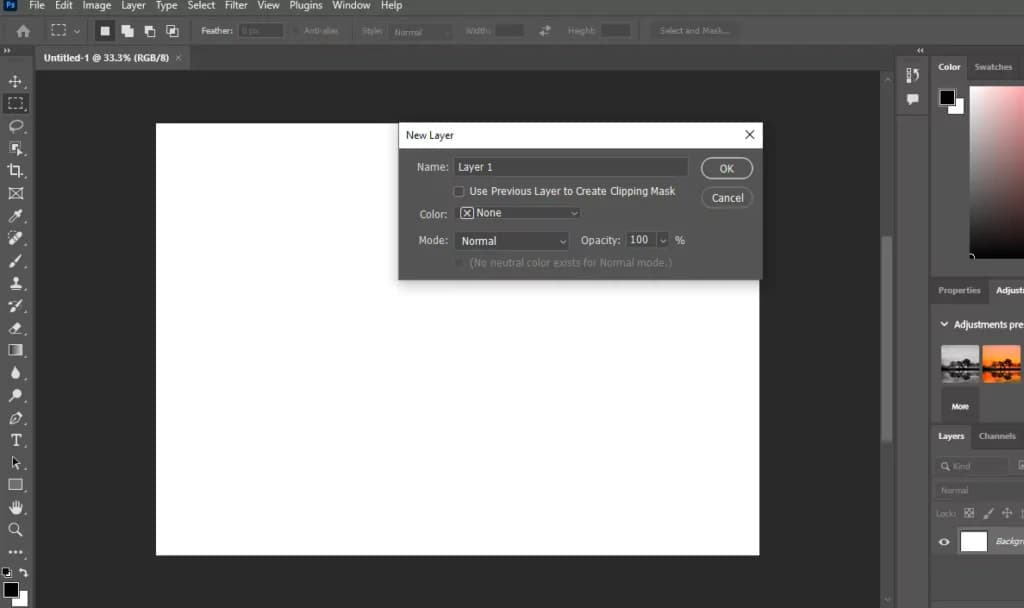
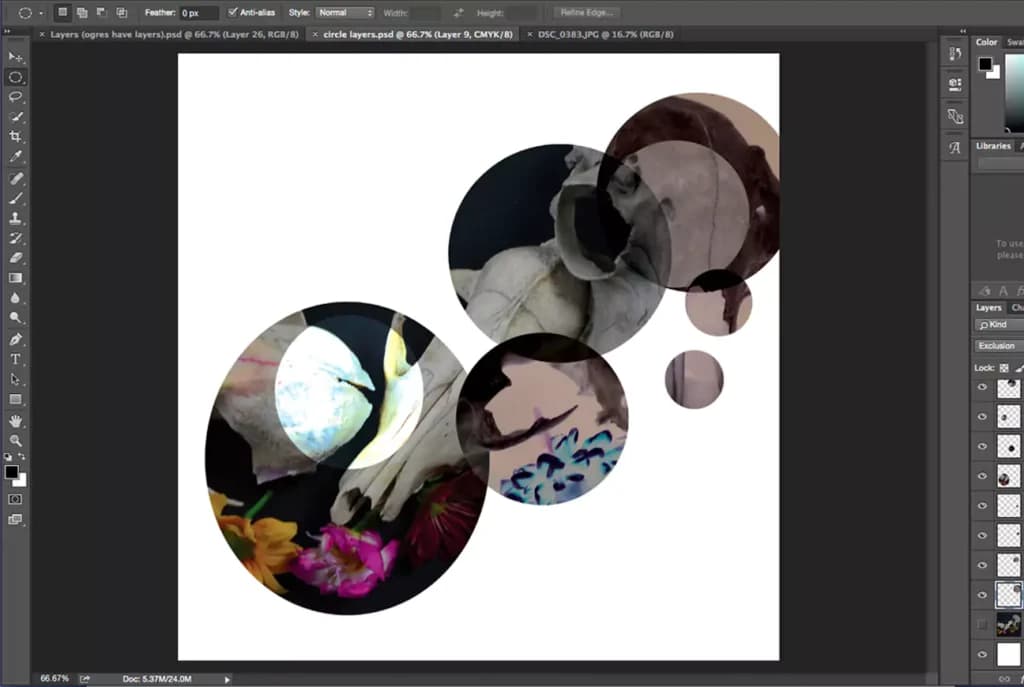
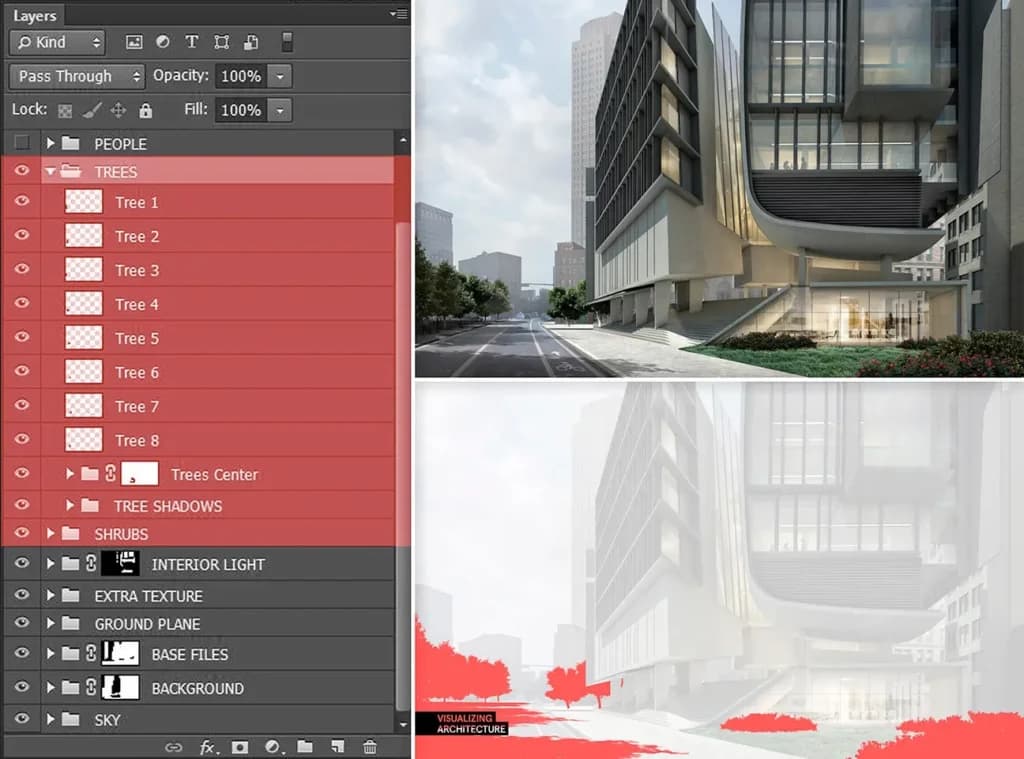
Layers are the backbone of how I work in Photoshop. They let me tackle each part of a project independently, which is such a lifesaver for complex designs. I can organize layers into groups, lock them, or even hide them when I need to focus on specific elements. It’s all about flexibility, and Photoshop delivers.
Non-Destructive Adjustments
I love using adjustment layers for edits like brightness, contrast, or hue/saturation. The best part? These adjustments don’t touch the original image, so I can experiment freely without worrying about making permanent changes. Layer Masks are another must-have—they let me control visibility with incredible precision, making intricate compositions easier than ever.
Selection Tools
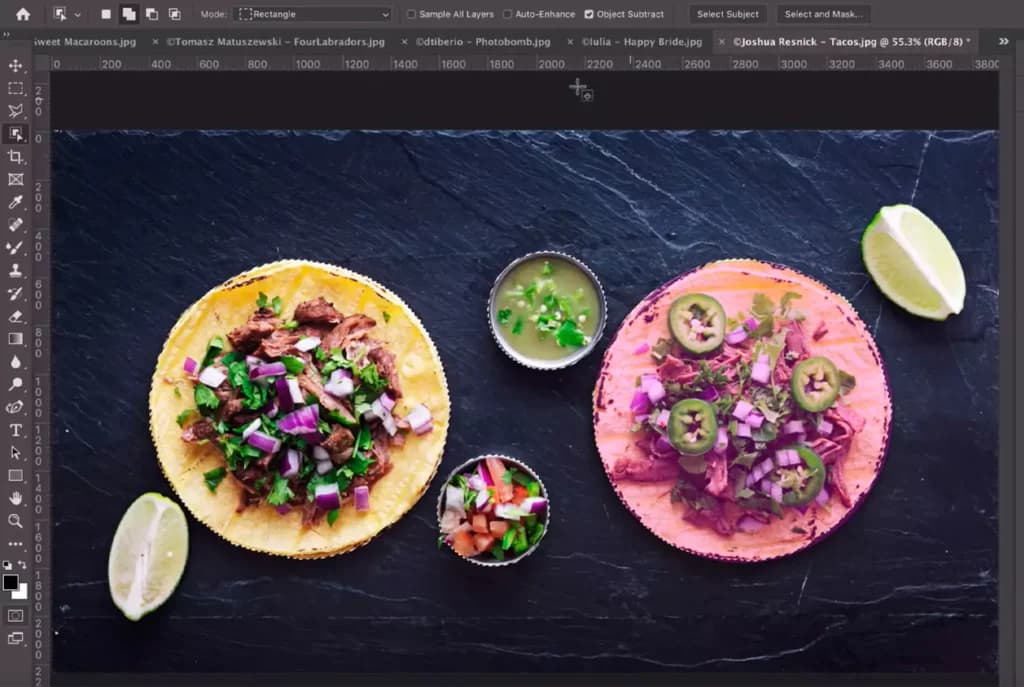
Photoshop’s selection tools make my job so much easier. Whether it’s the Marquee, Lasso, or Magic Wand, I can always count on precise selections. The Quick Selection and Object Selection tools, with their AI enhancements, are game-changers for handling tricky shapes or objects. When I need to fine-tune, the Refine Edge tool is perfect for handling details like hair or fur, and Quick Mask Mode gives me ultimate control over my selections.
Creative Cloud Libraries and Adobe Stock
One of my favorite features is saving assets like colors, styles, and graphics to Creative Cloud Libraries. It makes switching between projects—or even apps—a breeze. Plus, the integration with Adobe Stock is so convenient. I can search for high-quality images, videos, and templates without even leaving Photoshop.
Alignment and Layout Tools
When it comes to precision, I rely on rulers and guides to align everything just right. I love how customizable they are, and locking them in place ensures consistency across my designs. The Snap to Grid/Guides feature is a huge help for precise placement, and Artboards make managing multiple layouts for different screen sizes or formats so much easier.
Shape and Vector Tools
Photoshop’s shape tools are fantastic for creating everything from simple rectangles to detailed vector designs. I use the pen tool for freeform paths and refine curves with anchor points and handles—it’s ideal for detailed vector artwork. Combining and customizing shapes gives me endless possibilities for complex designs.
Color Tools
Choosing the perfect color is simple with Photoshop’s Color Picker. I also use the Swatches Panel to save custom colors, so everything stays consistent throughout my project. Applying gradients is another favorite of mine, especially with the customization options in the Gradient Editor—smooth transitions have never been easier.
Typography Tools
Adding and customizing text is effortless with Photoshop’s Text Tool. I can tweak fonts, sizes, colors, and even advanced settings like kerning, tracking, and leading. With all the controls in the dedicated panels, it’s easy to get the exact look I’m aiming for.
Smart Objects and Smart Filters
I rely on Smart Objects to embed images or vectors without losing quality, making non-destructive edits like scaling and warping a breeze. And with Smart Filters, I can apply effects and make adjustments without ever altering the original content.
Brush Tool and Blending Modes
The Brush Tool is one of my go-to features for digital painting. I love how customizable it is—I can adjust size, hardness, and opacity to suit my needs. Plus, blending modes let me experiment with how colors interact across layers, opening up endless creative possibilities.
AI Features
Photoshop's suite of AI-driven tools, powered by Firefly and Sensei, transforms traditional image editing tasks. Here are some of the features I've found to be really impressive:
- Firefly and Sensei AI Technologies
- Generative Fill
- Generative Expand
- Neural Filters
- Content-Aware Fill
- AI-Powered Remove Tool
- Sky Replacement
- Object Selection Tool
- Auto-Colorize
- Add Text Guided Edit
AI-Driven Features:
I’m constantly amazed by the AI-driven features in Photoshop, powered by Firefly and Sensei AI technologies. They make so many tasks easier and faster, saving me a ton of time while still delivering incredible results. Tools like Generative Fill and Generative Expand open up entirely new possibilities for editing and creativity.
Generative Fill
This is one of my favorite features. I can add, remove, or replace parts of an image seamlessly. It’s also fantastic for extending image edges or filling in gaps—it blends everything so naturally. What I love most is how it works with all the selection tools, letting me customize creations with ease.
Generative Expand
With this tool, I can expand my images beyond their original borders using the Crop tool. It’s like giving my photo a new canvas, and Photoshop automatically generates new content that fits perfectly with the existing image.
Neural Filters
Neural Filters feel like magic to me. I can automate edits like skin smoothing or even colorize old black-and-white photos with just a few clicks. It’s also fun to play around with the facial expression adjustments—I can tweak a smile or change the overall mood of a portrait using machine learning.
Content-Aware Fill
I’ve used this tool countless times to remove unwanted objects, and it never disappoints. Photoshop analyzes the surrounding pixels to fill in the gaps, creating such a natural-looking result that it’s hard to tell anything was edited.
AI-Powered Remove Tool
This tool is fantastic for reducing image noise or making selective edits like adjusting facial hair or clothing. The built-in presets, like Darken Beard or Polished Portrait, give me even more control over the final look.
Sky Replacement
Replacing skies in photos used to be so tedious, but not anymore. Photoshop detects the sky and swaps it out for a new one effortlessly. It even adjusts the scene’s lighting and colors to match, which makes everything look cohesive and professional.
Object Selection Tool
This tool is a lifesaver when I’m dealing with complex shapes or edges. Photoshop’s AI does most of the heavy lifting, making selections fast and accurate—even for tricky objects like hair or fur.
Auto-Colorize
When working with old black-and-white photos, this tool is a game-changer. It uses AI to apply realistic colors that make the images come to life again.
Add Text Guided Edit
Creating stylized text has never been easier. This feature helps me align everything perfectly, making sure my designs look clean and professional every time.
Photo Editing Features
Photo editing is at the core of Photoshop’s functionality. If you hear a picture has been photoshopped, it’s probably because of one of these.
These are the features that introduced me to photoshop, you'll notice there's a huge amount of options.
- Crop Tool
- Slice Tool
- Basic Effects (Brightness/Contrast, Exposure, Vibrance, Saturation)
- Photo Filters
- Spot Healing Brush
- Healing Brush
- Patch Tool
- Content-Aware Fill
- Remove Background
- Clone Stamp
- Red Eye Tool
- Unsharp Mask
- Smart Sharpen
- Reduce Noise
- Color Replacement Tool
- Mixer Brush Tool
- Pattern Stamp Tool
- History Brush Tool
- Smart Objects
- Smart Filters
- Layers
- Adjustment Layers
- Layer Styles
- Layer Masks
- Blend Modes
- Opacity Controls
- Fill Controls
- Gradient Tools
- 3D Material Drop Tool
- Liquify Tool
- Lens Correction
- HDR Toning
- Camera Raw Filter
- Dodge Tool
- Burn Tool
- Sponge Tool
- Timeline Panel (Video Editing)
- Layer-Based Video Editing
- Frame Animation
- Video Effects
- Basic Audio Editing
- Export Options for Video
- Basic Editing Tools
When I need to make quick adjustments, the Crop Tool is my first choice. It’s so versatile—I can crop, straighten, scale, rotate, warp, or even skew an image effortlessly. For web designs, I often rely on the Slice Tool to divide images into sections. Adjusting brightness, contrast, exposure, vibrance, or color balance is a breeze, and I love using Photo Filters to create black-and-white conversions or enhance my images with creative effects.
Retouching and Healing Tools
The Spot Healing Brush is my go-to for quick fixes like removing blemishes, while the Healing Brush gives me a little more control when blending textures. The Patch Tool works wonders for repairing larger areas by sampling other parts of the image. And then there’s Content-Aware Fill—this feature feels like magic. I can easily remove unwanted objects, and Photoshop fills in the gaps seamlessly. If I need to swap out a background, the Remove Background tool makes it so simple.
Advanced Content Manipulation
For precision work, I often turn to the Clone Stamp to duplicate textures or patterns exactly where I need them. The Red Eye Tool is a lifesaver for fixing those annoying red-eye effects in flash photography. These tools help me make my photos look polished and professional.
Enhancement and Adjustment Tools
I use the Unsharp Mask and Smart Sharpen tools to bring out crisp details in my images, while the Reduce Noise tool is fantastic for cleaning up grainy photos. The Color Replacement Tool is great for swapping colors, and the Mixer Brush Tool lets me create painterly effects with ease. I also love experimenting with the Pattern Stamp Tool and the History Brush Tool to add unique touches to my edits.
Layer and Color Management
Working with layers is where Photoshop really shines for me. Smart Objects and Smart Filters allow me to make edits without damaging the original image, and I use Layers and Adjustment Layers to make changes that I can always go back and tweak later. Adding effects like shadows or glows with Layer Styles, or using Layer Masks to fine-tune visibility, gives me so much creative freedom.
Creative and Composition Tools
Blend Modes are one of my favorite features when combining layers—they let me create all kinds of unique effects. I use Opacity and Fill Controls to adjust transparency and fine-tune the look I’m going for. Gradient Tools and the 3D Material Drop Tool take my designs to the next level, and when I’m feeling creative, the Liquify Tool is perfect for reshaping or distorting elements.
Special Effects and Corrections
For photo corrections, tools like Lens Correction, HDR Toning, and the Camera Raw Filter help me perfect every detail. I love how these features make my images look polished and professional without much effort.
Light Manipulation Tools
When I want to adjust lighting, I use the Dodge Tool to lighten specific areas and the Burn Tool to darken them. The Sponge Tool is also fantastic for adding or reducing color saturation exactly where I need it.
Video Editing Features
Even for video projects, Photoshop has me covered. The Timeline Panel helps me manage clips, add transitions, and fine-tune timing. With Layer-Based Video Editing, I can apply filters and adjustments just like I would with static images. The Frame Animation tool is perfect for creating GIFs, and I can even apply Video Effects to enhance clips. Plus, the Basic Audio Editing tools let me adjust sound levels or add fades for a polished finish. Exporting videos in multiple formats is super straightforward, too.
Web Design Software
Adobe is a powerful and user-friendly tool that offers a range of features and functionalities to help designers create and prototype user experiences. It is widely used and supported in the design industry and is regularly updated with new features and improvements. Aside from prototyping, it also supports animations, transitions, and 3D transforms. The App itself, however, is lacking in features such as marketing, eCommerce integrations, hosting, and others that are standard on web builders. Some of these functions are handled through other apps in the Creative Cloud.
Elevate Your Design Workflow
Adobe is a powerful tool designed for UI/UX designers to create interactive prototypes and high-quality designs for web and mobile applications. Seamlessly integrated with the Adobe Creative Cloud ecosystem, Photoshop enhances team collaboration and streamlines the design process with intuitive features, making it a top choice for professional designers and businesses of all sizes.
Key Features of:
- Cross-Platform Compatibility: Available on both macOS and Windows, making it accessible to a wide range of users.
- Creative Cloud Integration: Direct access to shared libraries and design assets through Creative Cloud.
- Responsive Design Tools: Adobe's responsive resize tool ensures your designs look perfect on all devices.
- Collaboration: supports real-time collaboration via tools like Slack and Microsoft Teams.
- Interactive Prototypes: Design, prototype, and share interactive prototypes without needing third-party tools.
- Tutorials and Community: Access robust tutorials and join the vibrant Adobe user community for support and tips.
Easily manage and update website content.
Expand functionality with seamless integrations.
Creative Tools
Adobe is known for providing some of the most advanced apps on the market. Here’s a quick look at the main features:
- AI editing features
- Generative Remove
- Lens Blur
- HDR Editing
- Local Editing
- Video Editing
- Tethered Capture
- Adaptive Presets
- Point Color Tool
- Mobile and Web Integration
Let’s go a little deeper on some of the main features:
AI editing features
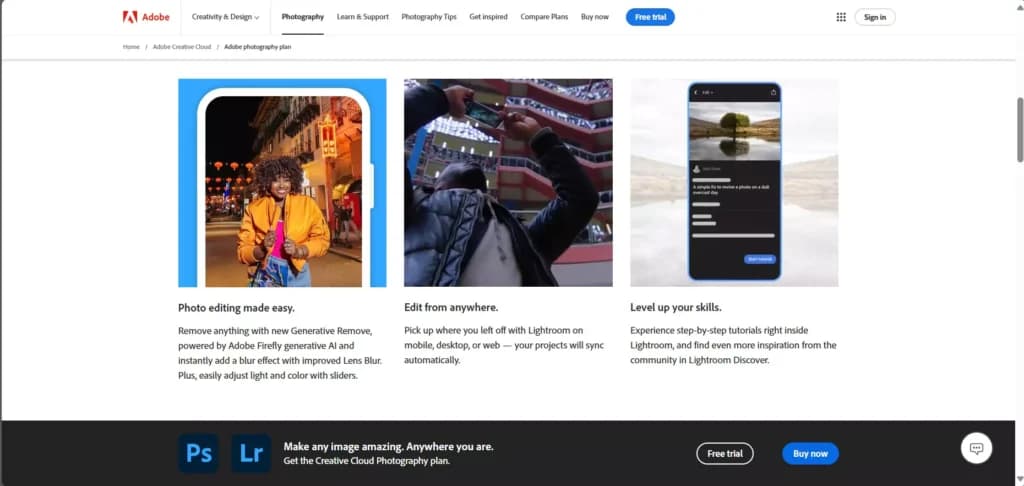
One of the best features of the Photography plan is that Adobe incorporated powerful AI tools for manipulating images simply. Generative Remove and Firefly AI tools are incredibly easy to use and give designers endless possibilities.Generative Remove
This AI-powered tool allows you to easily erase unwanted objects and imperfections from your photos, even on complex backgrounds. It's available across all Lightroom platforms.Lens Blur
The AI-powered Lens Blur feature adds professional-looking blur and bokeh effects to your photos. This tool supports adaptive presets and batch operations, ensuring consistent results across multiple images.HDR Editing
Lightroom provides a comprehensive workflow for HDR photos, allowing you to capture, merge, edit, display, and export high-dynamic-range images. This feature is available on both desktop and mobile versions.Local Editing
You can now edit photos and videos stored locally on your device without importing them into the Lightroom cloud. This feature allows for better organization and management of your local media files.Video Editing
Lightroom offers some basic video editing capabilities, including trimming, color correction, and applying curves to achieve consistent editing results. This feature is available on the desktop version of Lightroom.Tethered Capture
Lightroom Classic now supports tethered capture for Sony cameras, allowing you to control camera settings and capture photos directly from the software. This feature enhances live session workflows with seamless preset applications and camera control.Adaptive Presets
These presets use AI to automatically adjust settings based on the image's content, such as blurring the background or enhancing specific areas like the sky or a subject's clothes. They streamline the editing process and ensure consistent results. Great for creating at scale.Point Color Tool
This tool allows you to fine-tune any individual color in a photo, providing more precise control over color adjustments and enhancing the overall editing flexibility.Available Mobile App
A great feature for photographers who are frequently on the go is Adobe Lightroom's mobile app accessibility. Although it doesn’t offer as many features as Photoshop, it’s still a great app that allows users to edit photos from any Android or iOS device.How-To Guides In Apps
Adobe is known for making software for professionals, so it’s sometimes difficult to learn all the tips and tricks for how these software solutions work. In this case, even beginners can start working with these apps, as there are how-to guides located directly in the apps that show users how to do certain things and how to get started. Becoming an expert in these apps has never been easier with this feature!
Work with a wide range of file types for maximum compatibility.
Choose from various plans to suit your creative needs.
Accessible on multiple platforms for versatile use.
Designed for ease of use, catering to different skill levels.
Edit with precision using powerful professional-grade tools.
Easily share projects and export them in desired formats.
Support for diverse export options to meet specific requirements.
AI Tools
Adobe’s Photoshop 25.9 showcases its commitment to innovation and user-centric design with a toolbox that is both comprehensive and customizable. Positioned on the left side of the screen, the toolbox offers a wide range of functionalities essential for professional editing and creative explorations.
The tools are cleverly nested, allowing users to access a deeper level of functionality within the same compact space. The arrangement and the tools available can vary with different versions of Photoshop, highlighting Adobe's focus on evolving user needs and advancing technology.
AI Features
Adobe Photoshop has incorporated several AI-driven features powered by their Firefly generative artificial intelligence and Sensei image-analyzing AI technology. These powerful features, such as Generative Fill and Generative Expand, have been revolutionary in the image editing process. Generative Fill allows users to add content, remove or replace parts of an image, and extend the edges seamlessly. Integrated into every selection feature, users can create custom creations effortlessly. With Generative Expand, you can extend your image by simply clicking and dragging beyond the image borders with the Crop tool, and the expanded canvas creates new content that blends seamlessly with the existing image.
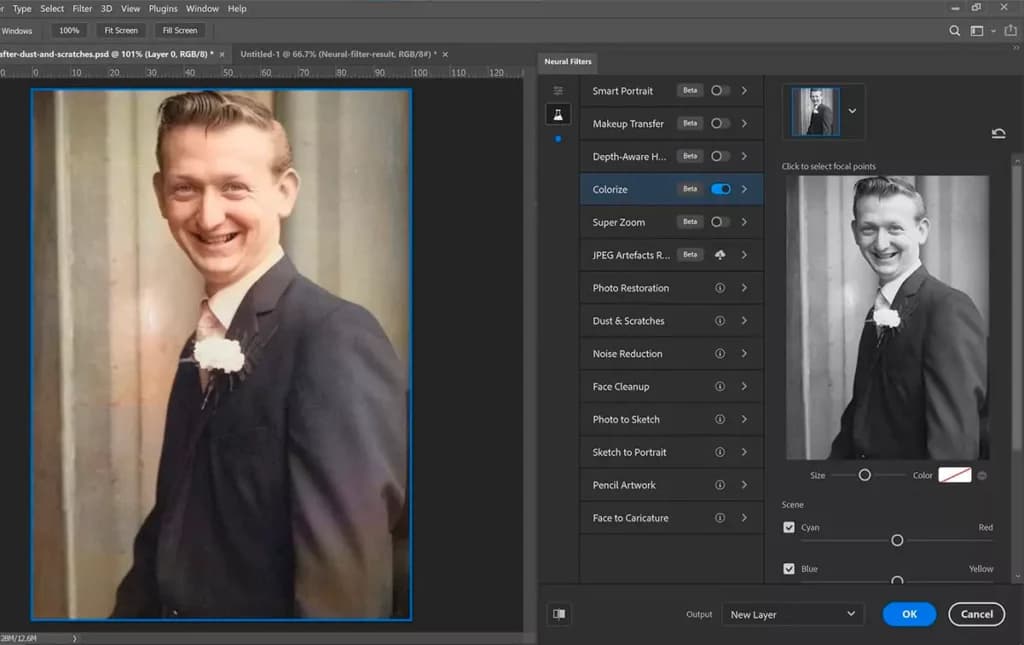
Neural Filters automate edits like skin smoothing, style transfer, colorization of black-and-white photos, and even altering facial expressions through the use of machine learning.

Content-Aware Fill is another powerful AI-driven tool that allows users to remove unwanted objects from images seamlessly. By analyzing the surrounding pixels, AI fills in the gaps left by the removed object, ensuring a natural-looking result. Similarly, the AI-powered Remove Tool facilitates automatic image noise reduction and provides features like facial hair and clothing selection, along with adaptive portrait presets such as Darken Beard, Polished Portrait, and Enhance Clothes.
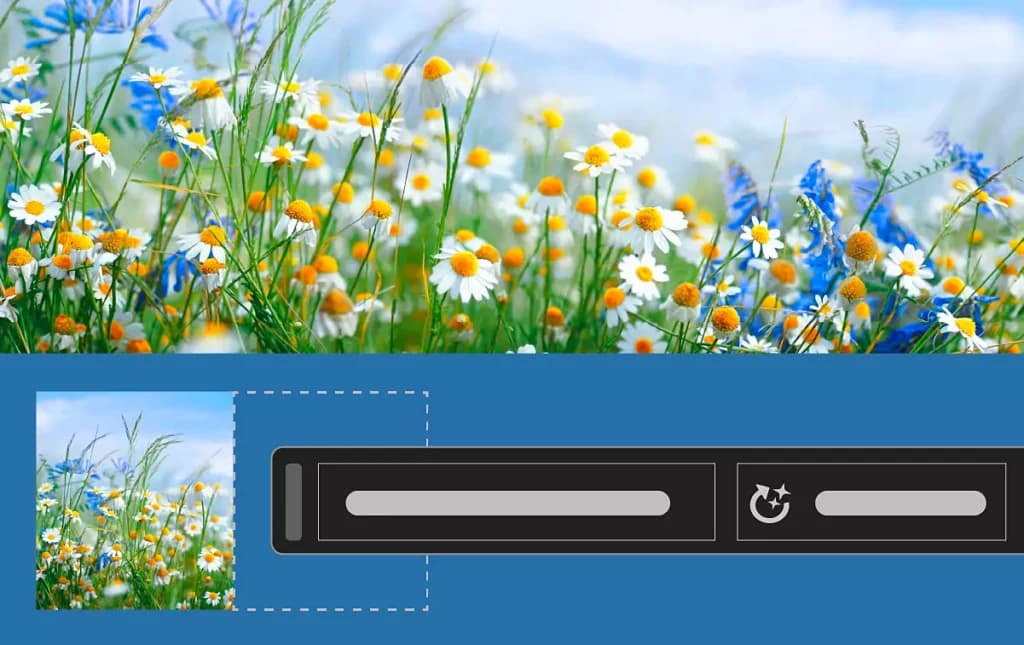
Sky Replacement automatically detects the sky in an image and allows users to replace it with a different sky. The tool also adjusts the scene's lighting and colors to match this new sky, creating a cohesive and realistic look.
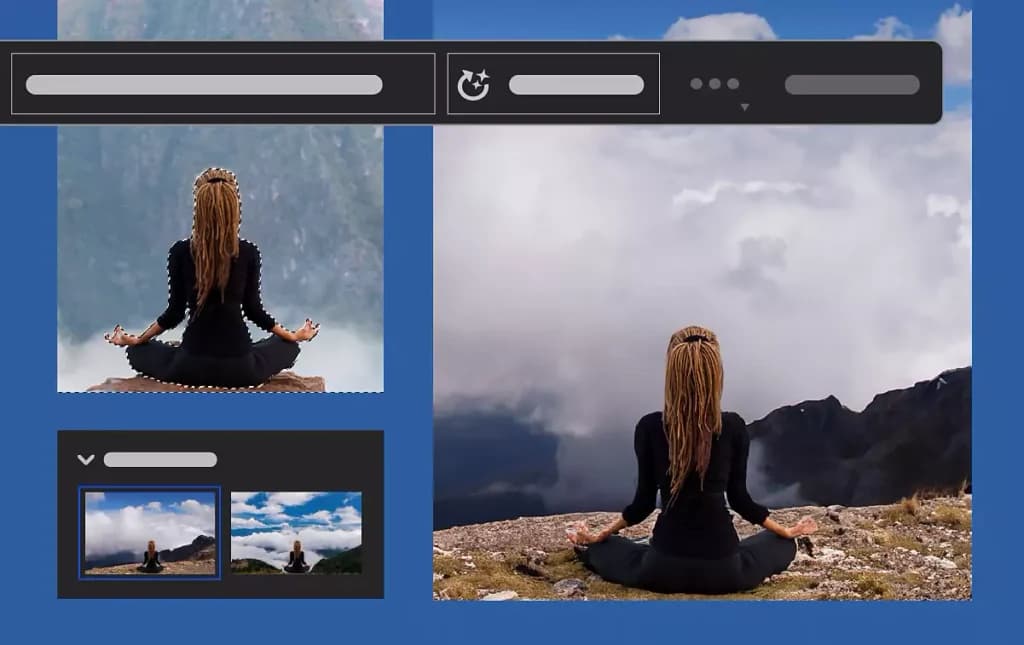
The Object Selection Tool has had AI incorporated to help identify complex shapes and edges for more efficient selection processes. Auto-Colorize uses AI algorithms to add color to black-and-white images, estimating realistic colors for various elements within the photo. You can also create stylized text with perfect alignment with the Add Text Guided Edit feature.
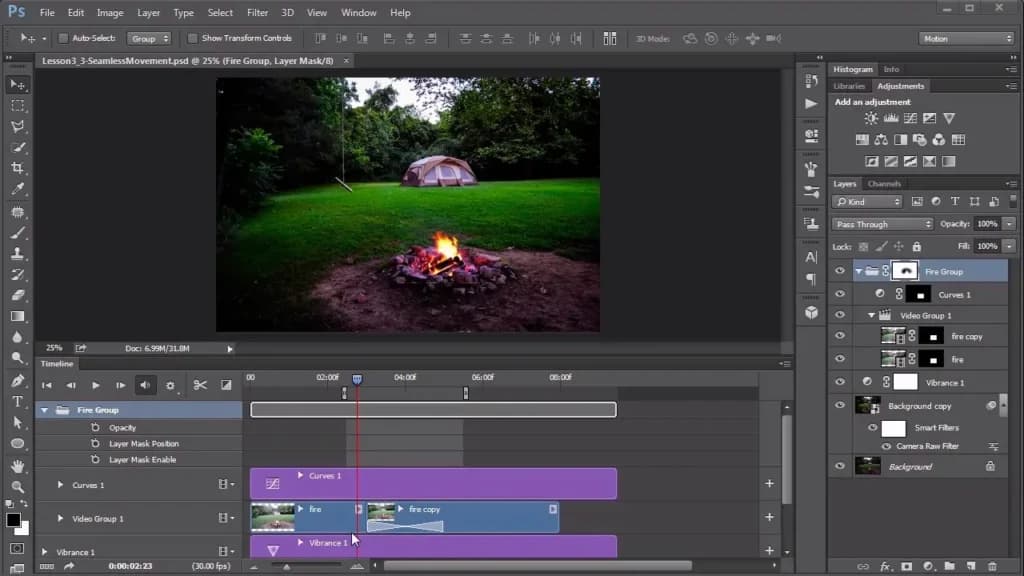
While Photoshop is not as dedicated a video editing software as Adobe Premiere Pro, it still offers enough video editing features to perform basic to moderately complex tasks:
- Timeline Panel: Enables animation and video editing through an intuitive frame-based timeline interface, where users can organize clips and apply transitions.
- Layer-Based Video Editing: Adapts Photoshop’s powerful layer editing tools to video, allowing for sophisticated visual adjustments and effects on video layers.
- Frame Animation: Simplifies the creation of GIFs and basic animations directly within the software.
- Video Effects: Applies Photoshop’s renowned image effects to video, enhancing clips with everything from simple color adjustments to complex filter applications.
- Basic Audio Editing: Accommodates the integration of audio with video, including simple tools for sound editing and effects.
- Exporting Video: Supports multiple video formats, ensuring videos are ready for various platforms from web to broadcast.
Adobe Photoshop is celebrated for its extensive photo editing tools that cater to both amateurs and professionals. It features basic tools like the Crop tool for removing and adjusting areas, and the Slice tool for segmenting images for web use. Enhanced by adjustments such as Brightness/Contrast and Color Balance, these tools facilitate quick modifications, while the Spot Healing Brush and Healing Brush allow for detailed retouching. Advanced functions like Content-Aware Fill remove objects seamlessly, and the Clone Stamp duplicates image elements effectively.
Photoshop's capabilities extend to sophisticated image enhancements with tools like Unsharp Mask and Smart Sharpen for refining focus, and the Color Replacement and Mixer Brush for vibrant color alterations. Its layered editing system supports Smart Objects and Adjustment Layers, enabling non-destructive and reversible edits. Additionally, Photoshop includes tools for special effects such as the Liquify tool and HDR Toning, enhancing creative flexibility. The integration of Blend Modes and Opacity controls further assists in complex visual compositions.
Overall, Photoshop's robust feature set from basic edits to advanced layer management and special effects ensures it remains a leader in image editing technology, adept at executing both simple tasks and complex projects with precision.
Design Features
In Photoshop, Layer Management stands out, enabling designers to segregate and manipulate elements within a project efficiently. This feature supports grouping, locking, and hiding layers, complemented by adjustment layers for non-destructive modifications such as color and brightness adjustments. Layer masks enhance this functionality by allowing selective editing visibility.
The suite of selection tools, from simple Marquee to AI-powered Object Selection, ensures precision in graphic design, supported by the Refine Edge tool for perfecting detailed selections. Integration with Adobe Stock and Creative Cloud Libraries streamlines resource usage and sharing.
Photoshop's layout tools, including Rulers, Guides, and Artboards, facilitate exact alignments and consistent designs across different outputs. The software's vector and color tools, including shape tools, Color Picker, and Gradient Editor, provide comprehensive options for creating and customizing designs. Text tools offer detailed typography adjustments, while Smart Objects preserve quality during scaling and transformations. Finally, Photoshop's advanced Brush tool and blending modes open up vast possibilities for artistic expression and texture effects in digital art.
Generate stunning visuals with AI-powered creativity.
Accessible on multiple platforms for versatile use.
Features
- API
- Templates
- Image Database
- Collaboration Tools
- Content Import/Export
- Edits Vector & Raster Graphics
- Touch Interface Support
- Pro-Level Typography
- Print Management
- Publishing / Sharing
Verdict
Adobe Creative Cloud is a robust and professional graphic design software that I rely on for creating high-quality vector-based designs and elements. Its extensive suite of graphic design tools offers everything from simple editing to advanced features, with menus, panels, and dropdowns that cater to nearly every design need. While the multitude of graphic design features can be overwhelming at first, I’ve found that taking the time to practice unlocks the true potential of this creative suite.
For professionals like me, mastering these tools leads to the creation of stunning vector-based graphics with ease. That said, the subscription model can be a drawback for some users, but the trial period is a great opportunity to explore and decide if it’s worth the investment. Adobe’s graphic design tool is an industry standard for a reason—it provides the precision, flexibility, and innovation needed to bring creative visions to life.
Adobe’s graphic design software stands out for its unparalleled integration across its suite of tools, making it a powerhouse for creative professionals. The ability to seamlessly transition between programs like Photoshop, Illustrator, and InDesign ensures a smooth and efficient workflow for any design project.
What truly sets Adobe apart is its advanced features powered by Adobe Sensei, an AI-driven technology that automates complex tasks like content-aware fills and precision editing. This integration of innovation, coupled with industry-standard tools and constant updates, makes Adobe a unique graphic design tool that empowers users to bring even the most ambitious creative visions to life. Raster editing is overkill for layout and branding work, so the best graphic design software lineup is worth a scan before you commit to a subscription.
Users Reviews
Write a review
Leave a review, help others get it right the first time.
12 Reviews
Mahesh S
Marketing Manager
Best software for design and graphics management
We are using Adobe more than 5 years and how beautifully it is making things easier! Addicted to this one! We got inspired to make something like Adobe. For more details just need to click on https://ezulix.com/
J. M
President and primary photographer
Great software and photos and video service
Works very well with photos and video and easy to learn
- Cheaper than other software
- Needs more African American related drops
Charity B
Staying with Adobe for life
My graphic design has reached new levels thanks to Adobe. I can fully/practically/& properly make my visions come to life.
- I primarily use Illustrator which is sleek, robust, and crafted with us designers in mind. Any tool I can think of is available.
Kim T
Very happy customer!
Adobe Creative Cloud has been the most amazing asset to my business. I can design on multiple software- be it photoshop, illustrator, or indesign. Each has served me wonderfully and the outcome has been high-end, reliable, and seamless.
- The ability to save and store all files to either the creative cloud or to my own hard drive has been super helpful in keeping everything backed up and in order. Also saves room on my laptop!
- Nothing bad to report. Adobe is top-notch in every way!
Yuval K
Great value for a well rounded design solution
I use Photoshop, Indesign, Illustrator, Stock, Typekit and Adobe Acrobat on a daily basis.
- The best feature is Adobe Assets, that works like a cloud (similar to Google Drive/dropbox)
Charity B
Perfect for Professionals
This is the most professional suite of apps for design there ever was created. We use on the daily. We can work in multiple programs for different purposes. Everything can then be cycled through the bridge. Thus all of our content is organized and accessible - via on the go or when on the computer.
- Amazing interface, highly intuitive tools/presets. Can design anything of your imagination.
- These programs are full of many possibilities, which means there is a lot to learn. Hence, its better for professionals who are adept in design.
Josephina L
Endless creativity at your fingertips
Many apps to work with. Each are easily downloadable and the ease-of-use is so natural.
- Versatile tools meant for those who take design seriously. Smooth and fast working software. There is always something to try and learn, as there are constant updates and new features being added.
- It can get expensive and you can easily get locked into a subscription. However, the free trials are great
Daniel P
A must in the creative field
Truly the most robust suite out there for the creative industry!
- Quick to set up and incredibly easy to use and navigate.
- Causes some slow running time on the computer once multiple files are opened or being worked on. Invest in a large hard drive and multiple backup drives such as external drives.
Tim B
High price tag that can change overtime
Long standing and well developed suite of design apps.
- Adobe is a must for any designer who has a lot of files to juggle and to edit/create.
- It can get quite expensive. Not many can afford this service. Independent graphic designers will need to invest time and money into this software. The switch to the cloud also forced already customers to upgrade and pay more.
Daniel P
Amazing graphic software
My ad company has been using Adobe for years now. It's super efficient, intuitive, and dependable.
- This is the best software collection set that any designer could have.
- It helps to be tech savvy when using adobe products. This software can get pretty technical and usually requires training.
Sivan F
Adobe review!!
Absolutely could not survive in the creative world without Adobe. Everything syncs with my tablet so I can easily edit. I can effortlessly resize my graphics, print the designs, and rework them. The apps are immensely adaptable. The features are highly useful.
- Adobe offers free trials for every app so you can properly try it out before spending the money on it.
Tim B
Powerful platform but has its downfalls
I will always love and rely heavily on photoshop. The other apps in the suite are easily replaceable and now as developed as psd in my opinion.
- Allows 1 license to be downloaded and used on 2 devices.
- Installation might be a little complicated. Slight learning curve for the programs.