

Canva Review 2026: What Free Covers and What Pro Adds
Overall Rating
4.6
Last updated: October 2026
Canva is a user-friendly graphic design platform that empowers individuals to create a wide array of visual content, including graphics, presentations, headers, documents, invitations, posters, and resumes. This all-in-one graphic design tool features a video and graphic maker, photo editor, and logo creator, making it accessible for both beginners and professionals. With its intuitive interface and extensive template library, Canva simplifies the design process, enabling users to produce stunning visuals with ease. In this Canva review, I'll discuss, graphic design features, performance, Canva pricing, and more.
Plans & Pricing
- easy drag-and-drop editor
- 1M+ professionally designed templates
- 1000+ design types
- 3M+ stock photos and graphics
- AI-generated writing and design
- design printing and delivery
- 5GB of cloud storage
- Everything in the Free plan, plus:
- Unlimited premium templates
- 100M+ photos, videos, graphics and audio
- 1000 Brand Kits to manage your brand
- 20+ AI tools
- Plan and schedule social content
- 1TB of cloud storage
- Online customer support
min 3 users
- Everything in Pro plan, plus:
- Edit comment and collaborate in real time
- Generate on-brand copy with AI
- Team reports and insights
- AI admin controls
- ISO 27001 certification and SOC 2 type ii compliance
* Featured prices can be updated and free offers may include additional terms.
How much does Canva cost?
Canva has a free plan and three paid plans. Paying monthly, Pro is $15/month, and Business is $21/month per person. Paying for a full year costs less: Pro is $120/year and Business is $210/year per person. Enterprise has no public price, you have to talk to Canva’s sales team.
If you are a small business, you will most likely pick between Free and Pro. Business only makes sense when more than one person makes your designs.
Plan | Monthly | Yearly | Best for | AI uses per month | Storage |
|---|---|---|---|---|---|
Free | $0 | $0 | 1-3 posts a week | About 20 | 5GB |
Pro | $15 | $120 ($10/month) | One person posting often | About 200 | 100GB |
Business | $21 per person | $210 per person ($17.50/month) | 2+ people on one brand | About 400 | 500GB |
Enterprise | Ask Canva | Ask Canva | Big companies | Ask Canva | 1TB |
Should you pay monthly or yearly? Start with monthly. If Canva turns out not to be for you, you can stop paying and you have not paid for a whole year. Once you know you will keep using it, switch to yearly. On Pro, you save $60 a year, and on Business, you save $42 for each person.
Schools and nonprofits can get most paid features for free.
Is the free plan enough?
For many small businesses, yes. If you post 1-3 times a week and you are happy using ready-made templates, Free covers it. You get over 1.6 million templates, millions of free photos and videos, and 5GB to save your work. That is enough for a weekly sale post, a flyer, or a menu update.
As you post more, you will start to notice what is missing:
- You can only use the AI tools about 20 times a month, and that runs out fast.
- You can save only 3 brand colors. Your logo and fonts are not saved, so you set them again on every design.
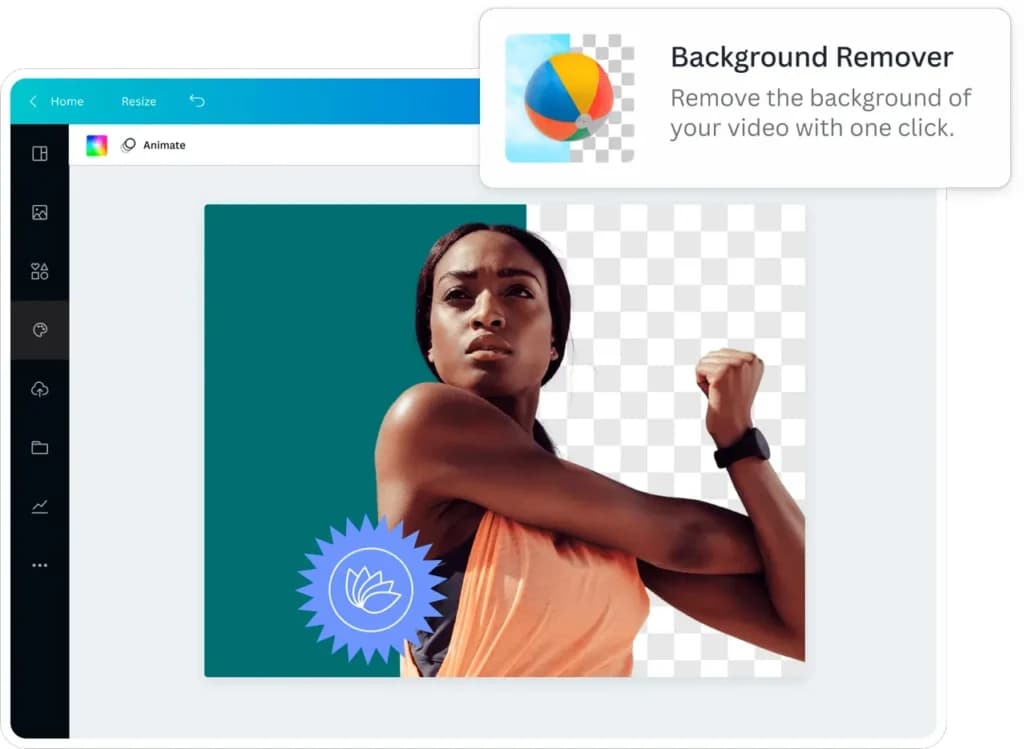
- You cannot remove a photo background in one click.
- You cannot resize one design for Instagram, Facebook and LinkedIn in one click. You redo it for each platform.
- You cannot schedule posts. You download each design and post it yourself.
Stay on Free if you work alone, post a few times a week, and templates do the job.
When is Pro worth it?
Pro is the plan most small businesses should get once posting becomes part of the weekly routine. You pay $15 a month, or $10 a month on yearly billing, and you get:
- About 10 times more AI uses than Free. That includes the tools that save the most time: removing backgrounds, resizing a design for every platform, and translating text.
- Over 3.6 million templates and over 141 million photos, videos and graphics, so you rarely see the “Pro only” lock.
- Your logo, colors and fonts saved, ready in one click. You can save up to 5 brands, which helps if you run more than one business.
- Post scheduling right inside Canva, so you can plan a whole week of posts in one sitting.
- 100GB of storage, which you will need if you work with video.
A simple rule of thumb from my experience: upgrade to Pro once you post almost every day, or once you share the same design on 2 or more platforms. The time you save on resizing and removing backgrounds is worth more than $15 a month.
One thing to know: a Pro account is for one person only. If an employee or freelancer also needs to log in, Pro is no longer the right plan.
Do you need Business?
Only if 2 or more people make designs for the same business. Business lets your team work on the same designs and use the same brand assets. You can also set it up so nothing gets posted until you approve it.
On top of everything in Pro, you get:
- About twice as many AI uses as Pro.
- Room to save up to 100 brands, which is useful for agencies that handle many clients.
- 500GB of storage.
- The option to buy extra AI uses if you run out. Pro does not have this.
- 10% off printing through Canva, in countries where Canva prints.
There is no minimum number of people, and you only pay for the people you actually add. For example, a team of 2 pays $42 a month, or $420 a year.
Get Business if you have a marketing employee or a freelancer, or you are an agency with several clients.
Skip it if you work alone. You would pay $6 more a month for team tools no one uses.
Who needs Enterprise?
Almost no small business. Enterprise is built for big companies with an IT team. Its main features are company-wide login controls, space for up to 1,000 brands, and 1TB of storage. You only get a dedicated support person if you buy 150 seats or more, which tells you who this plan is for.
Which plan should you pick?
- You post 1-3 times a week, you work alone, and templates are fine: Free
- You post almost every day, on more than one platform, and want AI to handle the boring parts: Pro, $15/month
- 2 or more people make your designs, or you want to approve posts before they go out: Business, $21/month per person
- You are a large company with an IT department: Enterprise
One tip before you upgrade: during the free trial, you only get as many AI uses as the free plan. So don’t judge the AI tools during the trial. Give them a real chance in your first paid month.
Expert Score
Pros
- AI tools for creating and editing designs
- 1M+ free templates
- Easy to share option
- Automatic save
Cons
- Best features aren't available for free
- No phone, live chat, email or community support
- Its online version has more templates and design elements
Customer Support
When I need assistance with Canva's graphic design software, I always turn to their Help Center. It provides swift responses to my questions and makes troubleshooting easy. Canva also offers free design courses and tutorials through their Design School, which is a fantastic resource for improving my skills with this graphic design tool. Blog: Canva’s insightful blog is packed with helpful articles about graphic design features, trends, and best practices. It’s a go-to resource for anyone looking to learn more about designing effectively and creatively.
24/7 Help & Support
Available only to users of Canva Pro, Canva Enterprise and Canva
FAQ
There is a comprehensive FAQ section on their website
Video Tutorials
Canva has over 50 educational videos available on its website
Ease of Use
When I use Canva's homepage, I love how simple it is to find what I need. The search bar at the top makes it quick and easy to locate images, templates, and design elements by entering a few keywords. Everything feels seamless, especially when I’m in a hurry. Canva’s templates are thoughtfully organized into categories based on their function—like presentations, social media, or invitations. This grouping makes it so much easier for me to browse and pick the design that fits my project. Once I find a template, the drag-and-drop interface allows me to customize it effortlessly, whether it’s changing colors, adding text, or uploading my own images. This level of organization and simplicity lets me focus more on being creative and less on figuring out where to start. It’s honestly one of the best features of this graphic design software. For a helpful tutorial on navigating Canva’s homepage and maximizing its features, check out this video:
Performance
When it comes to performance, Canva has always been reliable for me. The platform runs smoothly on both desktop and mobile, and I’ve rarely encountered lag or delays, even when working on larger projects. The graphic design tool loads quickly, and the drag-and-drop functionality makes customizing templates and adding design elements seamless.
I also appreciate how responsive Canva is—it automatically saves my work as I go, so I never have to worry about losing progress. The graphic design software handles multiple layers, text effects, and high-resolution images effortlessly, which is impressive for a web-based platform.
What stands out most for me is how accessible Canva is across devices. Whether I’m working on my laptop or editing on the go with my phone, the experience is consistent and hassle-free. This performance reliability makes Canva a top choice for creating professional visuals efficiently, no matter the project size.
Features & Functionality
Canva Graphic Design
Canva’s graphic design features have been a game-changer for me when it comes to creating impactful marketing materials. The tools not only enhance the visual appeal of my designs but also streamline the entire graphic design process, making it quick and hassle-free. I especially love how the platform fosters collaboration among teams, allowing us to work together seamlessly in real-time.
These capabilities are essential for staying ahead, whether it’s creating social media posts, presentations, or marketing campaigns. Canva’s graphic design software helps me maintain a professional edge while saving time and effort.
Here is a quick list of the top features Canva.com offers:
- Extensive Template Library
- Customizable Designs
- Collaboration Tools
- Mobile App
- On-Demand Purchases
- Background Remover and Photo Effects
- Photo Vignette and Frames
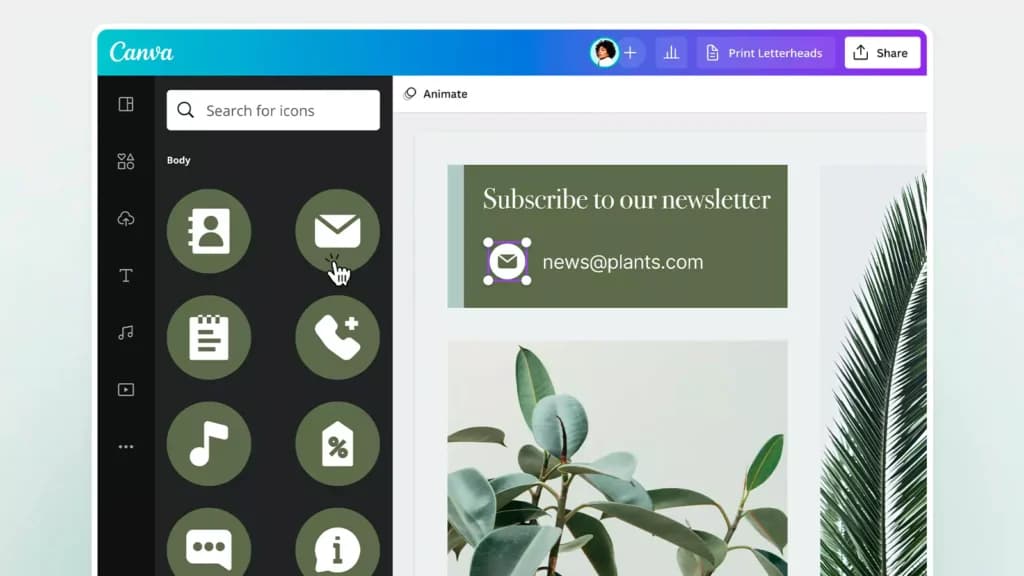
- Design Grids and Free Icons
- Web Wireframes
- Stickers and Badges
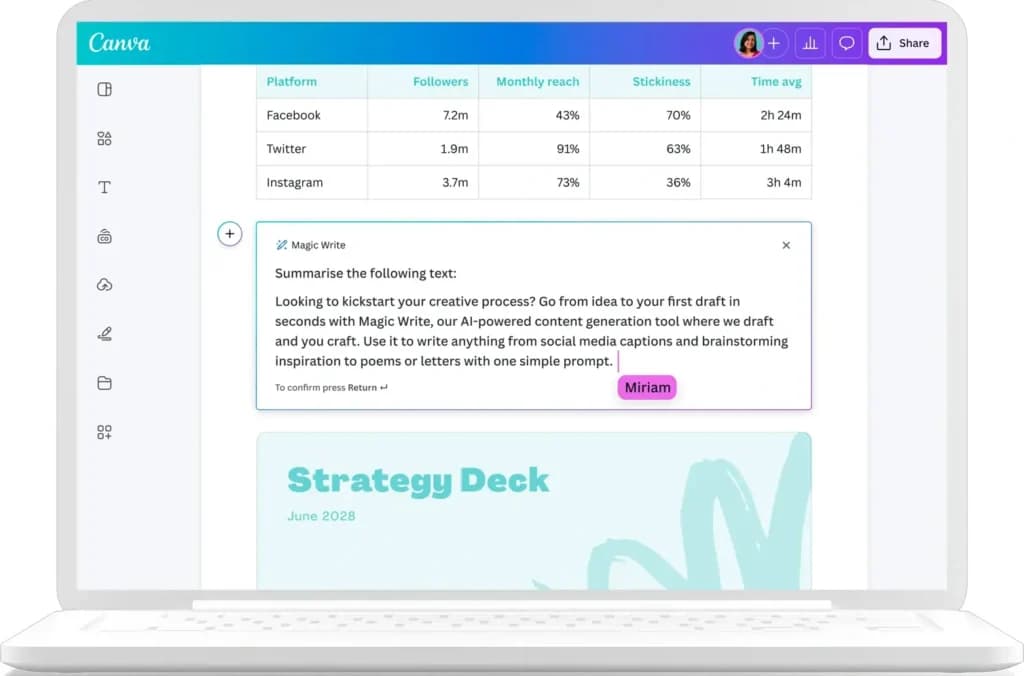
- Magic Write AI Text Generator
- Magic Design AI
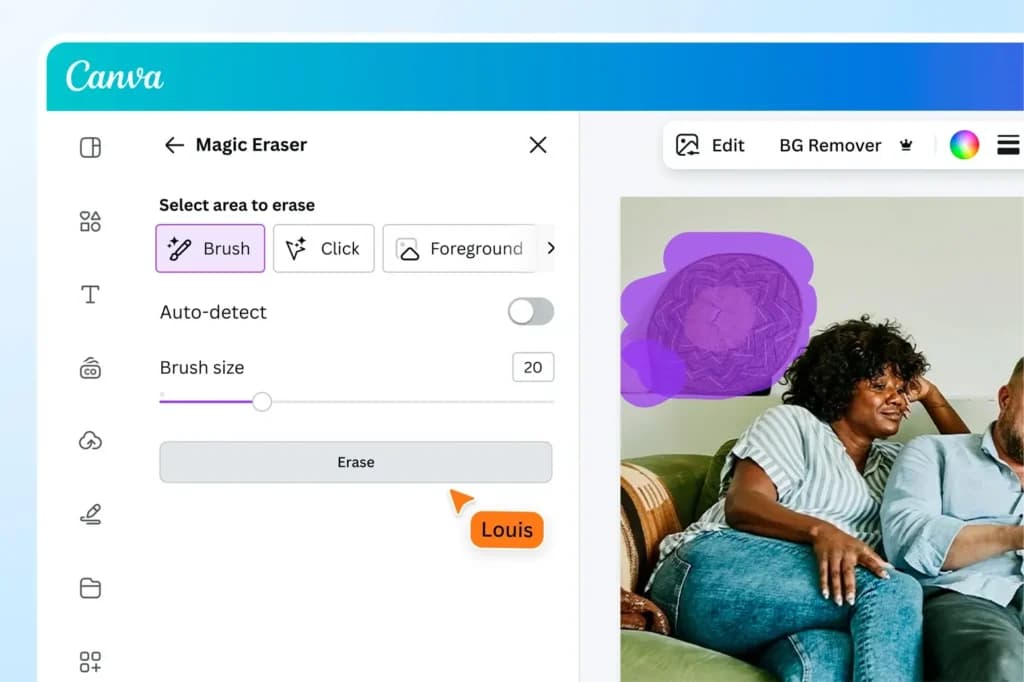
- Magic Edit and Magic Erase
- Text-to-Image Generato
- AI-Powered Image Generator
- AI Voice Generator
- AI Music Generator
- AI-Powered Design Tools
- AI Summarization
- Interactive Charts and Graphs
- Branded Captions
- Automatic Captions
Let’s dive a little deeper into the features:
Canva AI Design Tools
Canva’s AI features have completely transformed how I approach graphic design. Tools like Magic Write help me generate text effortlessly, while Magic Design provides design suggestions tailored to my input, saving me tons of time. The Magic Edit and Magic Erase options make tweaking designs seamless, letting me enhance images or remove elements with ease.
The Text-to-Image Generator and AI-Powered Image Generator unlock new creative possibilities, while AI-driven features like automatic captions and branded captions streamline video editing. Canva’s AI tools make even complex tasks like creating interactive charts and summarizing content faster and more accessible, elevating every project.
Canva's writing tools are designed to make content creation effortless, even for those without a background in copywriting.
- Magic Write: Canva’s AI-powered text generator helps you craft compelling content in seconds. Whether you need short-form content like captions and headlines or assistance with longer pieces, Magic Write ensures your text aligns with your brand’s voice. By pairing Magic Write with Brand Voice in the Brand Kit, you can automatically apply your company’s tone and style guidelines, ensuring all content remains consistent and on-brand across your team. For businesses, this tool simplifies the process of maintaining a consistent tone across all materials.
Canva provides a powerful suite of photo editing tools that allow users to enhance images with ease.
- Magic Eraser: Quickly remove unwanted elements from your photos without compromising on quality. This feature is perfect for refining images before they go live on your website or social media platforms.
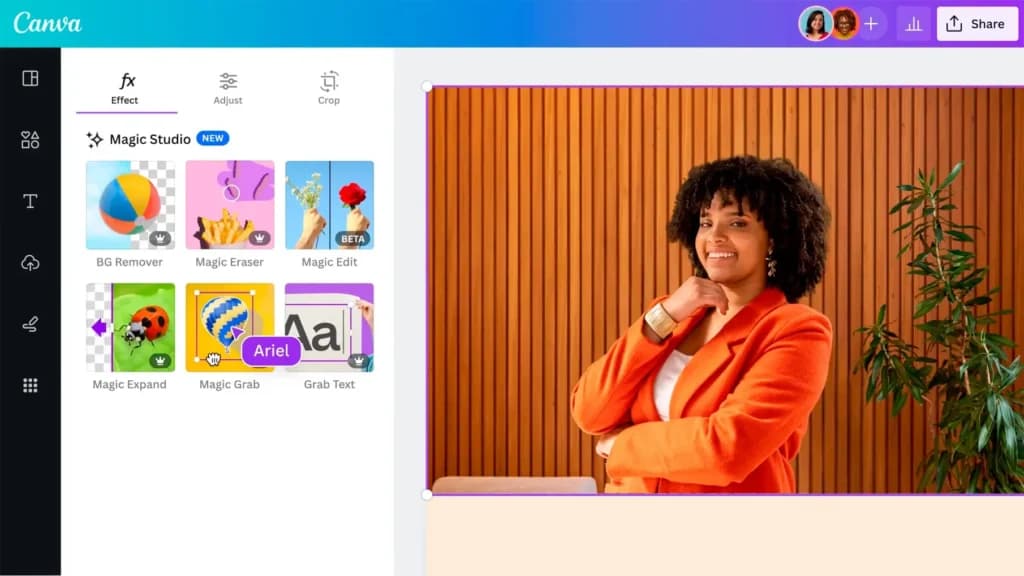
- Magic Grab: Select and isolate subjects in your photos with just a few clicks, making it easy to reposition or resize elements to fit your design needs.
- Magic Edit: Use AI-powered Magic Edit to swap objects within an image, remove or extend backgrounds, and make intricate adjustments quickly. This one-click solution streamlines editing tasks that previously required advanced software, though it may have limitations with complex backgrounds and placement accuracy.
- One-Click Background Removal: Available in the Teams plan, this feature allows you to remove backgrounds from images instantly, a must-have for creating professional-looking visuals.
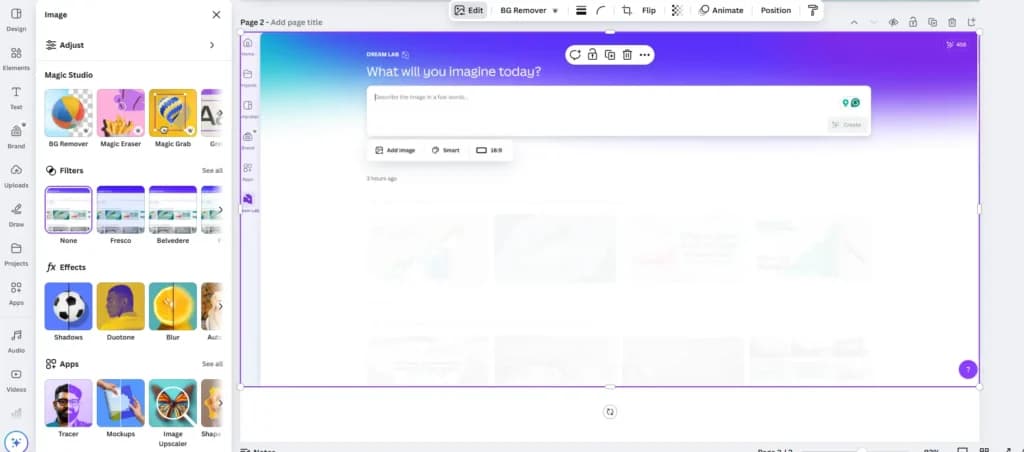
Canva’s AI-driven image generation tools, including the Dream Lab ai image generator, provide users with the ability to generate ai images and create stunning visuals from simple text prompts. Dream Lab allows users to generate ai images for various purposes, such as social media, blogs, or marketing materials, by transforming text into engaging photos and offering various styles to suit your brand’s aesthetic. Images generated with Dream Lab can be used for commercial use, but users should be aware of legal and copyright considerations, as ai generated designs may have specific usage policies and may lack traditional copyright protection.
- Magic Expand: Expand the canvas of zoomed-in images or change the aspect ratio of photos seamlessly, giving you greater flexibility in your design process.
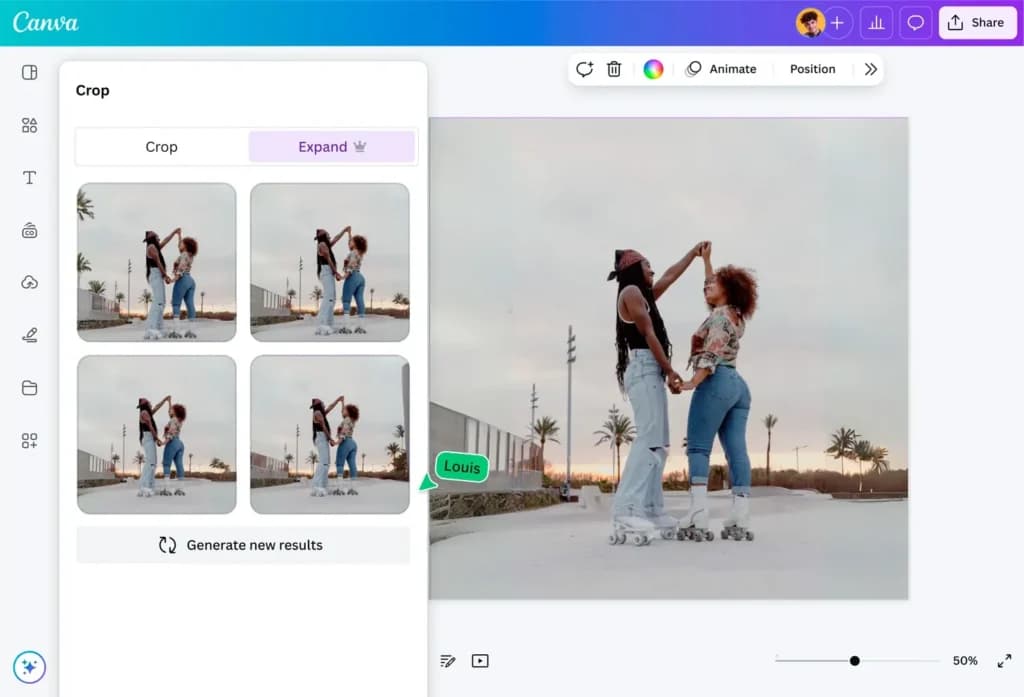
- Dream Lab: This feature is an ai image generator that transforms text into engaging photos, offering various styles to suit your brand’s aesthetic. Whether you need images for social media, blogs, or marketing materials, Dream Lab ensures they are on-brand and visually appealing. Unlike some other AI image generators, with Canva you can add accurate words into the images, and the results are great. Sometimes, the letters can be muddled up on the image, or there will be additional written text that you didn’t ask for. You can ask Canva to generate more options (you’ll get 4 at a time) until you get the desired image, but you can also use Magic Eraser to remove unwanted words.
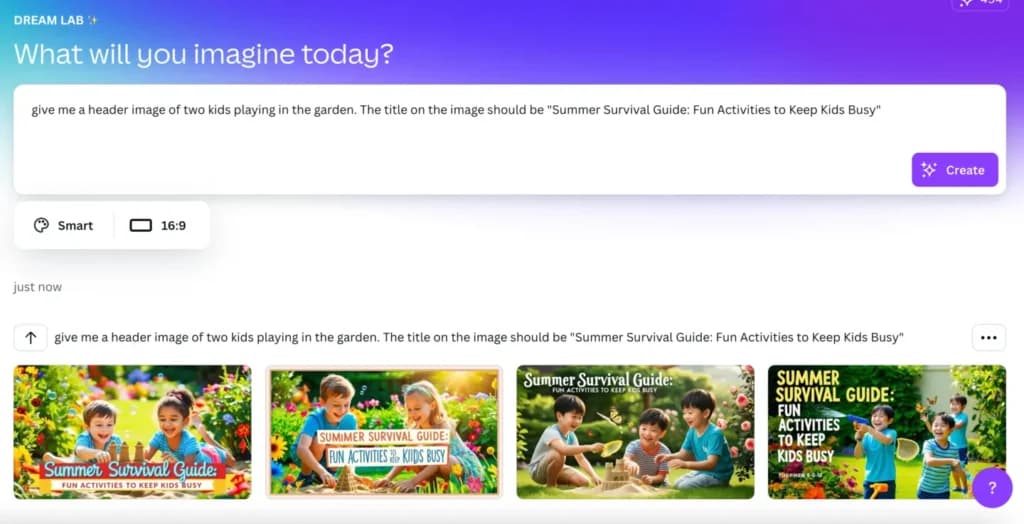
Canva's AI features, including Magic Studio and Dream Lab, streamline the design process for creating AI-generated designs. When using images generated by AI for commercial use, always review Canva’s terms and intellectual property policies to ensure compliance and avoid potential copyright issues.
Canva Video Capabilities
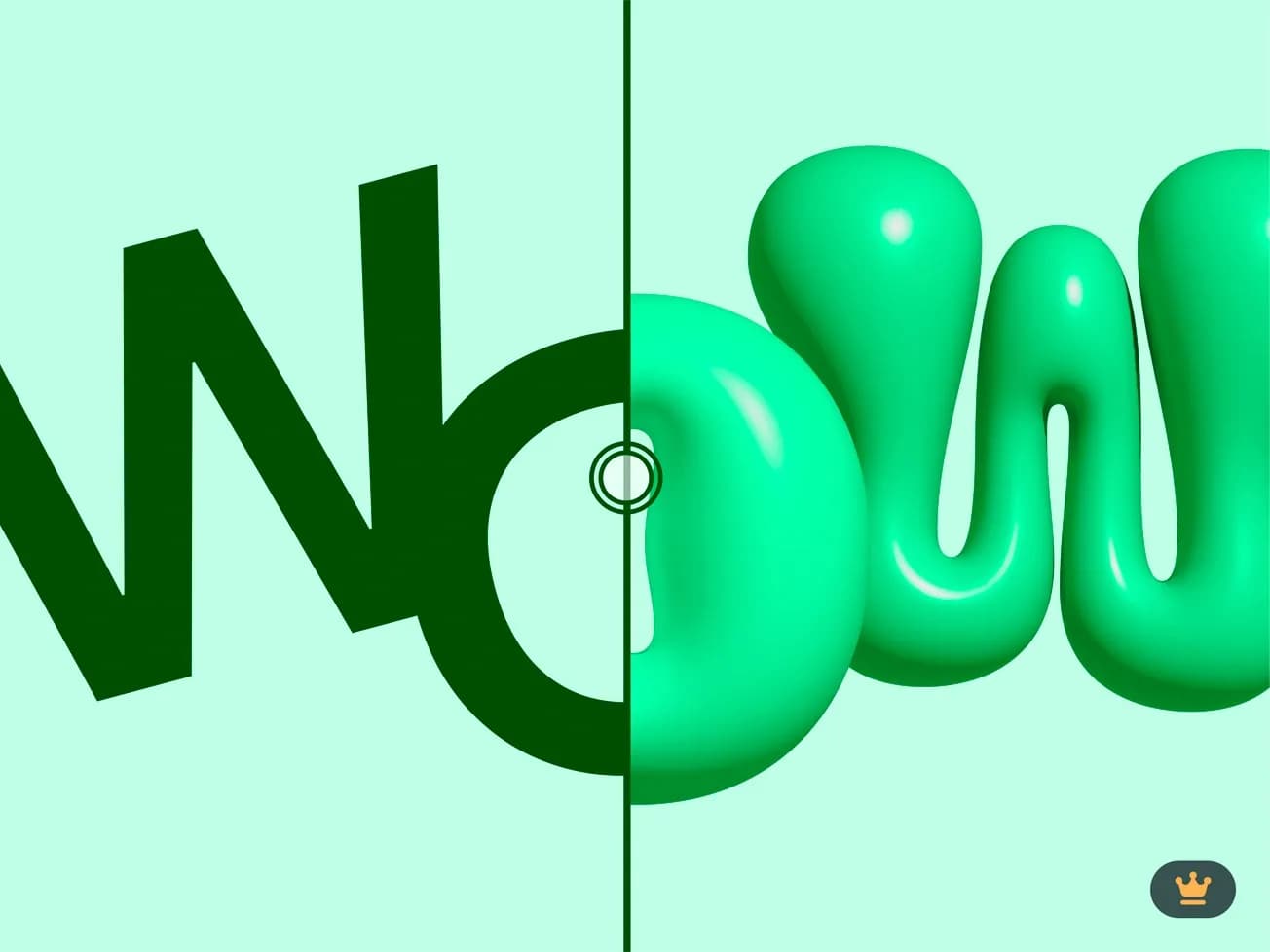
Canva’s visual effects tools like Magic Morph, Magic Animate, Magic Eraser, and Magic Write enhance text with features such as curved text, shadows, lifted text, hollow text, spliced text, and outlined text. They also include echo effects, glitch animations, neon aesthetics, background separation, and text animation. These features emphasize important text and create engaging, visually appealing designs, allowing users to elevate their content and capture their audience’s attention effectively.
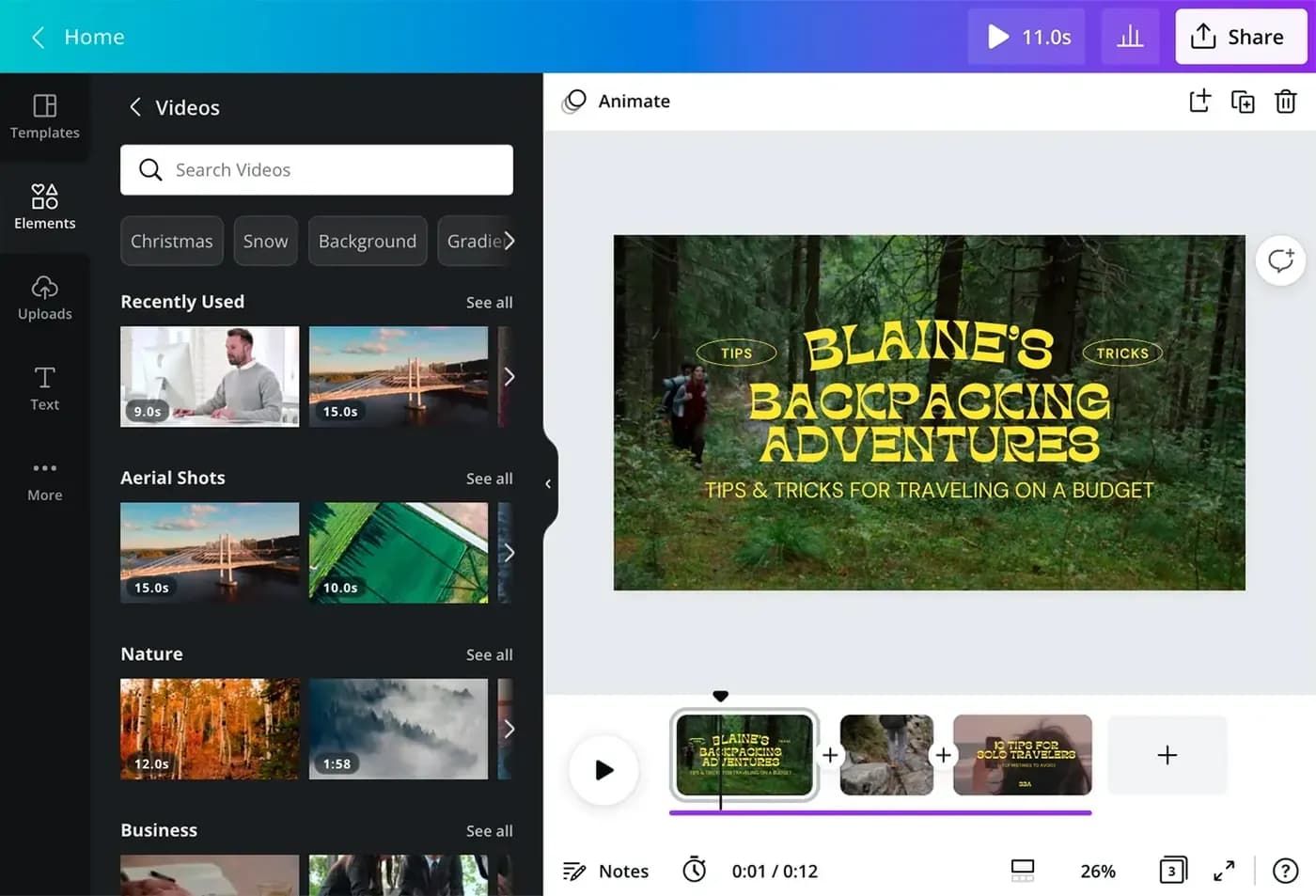
If you’re looking for an AI video editing tool, there’s a great offering here, and a huge database of stock footage is available. You can choose a template and start editing it to your needs or start completely from scratch if you prefer.
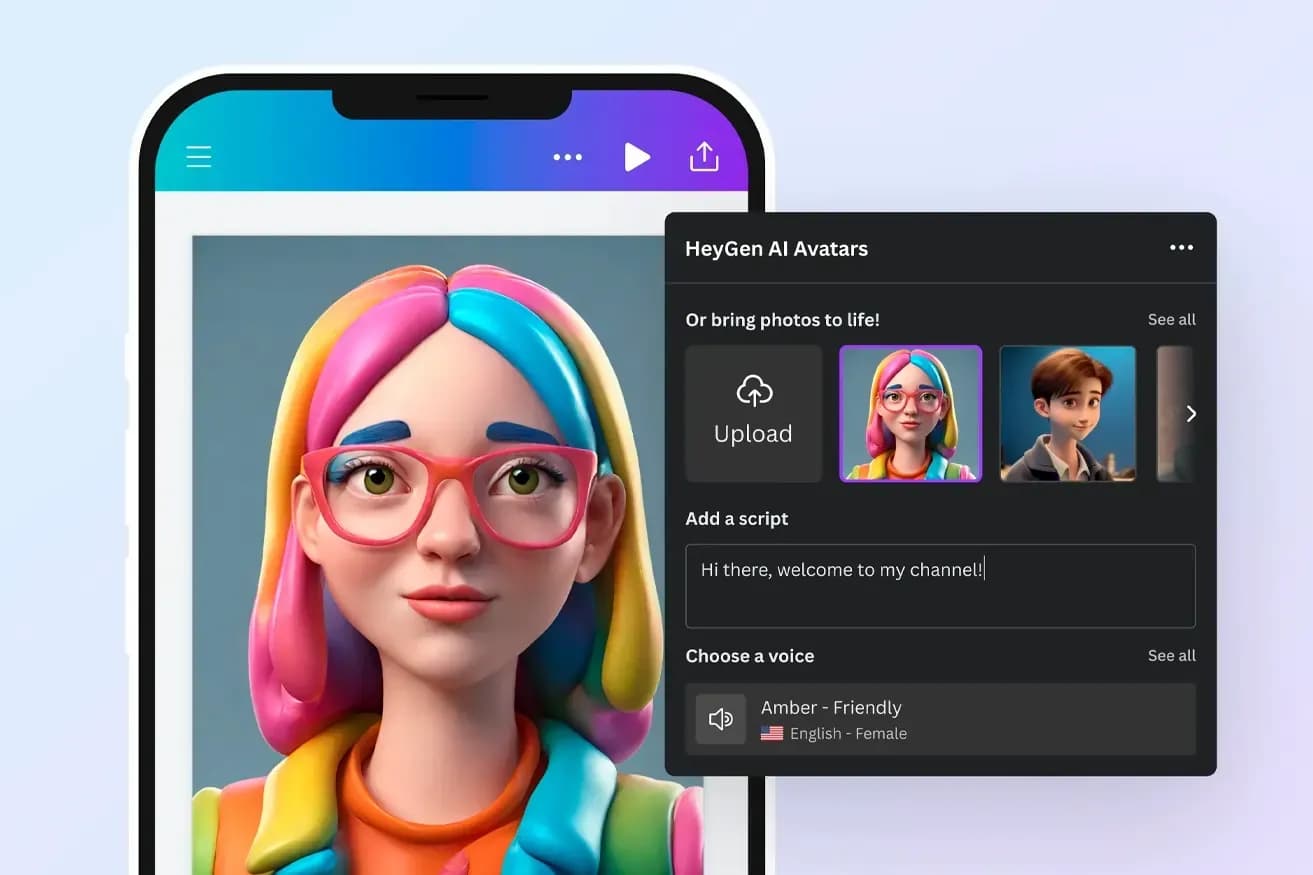
There are numerous ways to tweak these videos, including adding animations in a relatively straightforward manner. You can also easily alter the backgrounds of these videos. The library of royalty-free music is more than 500,000 clips in size and you can even use a tool to sync the music tempo to the animations.
No matter what type of format of a video you want to make, Canva has you covered. This includes YouTube, TikTok, Instagram stories, product videos, and much more.
Here’s a look at some of the main functions of editing videos that I came across when conducting this Canva video editor review:
Free Stock Videos
Videos are a key part of any business these days, whether you want to integrate them into your website or social media platforms. Adding stock footage can really take your content to the next level and Canva has a huge collection of high-quality stock footage for you to browse through.
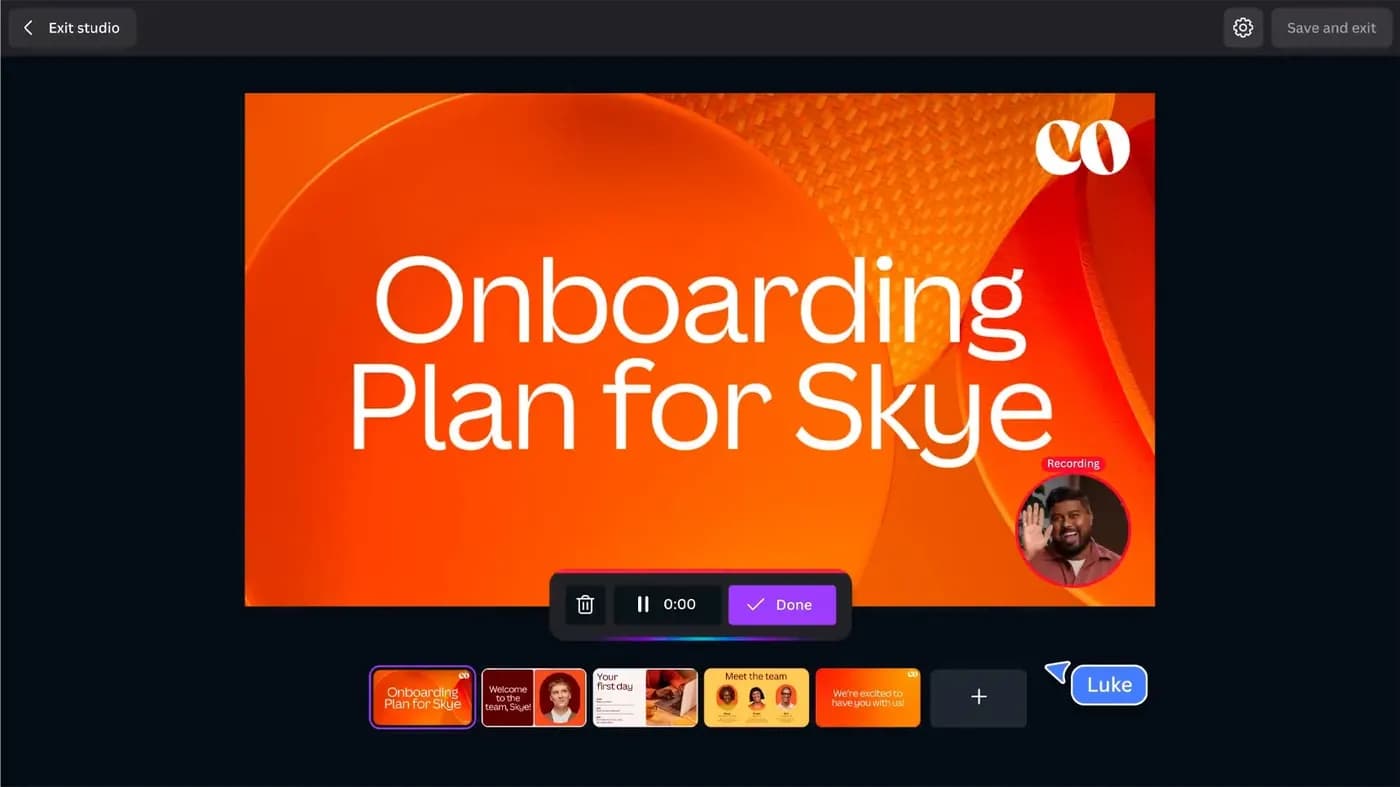
Online Screen Recorder
Whether you’re looking to carry out some training for team members, record a conversation with a colleague, or to simply capture some clips of an interesting podcast, the online screen recorder at Canva is very useful.
Text to Image
Another amazing tool for quickly developing unique images for your exact needs, the text-to-image tool at Canva is a game changer. It is very accurate when you give it accurate prompts and allows you to have access to interesting royalty-free images.
Canva Video Editing Features
Canva hasn’t wasted much time in rolling out a range of different AI tools, with Canva customers now having more than a dozen different AI tools available to them.
As opposed to many standalone tools, Canva allows you to do a lot of different things at the same time. For example, some AI tools will only generate text, while Canva can generate text and images. Here’s a brief look at the different options:
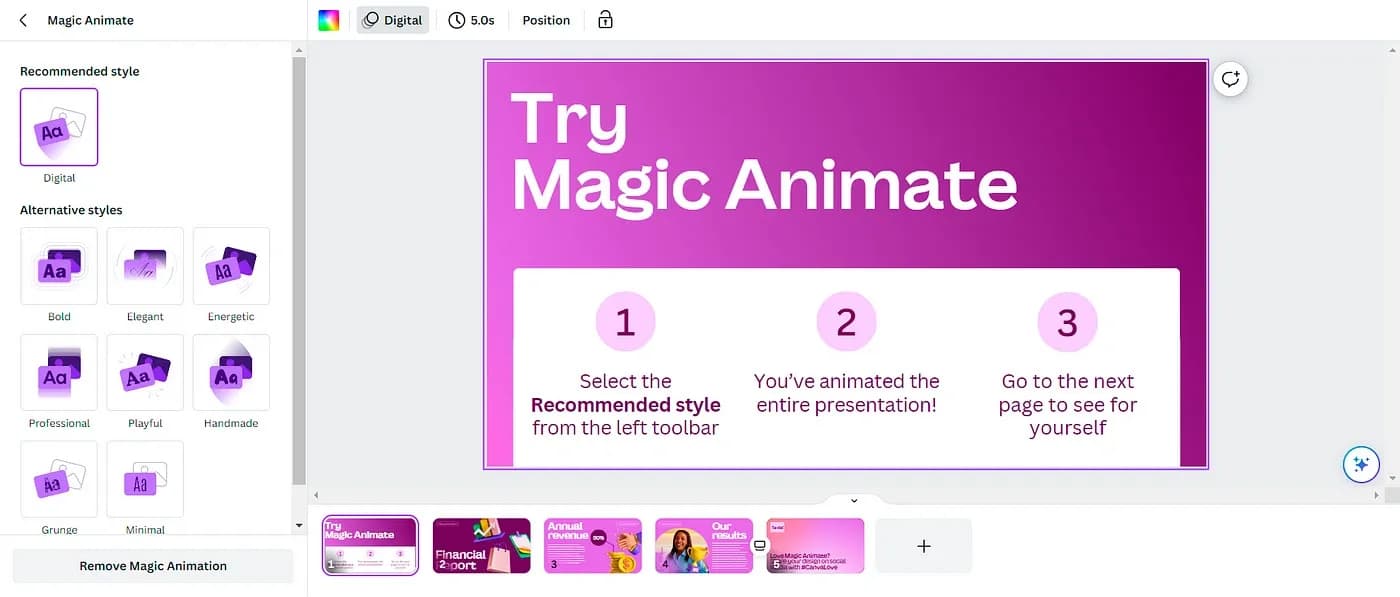
- Magic Animate: Adds movements or animations to parts of the designs
- Magic Eraser: Easily delete aspects of images
- Magic Expand: Quickly generate a large background for an image
- Magic Grab: Smartly cut out the subject from the background of a photo
- Magic Media: An AI image-creating tool that allows you to use prompts to make images or graphics
- Magic Morph: Instruct the model to impressively alter text and images
- Magic Switch: Automatically transform designs to make them suitable for different platforms
- Magic Write: A popular writing tool that allows you to generate text using prompts
I was impressed when testing out these different options powered by AI, especially with Magic Write and Magic Design. The latter allows you to get Canva to generate a new template exactly based on your needs rather than showing results that are somewhat relevant.
PDF Editor
Many people will deal with PDFs on a regular basis in their daily lives or business careers. One big downside is the struggle to edit these documents when needed. Canva solves this for you thanks to its user-friendly PDF editor tool.
Video to GIF
Many people enjoy sending GIFs to their friends or hopping on some trend on social media with a creative GIF. That’s why Canva released a tool that allows you to almost instantly convert a video clip into a GIF.
Canva's Latest AI-Powered Innovations
As a passionate advocate for tools that simplify creativity, I’ve been closely following Canva’s journey, and their latest AI-powered updates are nothing short of groundbreaking. Canva's AI tools are designed to make design more accessible to users without advanced graphic design skills, offering a comprehensive suite of AI-powered features that streamline creative workflows. Here’s my in-depth take on their newest features and how they’re transforming the design landscape.
Magic Studio: A Complete AI-Driven Design Suite
Magic Studio feels like Canva’s all-in-one solution to make design faster and smarter. With tools like Magic Design, which turns simple text prompts into beautifully crafted documents or videos, this feature is perfect for anyone looking to save time. Magic Media goes a step further by generating unique images and even videos based on user prompts. And then there’s Magic Switch, which seamlessly converts designs into different formats—ideal for repurposing content across multiple platforms.
My Take:
This suite stands out for its versatility. It’s clear Canva aims to empower everyone, from beginners to professionals. For me, the Magic Studio tools are especially valuable when I need quick results without compromising creativity.
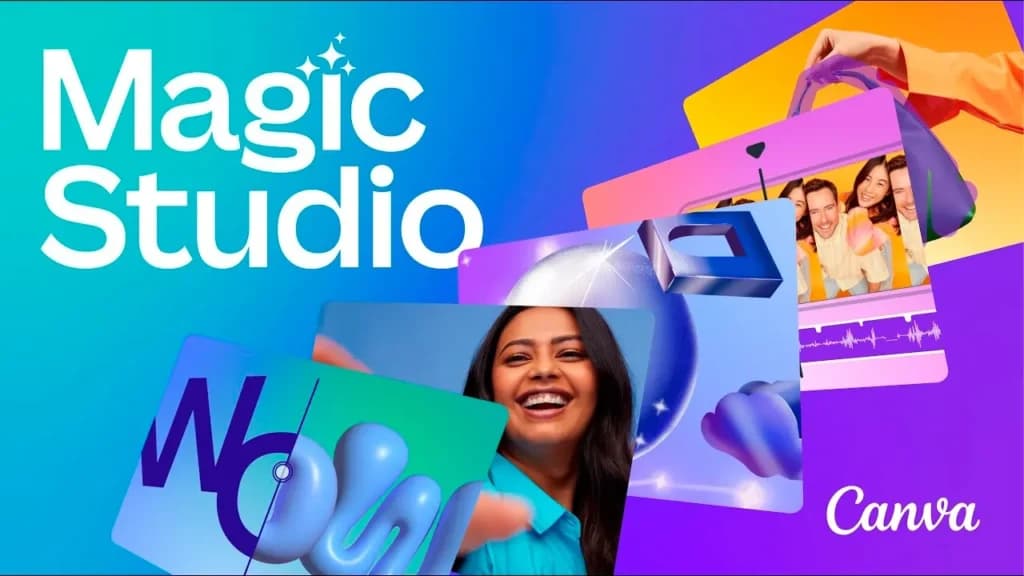
Magic Grab and Magic Expand: Redefining Photo Editing
These two tools have made editing feel effortless. Magic Grab lets me move and resize subjects within a photo, while Magic Expand fills in the edges of an image to create a larger composition, maintaining the original look.
Why It’s Amazing:
Magic Grab is perfect for adjusting compositions on the fly, and Magic Expand is a lifesaver when I need to resize images for different formats without losing quality.
Enhanced Text-to-Image Generator: Smarter and More Accurate
Canva’s improved Text-to-Image Generator delivers even more powerful results. I’ve tested it with abstract and detailed prompts, and it consistently produces images that align closely with what I envision.
Best Use Case:
This is ideal for creating visuals when stock images don’t quite fit the brief. It’s a huge leap forward for anyone who needs unique, context-specific graphics.
AI-Powered Design Tools: Automating Creativity
From Magic Write, an AI assistant for crafting engaging copy, to tools that automate labor-intensive tasks like resizing and reformatting, Canva has gone all-in on AI-driven productivity. Canva AI also features an AI voice tool that converts text to speech and generates voiceovers for videos, making video editing and content creation more accessible. Additionally, Canva AI features a conversational interface, allowing users to interact with the AI using natural language commands. These tools make it easier to focus on the creative aspects of a project while letting the system handle the technical details.
Why It Stands Out:
Magic Write, in particular, has become a go-to for drafting ideas. Whether it’s writing captions, brainstorming taglines, or creating outlines, it’s a creative partner that truly delivers.
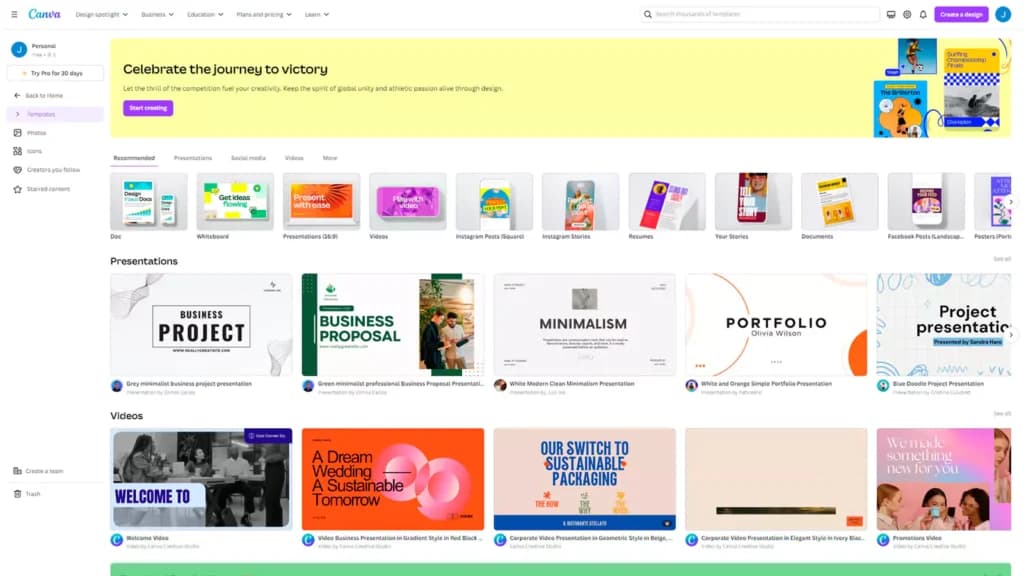
Extensive Template Library
The Canva tool offers an incredible variety of templates to meet all my design needs. Whether I’m creating social media posts, business cards, or presentations, Canva’s diverse range of options is tailored to industries like ecommerce, education, healthcare, and more.
This vast selection of templates not only simplifies the graphic design process but also ensures my marketing materials stay consistent with my brand identity. With Canva’s intuitive tools and professional designs, I can create polished visuals that are perfect for any project or industry. It’s a must-have graphic design software for maintaining efficiency and creativity.
Customizable Designs
Canva’s graphic design tool gives me the freedom to modify fonts, colors, and images, making it easy to create unique visuals that perfectly align with my brand. This level of flexibility is essential for businesses like mine that want to stand out in today’s competitive market. Whether it’s a bold social media post or a polished presentation, Canva ensures every design is tailored to my needs.
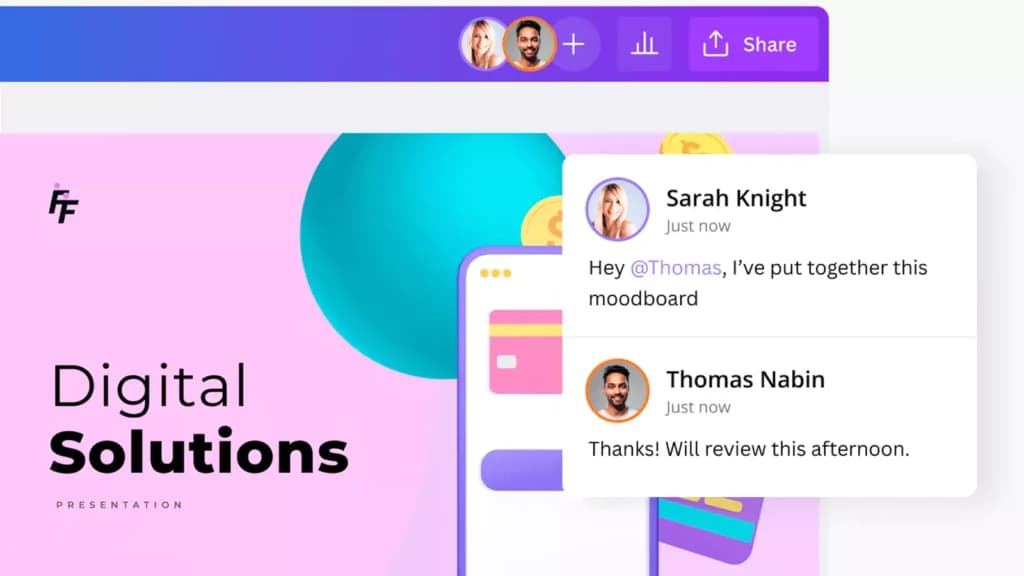
Collaboration Tools
I love how Canva’s tools make teamwork effortless. Multiple users can edit and comment on designs in real time, which is a game-changer for remote teams like ours. It keeps workflows seamless and projects on track, making the graphic design process more collaborative and efficient.
Mobile App
Canva’s graphic design tool is even more versatile with its mobile app, which lets me design on the go. It’s perfect for quick edits and updates, ensuring I can stay responsive and agile no matter where I am. As a small business owner, I love how the app allows me to jump between meetings and tasks while still having easy access to my projects. Whether it’s tweaking a social media post or finalizing a presentation, Canva’s mobile app makes the graphic design process seamless and efficient, right at my fingertips.

On-Demand Purchases
Canva’s graphic design tools make customization even more flexible by allowing me to purchase specific design elements like premium images or icons. This is a fantastic option for businesses that need access to high-quality graphics but don’t require a full subscription. It gives me the freedom to enhance my projects with top-tier visuals without overspending.
Background Remover and Photo Effects
Canva’s advanced tools, like the Background Remover and various photo effects, make image editing incredibly simple. Tasks that once felt complex—like enhancing images or isolating objects—are now quick and effortless. These features dramatically improve the quality of my visual content, helping my designs look polished and professional with minimal effort.
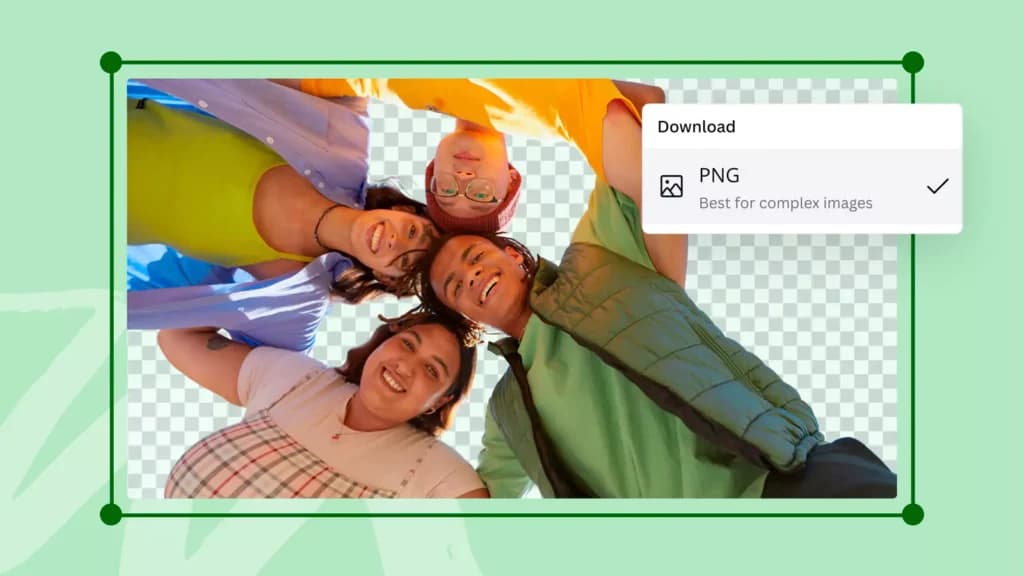
Photo Vignette and Frames
I use Canva’s Photo Vignette and Frames tools to add artistic touches to my images, which helps elevate the look of my marketing materials. These features make it easy for me to enhance the visual appeal of my designs and create campaigns that grab my audience’s attention.
Design Grids and Free Icons
Canva’s design grids and free icons help me structure my layouts in a way that looks clean and professional. These graphic design features ensure my designs are visually appealing while effectively communicating my marketing messages. They make creating polished content simple and efficient.
Web Wireframes
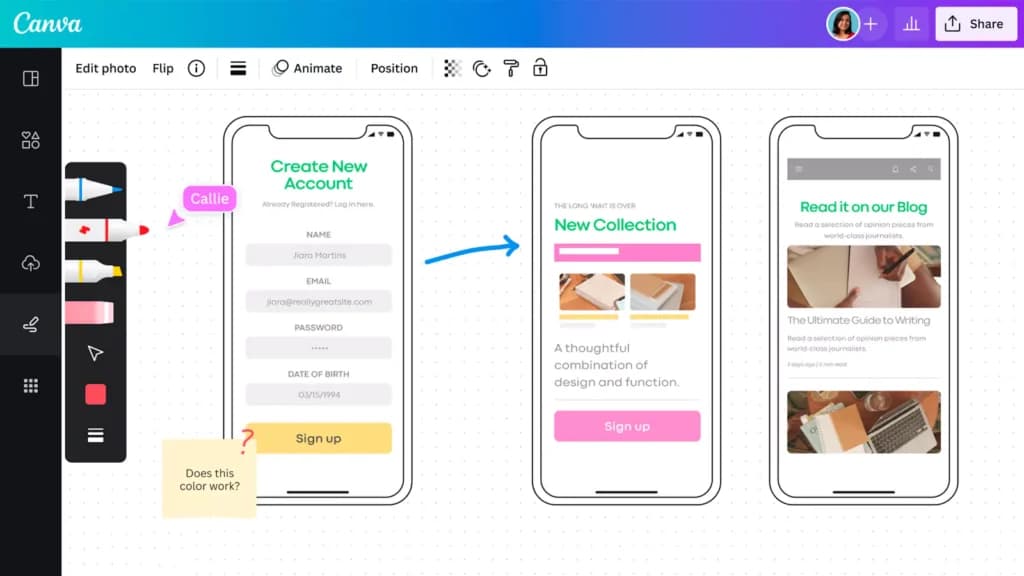
This feature is incredibly useful for me when working on digital projects. Canva allows me to create basic layouts as a starting point before diving into full-fledged web designs. It’s an essential tool for businesses in the digital space, helping to streamline the planning process while saving time and resources. By visualizing designs early on, I can ensure that my final projects are both efficient and impactful.
Stickers and Badges
These playful design elements can be used to add personality and flair to designs, making them more engaging and likely to catch the eye of potential customers.
Portfolio and Experience
The design portfolio has a wide range and comprises the Search, Layout, Text, Background and Uploads tab. It equally has the Zoom Control, Shares, Download and Make Public buttons.
It requires little or no experience at all. There is a range of designs that cover Social Media posts, Logos, Filers, Invitations, PowerPoint slides and Presentations. What's more, these graphics contain texts and symbols.
Interactive Charts and Graphs
Canva’s interactive charts and graphs make presenting data visually compelling and easy to understand. I can customize colors, styles, and layouts to align with my brand, while the intuitive interface lets me add animations for extra engagement. It’s a powerful tool for effortlessly turning raw data into captivating visuals.
You can also get different versions and sizes of the elements such as fonts, images, colors, depending on various uses.
Canva’s editing features are great for me to fine-tune my designs and achieve a professional look without needing advanced design skills. From cropping and resizing to adjusting brightness, contrast, and saturation, the tools are intuitive and easy to use.
I also rely on the background remover for clean, polished visuals and a wide range of filters and effects to enhance images. Canva’s drag-and-drop editor allows me to quickly customize templates, add text, and incorporate my branding elements seamlessly. These editing capabilities save me time while ensuring my designs look sharp and consistent every time.
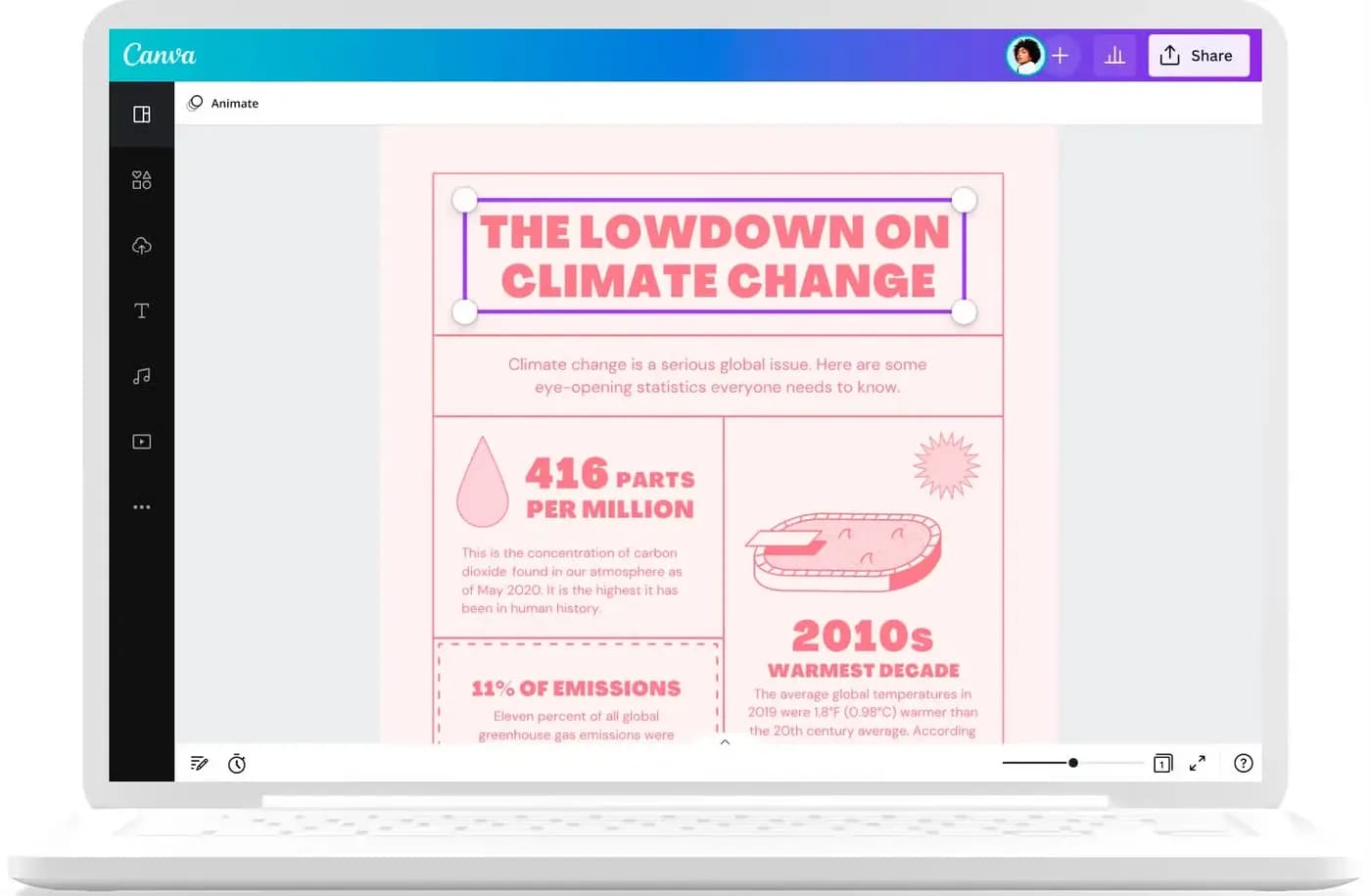
Canva’s animation capabilities make it easy for me to bring my designs to life with just a few clicks. Whether I’m creating a social media post, presentation, or marketing ad, the animation options let me add dynamic transitions, text effects, and movement to elements without needing advanced skills.
I can choose from pre-designed animation styles like fade, pan, or bounce, or customize the timing and sequence to fit my vision. These features allow me to create engaging, professional-quality content that captures attention and keeps my audience interested. It’s a powerful addition to my design toolkit for standing out online.
Logo Design Process
Canva is here to bring your vision to life. Bring your imagination to life in minutes with this step-by-step guide on designing a logo in Canva.
1. To start, choose a logo template.
2. Select your color palette for your design.
3. Add text to showcase your brand name.
4. Next, pick the proper fonts as the look of your font can have a massive impact on your logo.
5. Add your elements. These extra touches include shapes, lines, illustrations, etc., which need to be combined to be visually appealing.
6. Now finish and save a copy of your logo.
You can customize elements like font style, color, and illustration on your logo. You can create other versions of your logo so that they can be used on letterheads, business cards, email signatures, etc. Lastly, you can save it as a PNG file.
Export high-quality logos ready for various applications.
It only takes little knowledge of color combinations to make your designs and can take as low as 5 minutes to finish a design. If you make any error during the process, you can easily edit this by clicking on the 'My Designs' button.
How to make your design on Canva
- Choose a template by clicking on it.
- Once the template comes up, click the search button to search for any keywords of your choice to add elements.
- Choose your desired colors.
- Select your preferred fonts and tweak them to your taste by adding images, importing elements, or changing your design background.
- Then click on download to save.
How These Tools Transform the Design Experience
Canva’s latest AI updates aren’t just about making design easier—they’re about making creativity accessible to everyone. Whether you’re a small business owner, a marketer, or just someone looking to create beautiful visuals, these tools feel intuitive and empowering.
Personally, what I appreciate most is the balance Canva strikes between automation and user control. The AI takes care of the heavy lifting, but you’re still in charge of the final look and feel. It’s like having an extra creative hand that works at the speed of thought.
These AI tools are more than just features—they’re a glimpse into the future of design. Canva is proving that technology can amplify creativity, not replace it. Whether you’re a seasoned designer or someone new to the field, these updates make it clear: design isn’t just for the experts anymore; it’s for everyone. And honestly, that’s a future I’m excited to be part of.
Canva is available on web browsers, desktop apps (Windows and MacOS), mobile devices (iOS and Android), tablets, and integrates seamlessly with platforms like Google Drive, Dropbox, and social media for effortless design anywhere.
Canva stands out with its Magic Studio, a suite of AI-powered tools like Magic Write for text generation, and Magic Design for creating design suggestions based on input. The Background Remover and Magic Resize features make editing seamless by removing backgrounds and resizing designs for different platforms in just a click.
I also love the Brand Kit, which keeps all my logos, colors, and fonts organized, ensuring consistent branding. Canva’s Data Visualization tools make creating infographics and charts effortless. These unique features make Canva a powerful and versatile graphic design software for any creative project.
Features
- API
- Templates
- Image Database
- Collaboration Tools
- Content Import/Export
- Content Management
- Edits Vector & Raster Graphics
- Pro-Level Typography
- Print Management
- Publishing / Sharing
Verdict
Canva is an incredible graphic design tool that works perfectly for both beginners and experienced designers. It’s my go-to whenever I’m on a tight deadline because it’s so easy to use and gets the job done fast. For me, Canva offers excellent value for money, especially with the Pro and Enterprise plans. The extra graphic design features included in these subscriptions—like premium templates, brand kits, and collaboration tools—are totally worth it. Anyone unwilling to pay for design at all can start with the best free graphic design software and upgrade only when exports become limiting.
I also love how Canva’s free plan helps users save costs. It’s been a game-changer for small businesses, teachers, nonprofits, and students who don’t have a big budget to hire an in-house graphic designer. Whether you’re working on a presentation, poster, or social media post, Canva makes creating professional visuals simple and accessible. It’s truly a must-have graphic design software for everyone. Before you settle, line this up against the best graphic design software to see where a template-first approach stops paying off.
Canva Alternatives
Starting from: $0/month
Free
Monthly plan
- AI tools for creating and editing designs
- 1M+ free templates
- Easy to share option
- Automatic save
- Best features aren't available for free
- No phone, live chat, email or community support
- Its online version has more templates and design elements
Starting from: $0/month
Starter
Free
- Real-time co-editing improves teamwork and eliminates file chaos.
- Smart layout and prototyping tools reduce repetitive work.
- Flexible pricing suits both small teams and larger organizations.
- No native CMYK support, which limits print design workflows.
- Lacks advanced photo editing capabilities.
- Requires careful seat management to avoid paying for unused licenses.

Starting from: $14.98/month
Photography Plan
14-Day Money-Back Guarantee
- Can deeply customize almost every aspect of the design process
- Supports multiple file formats — essential for cross-platform design work.
- Tools for mobile and web design
- Adobe Suite integration for easy workflow
- Requires a powerful computer as it runs many processes
- Steep learning curve due to many features
- No option for a perpetual license
Users Reviews
Write a review
Leave a review, help others get it right the first time.
5 Reviews
Ben C
PM
Best Platform for presentation and quick designs
Canva helping me create outstanding presentation in no time, its very intuitive and by far the best presentation creator in the market!
- Easy to use
- Intuitive
- Always developing
- Slow costumer service (and not so helpful)
Tim B
Canva review
Canva has provided the exact tools that I've needed to create multiple brand kits and marketing campaigns.
- Canva makes it super easy to create short promotional videos. It gives you a large library of audio, elements, and photos to choose from when designing.
- Sometimes the drag and drop mechanism is tedious work when having to move objects
Tim B
Canva does it all
Canva allows you to get instant visuals. I am able to create a wide variety of graphics in just a few minutes. The dashboard is relatively organized and simple to navigate.
- Best for social media marketing!
- I do wish there was a larger array of stock photos. Printing from the files provided by Canva isn't ideal and is complicated.
Gabriel P
Love Canva and all of its uses!
Wow, thanks to Canva I have been able to design everything for my branding in a decent amount of time and for not too much money.
- My business cards look great, my logo, my social banners, my promotionals, just to name a few others also turned impeccable. I've got so many compliments on my shop's new look!
Rama P
Highly recommend
There is so so much you can achieve when working in Canva. Lots to do and many tools/elements.
- Cost effective, no experience needed to design using Canva, cloud based so I can use on the go, and awesome selection of templates.
- Not the smoothest platform. It can difficult to sort through all your files once you've created numerous designs.