
How to Edit, Modify & Alter a PDF File for Free in 2026: A Small Business Owner's Practical Guide

For contracts, invoices, quotes, and forms- where you need to change specific text without breaking the layout - use Sejda. Open it in any browser, click the text, type your change, and download. Free, no signup, 2 minutes.
For marketing PDFs, brochures, or phone editing where you want a nice-looking result, use Canva. Upload your PDF, edit like a design, and download. Free account required, works great on mobile.
Two tools, two clear scenarios. That's the whole system for 95% of small business PDF work. Skip down to see exactly how to handle the situations you're probably stuck on right now.
I wrote this because I got stuck too
If you're reading this, you probably just tried to open a PDF in your usual PDF reader and realized you can't change anything. Your client sent a contract with the wrong payment amount. Your supplier sent a quote with the wrong quantity. You need to sign a vendor agreement and email it back - but you don't have a printer, and even if you did, the scan-and-email workflow is 30 minutes you don't have.
I've been there. Most small business owners have. And the frustrating part is that the answer is genuinely simple - it's just buried under 50 listicle articles recommending 15 different tools, most of which have hidden paywalls.
This article is the version I wish I'd found when I first got stuck. Two free tools. Clear rules about which to use when. Step-by-step walkthroughs of the four situations small businesses actually run into. No affiliate tricks, no surprise paywalls.
Tool 1: Sejda - the best way to modify a PDF file for free
Sejda is the only genuinely free online tool that lets you click directly on existing PDF text and change it- not just add text on top. That's what makes it the right tool when you're working with someone else's contract, quote, or form and the layout has to stay intact.
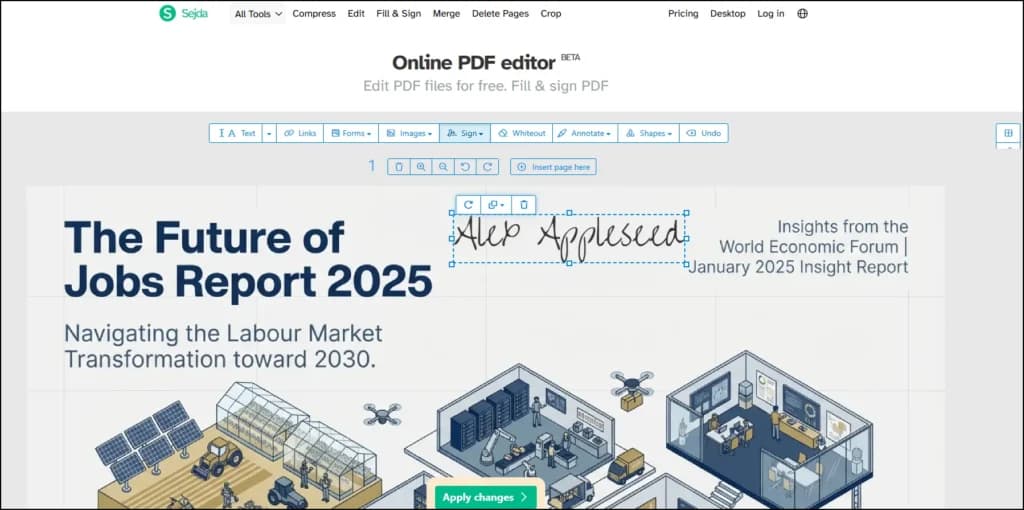
Step-by-step method to edit a PDF file free with Sejda
- Go to sejda.com/pdf-editor in any browser. No signup needed.
- Click Upload PDF file and select your document.
- Click directly on the text you want to change. A cursor appears. Type your edit - Sejda automatically matches the original font, size, and color.
- Add new text anywhere by clicking an empty area and typing.
- Whiteout sensitive info with the Whiteout tool if you need to redact.
- To sign: click the Sign tool → draw, type, or upload your signature → drag it to where it belongs.
- Click Apply Changes at the bottom.
- Download your altered PDF.
Total time: 2 minutes once you know where to click.
What Sejda's free plan actually includes
- 3 tasks per day on the free tier (each edit session counts as one task)
- 50 MB maximum file size
- 200 pages maximum per document
- No signup required- upload and edit
- Files auto-delete from Sejda's servers after 2 hours
- No watermarks on the exported PDF
Tool 2: Canva - the best way to alter a PDF document visually
Canva's free PDF editor works very differently from Sejda. Canva treats your PDF like a design file- every text block becomes an editable element. That's a strength when you want to transform how the PDF looks, and a weakness when you need the layout to stay exactly the same.
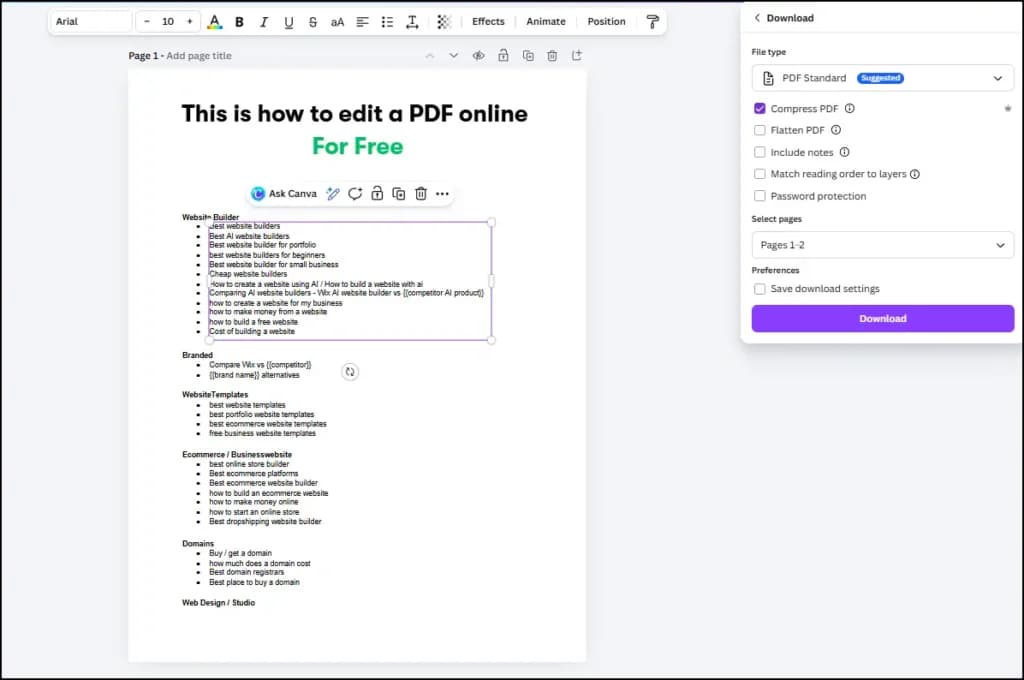
Step-by-step method with Canva (desktop)
- Go to canva.com/pdf-editor and sign in with a free Canva account (no credit card).
- Click Upload your PDF and select your file.
- Canva opens your PDF as an editable design, with each text block becoming its own element.
- Click any text to edit it. Use the toolbar to change font, size, color, and alignment.
- Add images, shapes, or logos from the left sidebar.
- Click Share → Download → PDF Standard → Download.
Step-by-step method with Canva on mobile
If you mostly work from your phone, this is where Canva genuinely wins:
- Download the Canva app on iOS or Android (free).
- Tap +→Upload→ select your PDF from your phone.
- Edit text and elements with touch gestures.
- Tap the share icon→Download as PDF.
The mobile app is the full editor, not a compromise version. It's the best free way to edit a PDF from your phone.
What Canva's free plan actually includes
- Free account required(email + password, no credit card, 30 seconds to set up)
- Unlimited PDF edits- no daily caps
- No watermarks on exported PDFs
- Full mobile app on iOS and Android
- Some Pro-only elements(premium fonts, stock images) are locked, but everything you need to edit text and add basic images is free
The trade-off to know about: Canva re-renders your PDF when you import it. For simple PDFs (brochures, flyers, one-page documents), this is invisible. For complex contracts with tables, columns, and precise formatting, expect some layout shifting. This is why we recommend Sejda for contracts.
4 real scenarios, solved step by step
Here's how to handle the four situations small business owners run into most often. Bookmark this section - these are the exact moves you'll use all week.
Scenario 1: A client sent a contract with a typo. How do I fix it and send it back?
The situation: The contract says payment of $5,000 but it should be $5,500. Everything else is correct. You need to fix just the number without changing anything else on the page.
The fix:
- Save the PDF from your email to your computer.
- Open sejda.com/pdf-editor in your browser.
- Upload the contract.
- Click directly on $5,000 - a cursor appears.
- Delete 5,000 and type 5,500. Sejda will match the original font automatically.
- Click Apply Changes at the bottom.
- Download the corrected PDF.
- Reply to your client's email and attach the corrected version.
Total time: under 2 minutes. You didn't print anything. You didn't touch a scanner. The contract looks identical except for the corrected number.
Scenario 2: A vendor sent a quote I need to sign and email back
The situation: Your supplier emailed a quote for approval. You need to add your signature at the bottom and send it back today. Traditional workflow: print, sign by hand, scan, email. That's 15-30 minutes you don't have.
The fix (desktop):
- Save the quote from your email.
- Open sejda.com/pdf-editor.
- Upload the quote.
- Click the Sign tool in the toolbar.
- Choose Draw, Type, or Upload. If this is your first time, draw your signature once with your mouse - Sejda saves it for next time.
- Drag the signature to the signature line.
- Click Apply Changes→Download.
- Reply-all to the original email, attach the signed PDF, hit send.
The fix (phone, iPhone or Android):
Use the Canva mobile app - open the PDF, add a signature element, download, share to email. Or on iPhone: tap the PDF in your email → tap the Markup icon → tap + → Signature → draw once and reuse forever. Built-in, free, works offline.
Total time: under 3 minutes, start to finish. No printer, no scanner, no paper.
Scenario 3: I need to fill out a PDF form a vendor sent me
The situation: A vendor sent a W-9 form, an NDA, or a new supplier information form as a PDF. It has fields for your business name, tax ID, signature, and so on. You need to fill everything in without printing.
The fix:
- Open sejda.com/pdf-editor.
- Upload the form.
- If the form has fillable fields, Sejda will recognize them - click into each and type.
- If the form does NOT have fillable fields (common with old scanned forms), use the Text tool to click anywhere on the PDF and type your answers on top.
- Use the Sign tool for any signature fields.
- Click Apply Changes→Download→ email it back.
If the form is a scanned image (text isn't selectable): run it through PDF24's OCR tool first. Upload, download, then open the OCR'd result in Sejda. OCR converts the image into editable text.
Scenario 4: I need to update my old pricing PDF or brochure
The situation: You have a pricing sheet, menu, or one-pager you made last year. Prices changed. You need to update it and send it out - and you want it to look polished, not just functional.
The fix: This is where Canva wins.
- Go to canva.com/pdf-editor and sign in with a free account.
- Upload the old PDF.
- Canva opens it as an editable design. Click any text to update pricing.
- Add your logo or updated imagery from the left sidebar.
- Click Share→Download→PDF Standard→Download.
Because this is a marketing document (not a contract), Canva's layout reconstruction is actually a benefit - you can make the refreshed version look better than the original.
Related reading from Sonary
- The Complete Software Stack for Sole Traders & Small Teams
- Best Creative Tools for Small Businesses
- Best AI Tools
- Best CRM for Small Business
Troubleshooting: what to do when you get stuck
Based on the mistakes I've made (and seen other small business owners make), here are the five problems that cause the most frustration - and how to solve each.
Problem 1: I hit Sejda's 3-tasks-per-day limit and have more work to do
You're mid-workflow and Sejda locks you out.
Solutions, in order of ease:
- Wait until tomorrow if it's not urgent. The timer resets overnight.
- Use Canva instead for anything that doesn't require precise layout. Canva has no daily limits.
- Switch to a different browser or clear cookies- Sejda tracks by browser session. Some users report this resets the counter, though it's not officially supported.
- Pay $5 for a Sejda Web Pass- one-time charge, unlimited for 7 days. If you have a busy contract week, this is cheap.
Problem 2: I can't click on the text to edit it
This usually means the PDF is a scanned image, not a real text document.
Quick test: try to select text with your mouse in any PDF reader. If you can highlight it, it's real text. If the text is actually a picture, you can't select it.
Fix: run it through OCR first with PDF24's OCR tool, then open the output in Sejda. OCR converts the scanned image into editable text.
Problem 3: The font looks wrong after I edited it
Sejda tries to match fonts automatically, but it can only match fonts that are embedded in the PDF or common fonts. If the original used a weird corporate font, Sejda may substitute something close.
Fix options:
- Use Whiteout to cover the original text completely, then add new text on top with a similar font.
- Accept the minor visual difference- for most contract edits, clients don't notice small font changes.
- Ask the sender to email you the Word version of the document and edit the original source instead.
Problem 4: Canva broke the layout of my contract
This is the most common Canva complaint from small business owners, and it's exactly why we recommend Sejda for contracts instead. Canva is designed for visual design work, not preserving technical PDF layouts.
Fix: close the Canva tab, don't save. Open the same PDF in Sejda instead. Sejda will preserve the layout while letting you change the text.
Problem 5: My PDF file is too big for Sejda (over 50 MB)
Sejda's free tier caps files at 50 MB. Big PDFs usually have this size because of embedded images or scans.
Fix: compress the PDF first with PDF24's compress tool - it's free and unlimited. A 100 MB scanned contract often compresses to 15-20 MB with no visible quality loss. Then open the compressed version in Sejda.
How to Make a PDF Editable Using Google Docs
A little-known trick is using Google Docs to convert and edit PDF files.
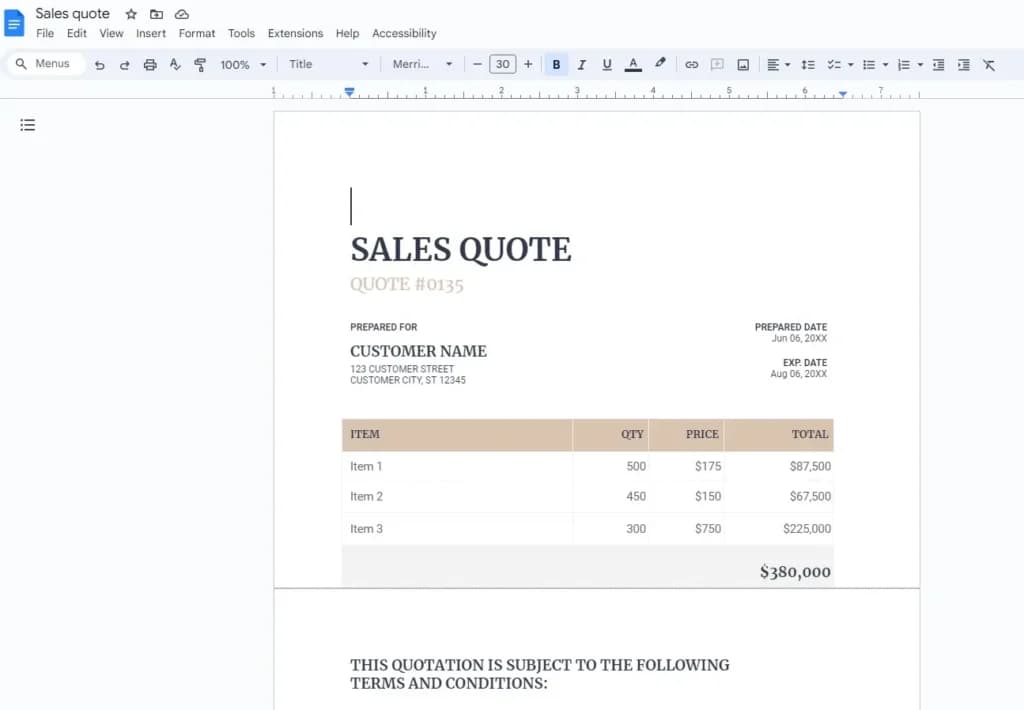
Step-by-Step Guide:
- Upload the PDF to Google Drive: Sign in to your Google Drive account and upload the PDF you want to edit.
- Open with Google Docs: Right-click the PDF and choose “Open with Google Docs.” This will convert the PDF into a Google Docs format.
- Make edits: Once the document opens in Google Docs, you can make any necessary text or formatting changes.
- Download as PDF: When you’ve completed your edits, go to “File” > “Download” > “PDF Document.”
Pros:
- Free and accessible from any device.
- Easy way for how to make a PDF editable without needing extra software.
Cons:
- Formatting might get altered during conversion.
Related Articles


How to Edit a PDF File for Free Without Watermarks
Many free PDF editors place watermarks on your files unless you pay for premium versions. However, these options allow you to edit a PDF file for free without adding any watermarks:
- Sejda: As mentioned, Sejda is a free PDF editor with no watermarks for basic edits.
- LibreOffice Draw: Another free PDF editor that won’t watermark your files.
- Google Docs: Free and watermark-free editing capabilities.
Additional Tips: How to Make a PDF Editable
If you're wondering how to make a PDF editable, here are some quick options:
- Adobe Acrobat Pro: Use Adobe's Pro tools to convert scanned documents into editable PDFs with OCR (optical character recognition).
- PDF2Go: This free online tool can convert PDFs to editable formats and vice versa.
- Microsoft Word: Easily convert PDFs into editable Word documents.
Conclusion: The Best Tools for Editing a PDF
Now that you know how to edit a PDF file, whether you’re on a Mac, using free PDF editing software, or prefer to edit PDF online for free, these tools provide plenty of options. Whether you need to edit text in PDF, sign a document, or rearrange pages, you can now confidently choose the right tool to meet your needs.
With tools like Sejda, Adobe Acrobat Online, and Microsoft Word, editing PDFs doesn’t have to be complicated or expensive. These methods provide a simple, actionable approach to getting your PDF edits done, whether a small change or a complete overhaul.
FAQ: the most important questions
How can I modify a PDF file for free?
The fastest way is Sejda - go to sejda.com/pdf-editor, upload your PDF, click any text to change it, and download. Free, no account, no watermark. Limit: 3 edits per day on the free tier. For marketing PDFs or mobile editing, use Canva's free PDF editor instead.
How do I edit a PDF file for free, step by step?
The simplest method: (1) go to sejda.com/pdf-editor, (2) upload your PDF, (3) click the text you want to change, (4) type your edit, (5) click Apply Changes, (6) download. Under 5 minutes end to end. No installation, no signup.
How do you edit PDF files for free without Adobe?
Use Sejda for precise text changes or Canva for visual redesigns - both work in any browser, are free, and don't require an Adobe subscription. The only reason to pay for Adobe Acrobat Pro is if you edit complex PDFs all day long.
Is there free software to modify PDF documents?
Yes. The best free software to modify PDF documents in 2026 is browser-based, not downloadable. Sejda and Canva are the two main options for most small businesses. PDF24 Tools is the most generous free online PDF toolkit. LibreOffice Draw is the best downloadable freeware if you prefer offline software.
Is there a free PDF editor freeware I can use?
Yes - the modern equivalent of PDF freeware is browser-based free software. Sejda, Canva, and PDF24 are free forever, no paid subscription required. For downloadable freeware in the classic sense, LibreOffice Draw is the strongest option.
What's the best free PDF editor to edit PDF files?
For small businesses in 2026, it's a tie between Sejda and Canva, depending on the task. Sejda wins for precise text edits on contracts and invoices. Canva wins for marketing PDFs, visual redesigns, and mobile editing.
Is there free PDF correction software?
Yes. For correcting text (typos, wrong numbers), Sejda is the best free PDF correction tool. For correcting visual or layout issues, Canva is the stronger choice. Both are free and work in your browser with no download.
How can I modify a PDF document for free with no watermark?
Sejda, Canva, iLovePDF, and PDF24 all export PDFs with no watermarks on their free plans. The only popular tool that commonly adds watermarks to free exports is Smallpdf on certain features. Always check the exported file before sending to a client.
How to edit PDF files free methods for beginners?
The easiest method for beginners: open sejda.com/pdf-editor in your browser. No signup, no installation, no learning curve. Click the text to change it. Download. You'll get your first PDF edit done in under 2 minutes.
What are the best free ways to edit PDF files?
The two best free ways in 2026: (1) Sejda for precise text edits where layout must stay intact, and (2) Canva for visual edits, marketing PDFs, and mobile editing. Together they cover 95% of small business PDF needs at zero cost.
Can I alter a PDF file on my phone for free?
Yes. The best free option is the Canva mobile app (iOS or Android) - it's a full editor, not a compromise version. For quickly signing a PDF on iPhone, the built-in Files app Markup tool works in seconds without any download.
How do I sign a PDF and send it back by email for free?
Open the PDF in Sejda (desktop) or Canva (mobile) → add your signature → download → attach the signed PDF to your email reply. Under 2 minutes on any device. On iPhone, the built-in Files app Markup tool is even faster for just signing.
Can I alter a signed PDF?
If the PDF has a cryptographic digital signature, altering it breaks the signature. If someone just added a visual signature image, you can usually alter other parts in Sejda, but this may have legal implications for the contract. When in doubt, ask the sender for a fresh, unsigned version.
What's the daily limit on Sejda's free plan?
3 tasks per day on the Sejda free tier, with a 50 MB file size limit and a 200-page maximum. Each edit session counts as one task. If you hit the limit, switch to Canva (unlimited free edits) to keep working.
Free PDF editor vs paid: Is paid ever worth it?
For most small businesses, no. If you edit PDFs occasionally (a few per week), Sejda + Canva cover everything for free. A paid editor like Adobe Acrobat Pro ($240/year) is only worth it if you edit complex PDFs daily, need advanced OCR, or have legal/compliance requirements that demand it.
What if my PDF is a scanned image and I can't click on the text?
That means the PDF is an image, not a text document. Run it through PDF24's free OCR tool first - it converts the image into editable text. Then open the result in Sejda and edit normally.
Why are my fonts looking different after I edit the PDF?
Sejda and Canva try to match fonts automatically, but they can only match common fonts or fonts embedded in the PDF. If the original used a weird corporate font, you'll see a substitution. For contracts, the best workaround is using the Whiteout tool to cover the original text completely, then typing new text on top.
About the author: Elinor Rozenvasser has spent over 12 years helping small businesses pick software that actually works. She writes about business tools the way people actually use them - with an eye for what helps owners under 10 people, not enterprise teams. Every tool and scenario in this guide is drawn from real small business workflows.