
How to Remove a Background in Canva: Free and Pro Methods

You can remove a background in Canva for free with Canva’s web background remover, as long as a white background works for you. On my free account, it processed all 10 images I uploaded one after the other on October 15, 2026, at about 5 to 6 seconds each. For transparent PNGs, cut-outs inside your designs, video and edge fixes, you need BG Remover in the editor, which is part of Canva Pro.
Find your situation in the table below, then jump to that section. Read Plan needed as the lowest Canva plan where the tool works, and Works on as where Canva supports it.
What you need | Canva tool | Plan needed | Works on |
Remove a background, white result | Canva’s web background remover | Free | Web |
Cut out a photo, any background | BG Remover, in the image toolbar | Canva Pro | Web, desktop app, iPhone, Android |
Cut out a photo on white, for free | Background Removit or Background Cleaner app | Free (Credits vary from app to app) | Web, mobile, and desktop app |
Export a design with no background | PNG download with Transparent background on | Canva Pro | Web, mobile, and desktop app |
Cut out a video | BG Remover, under Edit video | Canva Pro | Web, desktop app, iPhone (clips under 90 seconds) |
Fix edges by hand | Erase and Restore brushes | Canva Pro | Web, mobile, and desktop app |
Web tool results from my test on a free Canva account, October 15, 2026. Editor, app and download results from my free account and Canva Pro trial, October 13, 2026. Tool limits per Canva’s background remover guide.
How do you remove a background in Canva for free?
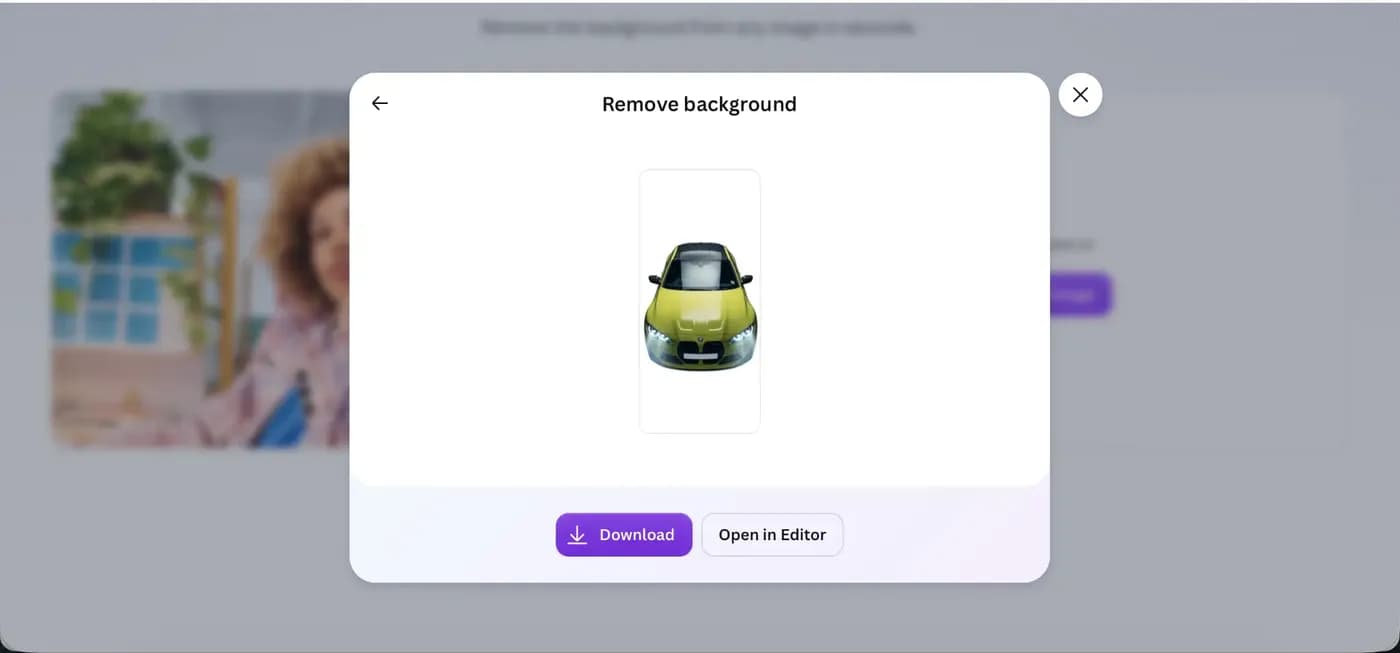
Canva’s free background remover page works outside the editor, and on my free account it did not stop me at any point. I uploaded 10 photos on October 15, 2026, and it cut out every one in about 5 to 6 seconds, each on a white background.
- Open Canva’s background remover page and click Upload image.
- Wait a few seconds while it removes the background.
- Click Download to save the image, or Open in Editor to keep working on it in a design.
Without logging in, I got one image before Canva asked me to sign in. After I logged in to my free account, it kept going. The quality matched BG Remover in the Pro editor, and Open in Editor let me keep working on the photo for free. The catch is the download: every file came out on white, with no transparent option.
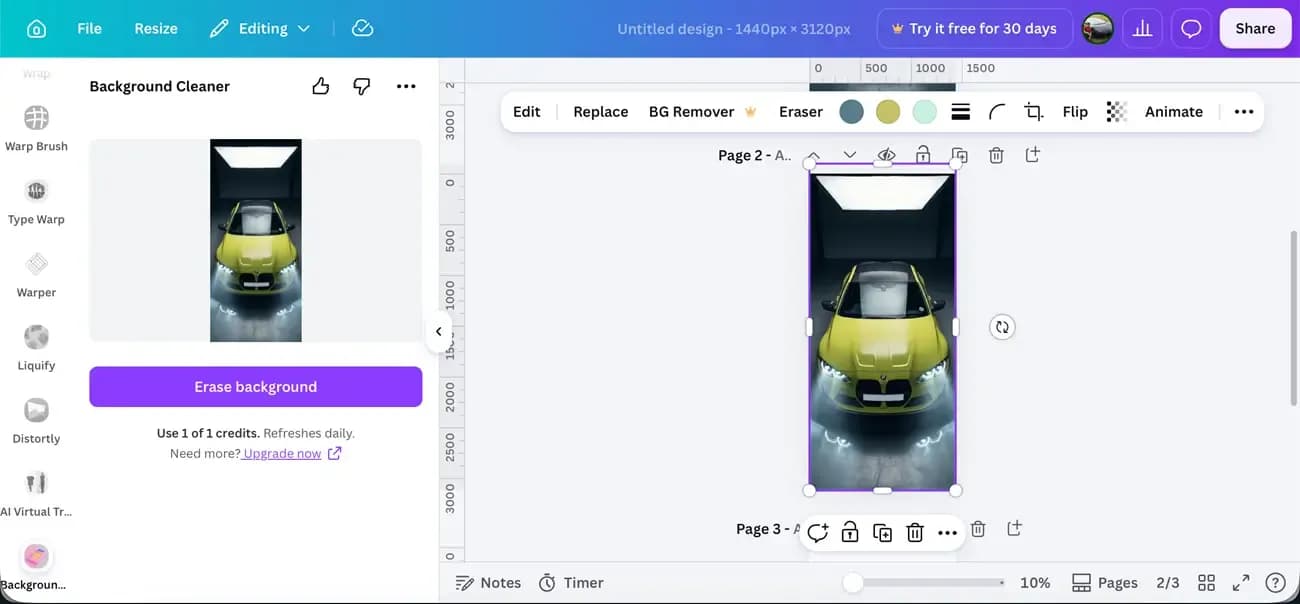
If you would rather stay inside a design, third-party apps in the Apps tab also work on the free plan. Background Removit and Background Cleaner both cut out my test photos on October 13, 2026. Each gave me only one credit, and Background Cleaner refreshes its credit once a day.
How do you remove a background in the Canva editor with Pro?
In the Canva editor, click your image and choose BG Remover in the toolbar above it, next to Replace. On my Canva Pro trial on October 13, 2026, it took about 5 to 6 seconds and applied the cut-out straight to the image, with no extra step.
I ran it on the same car photo I had used with Background Cleaner on the free plan. Canva’s cut-out had noticeably smoother edges, and I could use it as it was. The app’s version would have needed a few passes with an eraser.
On iPhone, open your photo, tap Image Tools in the bottom toolbar, then tap BG Remover. That took me two taps once the photo was open. Canva supports it on Android too, but I tested it on iOS only.
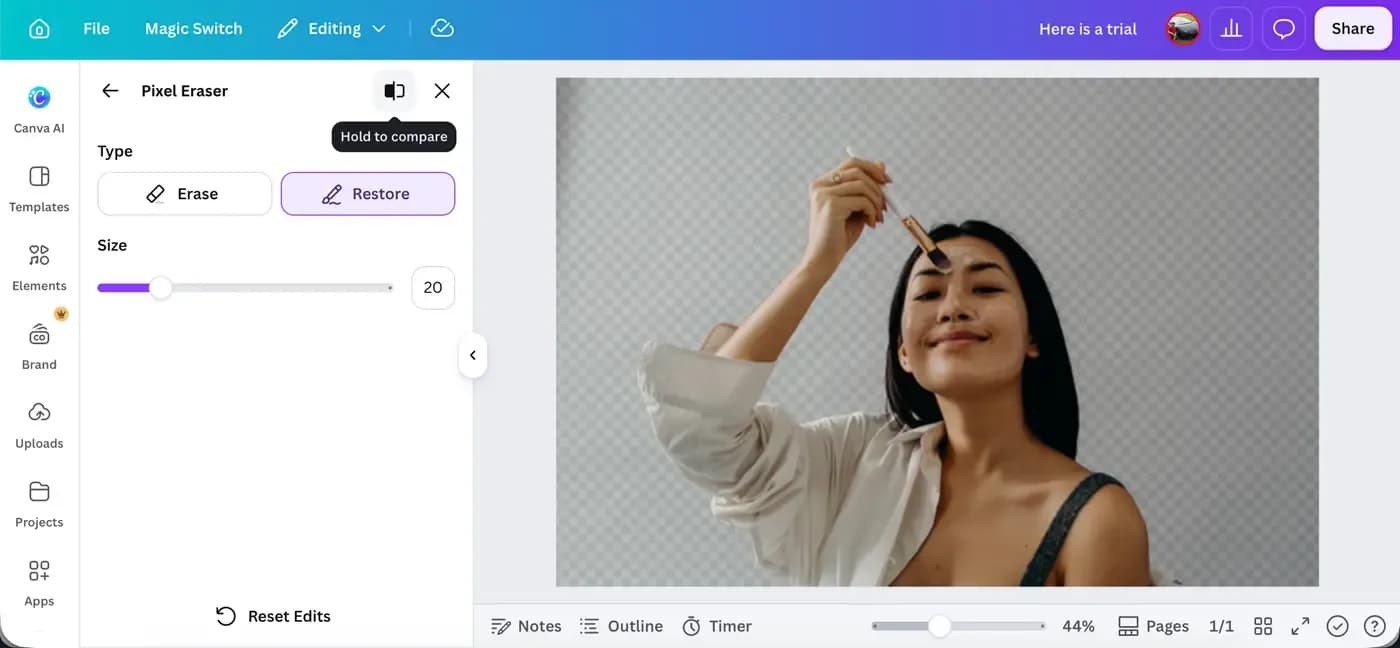
To fix edges, choose Edit, then BG Remover under Tools, and pick Erase or Restore. A brush size selector sets the width, and a hold to compare button next to Close shows the original photo. Changes apply automatically, and the brushes also worked in the iOS app. Canva’s limits are images under 9MB, 500 a day, downscaling to 10MP, and video under 90 seconds.
See also
- Best graphic design software for small businesses
- Our full Canva review
- Best free graphic design software in 2026
How do you remove a video background in Canva?
Canva Pro removes video backgrounds from original clips under 90 seconds, and on iPhone the clip has to be in your Canva Uploads library first. On desktop, click the video, choose Edit video, then select BG Remover.
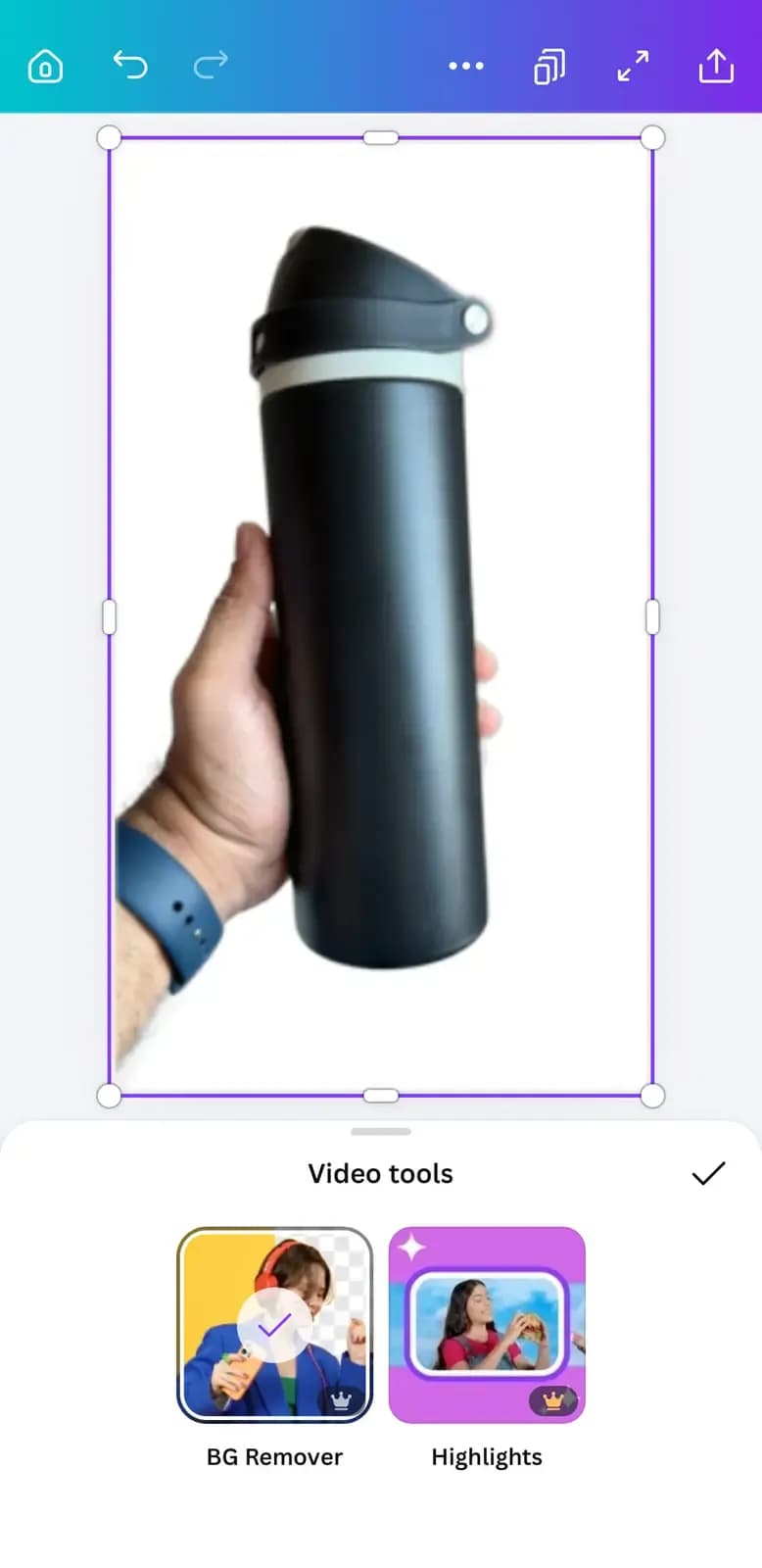
My first iPhone attempt on October 13, 2026 failed. I imported the clip straight from my Camera Roll, and when I tapped BG Remover, a message said the video was not in my library. Uploading it through the Uploads tab fixed that. I then added it to a blank video design and scrolled the bottom toolbar to BG Remover. A clip trimmed inside Canva also will not work until you download it and upload it again.
How do you download a Canva image with a transparent background?
To download a transparent PNG from Canva, choose PNG in the Download panel and switch on Transparent background below Quality. This needs a paid plan, and on my free account, the toggle carried a crown icon on October 13, 2026.
- Click Share, then Download.
- Under File type, choose PNG.
- Turn on Transparent background.
- Click Download.
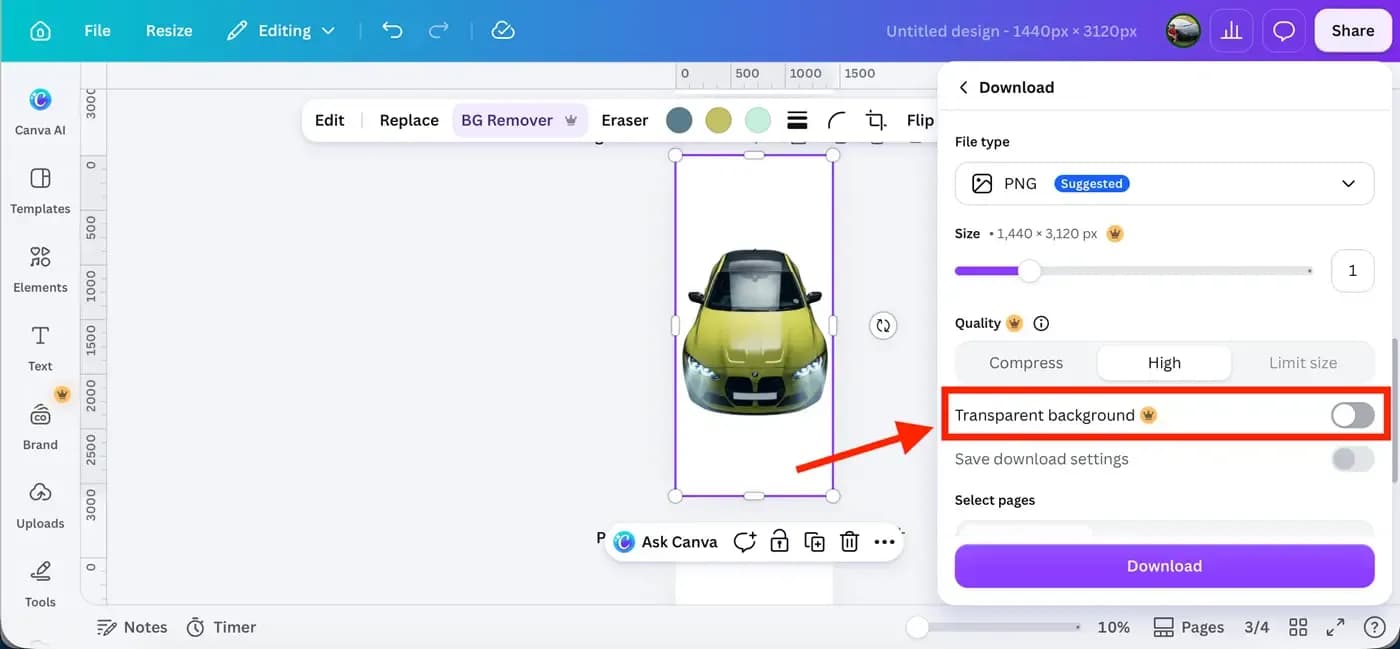
On my Pro trial, the toggle handled the white page by itself, and the file came out fully transparent. Choose PNG because JPG files cannot store transparency. Free gets white every time, whether you use the web tool, an app or the editor. That works for a product shot on plain white, but a logo for your website header needs Pro.
Why can you not find BG Remover in Canva?
BG Remover usually seems to be missing because you are on a free account or using an outdated browser. On a free account, it sits in the image toolbar with a crown icon and asks you to upgrade instead of running. Match what you see to the fix:
- Crown icon on BG Remover: you are on the free plan. Use Canva’s free web tool, or start the Pro trial.
- App asks you to upgrade: you have used your credit. Background Cleaner refreshes its 1 credit daily.
- App shows an error: switch apps. Background Removit worked for me when another app failed.
- “Unsupported client” error or features not loading: update Chrome, Firefox, Safari or Edge, or switch to the Canva mobile app.
- Option not working on a video: the clip was trimmed in Canva, runs 90 seconds or longer, or came from your Camera Roll instead of the Uploads tab.
Should you pay for Canva Pro just to remove backgrounds?
No. If a white background works for you, Canva’s free web tool handled every image I gave it, and you can skip Pro. Canva Pro costs $18 per month or $144 per year, with a 30-day free trial (checked October 13, 2026).
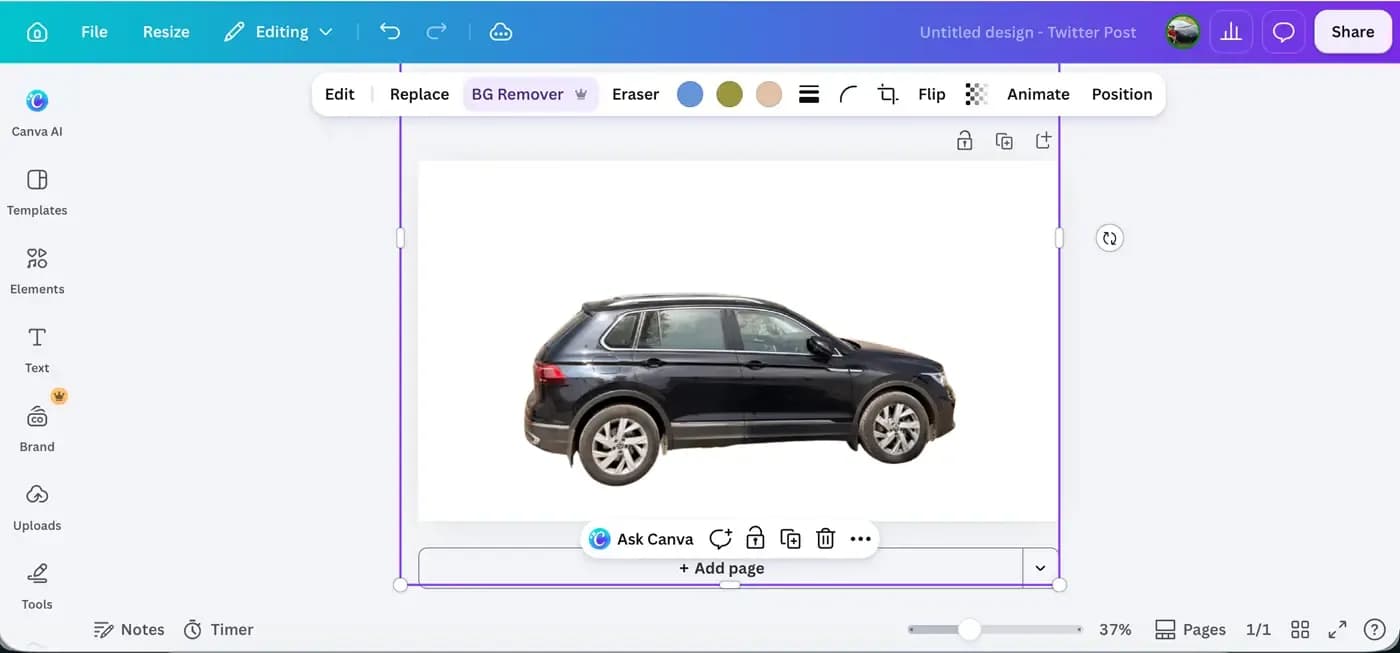
The free web tool’s cut-out matched Pro’s quality in my test, so Pro buys what happens after the removal, not a better result. Pay for it when you need transparent logos or product files, cut-outs inside your designs, video backgrounds or edge fixes.
Skip Canva’s remover altogether if you need print-ready cut-outs above 10MP, because the downscale happens after removal. A dedicated photo editor fits that job better.
Before you pay, run your trickiest product photo through the free web tool. If the white version works where the image is going, you do not need Pro for this job.