
How to Use Canva AI in 2026

You can use Canva AI by describing the flyer, post or presentation you need in the Canva AI chat, refining it by chatting, then finishing it in the editor. For a small business without a designer, Canva AI does the first draft of most of your marketing, and you do the final check. You can start on the Free plan, but the photo cleanup and resize tools need Pro.
How do you access Canva AI?
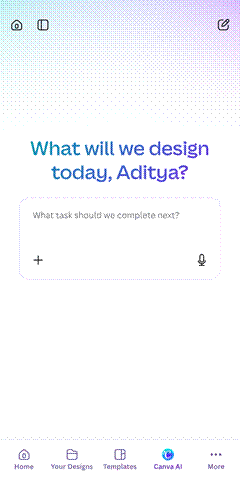
You can open Canva AI from the Canva homepage on desktop or from the bottom bar of the Canva mobile app. On the desktop homepage, open the menu on the left, select More, then select Canva AI. On the iOS app, tap the Canva AI button on the bottom bar. I checked both on a Canva Free account in October 2026.
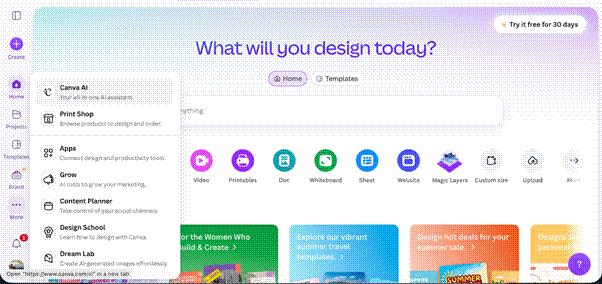
Type what you want to make, such as a flyer, a social post or a presentation, and Canva AI asks you to pick a content type: Design, Image, Doc, Code or Video clip. Refine the result by chatting, then open it in the editor to make your own changes.
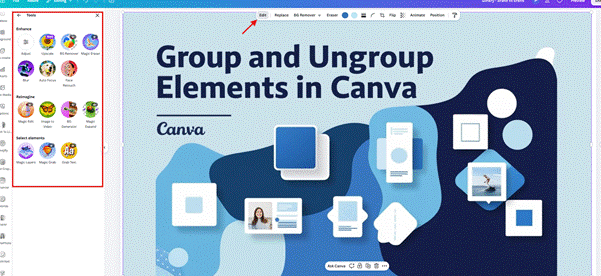
On paid plans, Canva AI also sits in the editor sidebar, so you can keep refining a design by chatting. Inside the Canva Editor, clicking the edit button reveals photo AI tools that can be used. Since I was using the free plan, tools marked with a crown such as BG Remover, Magic Edit, and Magic Expand were unavailable.
Which Canva AI features does a small business need?
Five Canva AI tools do most of the work for a small business without a designer: the Canva AI chat, Magic Design, Background Remover, Magic Resize and Magic Write. Canva has more than two dozen AI tools in all, spread across Magic Studio, Canva Sheets, Canva Code and the Canva AI chat. Between them, they draft designs, edit photos, generate images, write copy, cut video, build spreadsheets and make small web tools.
Read the table by the job you need done. Tool names are as Canva lists them in October 2026.
Job you need done | Canva AI tool | What it does |
Get a first draft of a flyer, post or deck | Canva AI chat | You describe the design, refine it in conversation, then open it in the editor |
Build a layout from your logo or photos | Magic Design | Generates layouts that match your brand colors |
Make a full slide deck from one prompt | Instant Presentations | Builds slides with text, images and animation |
Make an image from a text description | Create an image with Canva AI | Generates images at Standard, Premium or Ultra quality |
Remove clutter or a photobomber | Magic Eraser | You brush over the object and the background fills in |
Cut a product out of its background | Background Remover | Exports a transparent PNG in one click |
Move a person or logo inside a photo | Magic Grab | Turns the subject into a movable element |
Fit a photo to a new aspect ratio | Magic Expand | Extends the image past its original edges |
Swap or add an object in a photo | Magic Edit | A brush selection plus a text prompt |
Turn one design into another format | Magic Resize | Resizes a finished design, for example a flyer into a presentation |
Translate a design | Translate | Converts the copy into more than 100 languages |
Write captions, emails and product descriptions | Magic Write | Drafts text, then Rewrite, Shorten, More formal or More fun |
Mass-produce ads from a spreadsheet | Bulk Create | Fills a design template from data columns |
Is Canva AI free? What do you get on each plan?
Yes, Canva AI is free to start, but the Free plan caps you at 20 AI uses a month and leaves out the photo, resize and translate tools most small businesses want. Pro raises the cap to 200 Premium AI uses a month and costs $144 a year.
Canva sorts its AI tools into three tiers that use your allowance at different rates. Standard covers everyday tools such as Magic Formulas. Premium covers design and image generation. Ultra covers conversational design and video clips, and uses the allowance fastest.
Read the AI uses column as one shared monthly allowance: you spend it on Premium or Ultra tools, not both.
Plan | Price | AI uses per month | Canva AI version |
Free | $0 | Up to 20 Standard or Premium, no Ultra | Canva AI 1.0 (one prompt, one result) |
Pro | $144 per year, or $18 billed monthly | Standard does not count, plus up to 200 Premium or 20 Ultra | Canva AI 2.0 (create and edit by chatting) |
Business | $250 per person per year, or $25 per person billed monthly | Unlimited Standard, plus up to 400 Premium or 40 Ultra, top-ups available | Canva AI 2.0 |
Verification: prices checked on Canva's US pricing page in October 2026. Allowances, features, and plan limits were checked on Canva's help center.
On the Free plan, you cannot use:
- Background Remover, Magic Eraser, Magic Grab, Magic Expand and Magic Edit
- Magic Resize, Translate and Bulk Create
- Ultra tools, including conversational design in Canva AI 2.0 and AI video clips
- Brand voice for Magic Write, which starts on Pro
Allowances reset every month: on your billing date for paid plans, and on the first of the month for Free. When you run out, Canva shows a notification, and on paid plans Standard tools such as Magic Formulas keep working. For a full plan-by-plan comparison, see our Canva review.
How do you make your first design with Canva AI?
Open the Canva AI chat, describe the design in one or two sentences, and refine it in conversation before opening the editor. Canva counts design generation as Premium AI and conversational design as Ultra AI. Both burn allowance faster than Standard tools, so a vague prompt that needs five rounds of fixes costs more.
- Set up your Brand Kit with your logo, colors and fonts. Free allows 1 Brand Kit with 3 colors, Pro allows 5 Brand Kits.
- Write the prompt like a designer brief: "Instagram post for a 20% off weekend sale at a neighborhood bakery, warm colors, logo bottom right".
- Ask for changes in the chat, such as a new headline or less text.
- Open the editor and check every price, date and phone number yourself.
- For slides, use Instant Presentations to build a full deck from one prompt.
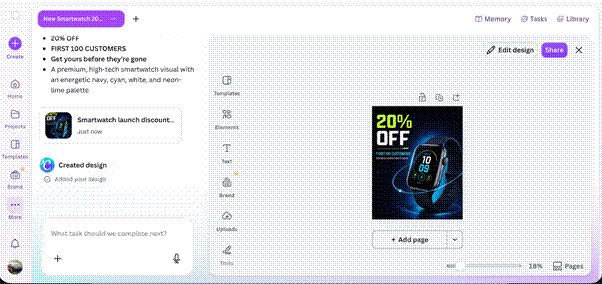
I tried out Canva AI on my free plan to test its abilities, asking it to generate a social media post and giving it some context. It could generate the image but asking it to make changes to the image triggered an “Upgrade to Pro” prompt.
How do you make AI-generated images in Canva, and are they good enough to use?
AI images from Canva are good enough for backgrounds, illustrations and social graphics, but not for your real products or staff. Canva generates images at three quality levels, Standard, Premium and Ultra, and Premium is the default. On paid plans, Standard does not count toward your allowance, so drafting on Standard saves your Premium uses for the version you publish.
- Ask the Canva AI chat for the image and describe the subject, style and setting: "flat illustration of a coffee cup on a wooden counter, warm morning light".
- Set the quality in the editor: open the Elements tab, select the plus icon in the search bar, choose AI quality and pick a tier. Your choice stays until you change it.
- Draft on Standard, then switch to Premium for the final image. Ultra is for paid plans only and uses allowance fastest, so save it for print and hero images.
- Check the image at full size before you publish it. Hands and mouths in AI-made people can look wrong, and Canva's own FAQ says AI-generated content may not be unique.
Use your own photos for products and staff. A generated product shot shows a product you do not sell.
How do you clean up product photos without a designer?
Use Background Remover for product cutouts, Magic Eraser for clutter, Magic Grab to move a subject, Magic Edit to make selective changes, and Magic Expand to fit a photo to a new shape. All these features need a paid subscription to work. Canva's pricing page says the tools in its AI design tools group do not count toward your shared AI allowance, though fair use limits apply, so a shop that shoots its own product photos gets the fastest payback here.
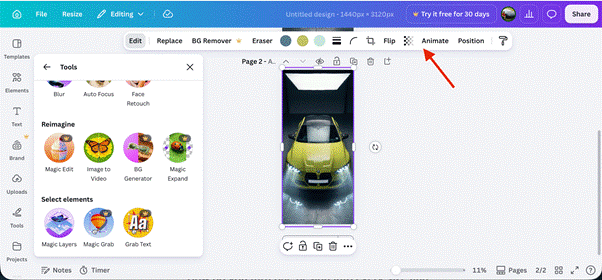
The editor toolbar appears when an image is selected.
- Background Remover: Upload the image you want to remove the background from, select the image and in the editor toolbar click “BG Remover”. This gives you a transparent PNG for your store or ads.
- Magic Eraser: Select the image you want to edit, in the editor toolbar go to Eraser > Magic Eraser and then erase the object from your image.
- Magic Grab: Select the image you want to edit. Magic Grab does not support images in frames or grids. From the editor toolbar, select Edit > See all. Scroll to the bottom and select Magic Grab.
You can also select multiple objects by clicking and dragging over them. Select Grab and wait for your photo to be processed. You can then drag the output around, resize it or even edit it further. - Magic Expand: Select the image, click Edit > Tools > See All and scroll down to the Reimagine section. Select Magic Expand. This allows you to pick a new aspect ratio to turn a square product shot into a wide banner and Canva AI fills in the blanks.
- Magic Edit: Select the image, click Edit>Tools, click See All and scroll down to the Reimagine section. Select Magic Edit. Select the area you want to edit by brushing over it and then describe the change.
How do you turn one design into every size and language you need?
Finish one master design, then use Magic Resize to create the other formats, Translate for other languages, and Bulk Create when you need dozens of versions from a spreadsheet. Magic Resize, Bulk Create, and Translate need Pro, and Canva says Translate covers 134 languages. Together, they replace the copy-and-paste work that eats an afternoon before a launch.
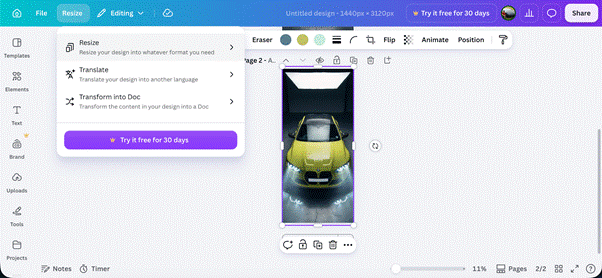
- Magic Resize: open your design, click Resize in the top bar and pick the formats you need, such as an Instagram story or a presentation. Canva now calls the upgraded version Magic Switch. Check each new version, because text that fits a square can crowd a story.
- Translate: open your design, click Resize and select Translate from the menu. Pick the target language and the pages to translate. Canva allows translation of several pages at one time. Have a native speaker check anything printed or paid.
- Bulk Create: click the page background, select Edit in the toolbar, then Bulk create in the side panel. Upload a CSV or XLSX file, or enter your data by hand, then connect each column, such as product name, price and photo, to an element in your design. Canva makes one design per row, up to 300 rows. Bulk Create works on desktop only.
Can Canva AI write your captions and product copy?
Yes, Magic Write is good enough for first drafts of captions, emails, blog outlines and product descriptions, but it should not have the final word on prices, claims or anything legal. Magic Write sits inside Canva Docs and every text box, and Canva lists Magic Write for SEO as a Standard AI tool.
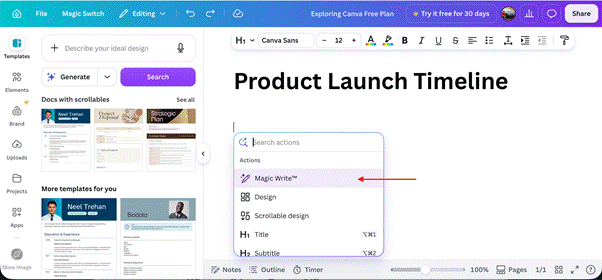
- Open Magic Write from any text box or Canva Doc. In a Canva Doc, click the “+” button and select Magic Write from the dropdown menu. In a design, select a text box, click the three dots and scroll down to Magic Write.
- Name the product, the reader and the length: "Three Instagram captions for handmade soy candles, under 150 characters each".
- Adjust the draft with Rewrite, Shorten, More formal or More fun.
- On Pro, set a brand voice so drafts sound like you. From the homepage sidebar, go to Brand, then Brand Kits, select Add your brand voice, describe your brand's personality and tone in up to 500 characters, and select Save.
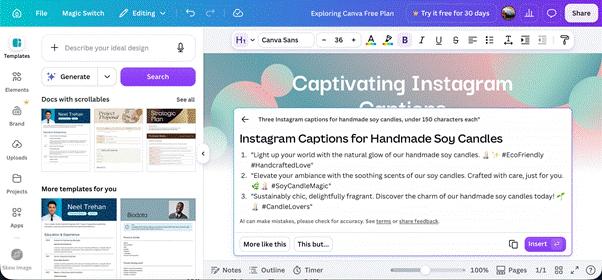
Read every draft before it goes out. Magic Write does not know your stock levels or your return policy.
Why can't I use Canva AI?
You usually cannot use Canva AI because your plan does not include the feature, you have used up your monthly allowance, or a team admin has turned it off. Canva's help center lists four other causes: an outdated app, an unsupported language or region, a feature that has not reached your account, and a flagged prompt.
Work through these in order:
- Check your plan. Free accounts get Canva AI 1.0 and a few tools with limited monthly use. Canva AI 2.0, the version you edit by chatting, needs Pro, Business or Nonprofit.
- Check your allowance. When you hit the monthly limit, Canva shows a notification. Wait for the reset or upgrade your plan.
- Ask your admin. On team, Enterprise and Education accounts, the owner or admin decides who can use Canva AI.
- Update the app. On mobile, Canva AI features need the latest version of the Canva app.
- Check your language. Canva AI supports English, Spanish, Portuguese, French, German, Italian, Dutch, Polish, Turkish, Arabic, Japanese, Korean, Chinese, Indonesian, Thai, Vietnamese and Hindi, and some features support fewer. A team member whose Canva is set to an unsupported language may not see Canva AI even when the team has it.
- Wait for the rollout. Canva AI 2.0 features reach accounts gradually, so a feature you read about may not be on your account yet.
If Canva AI opens but does not respond, check your internet connection, refresh the page or restart the app, clear your browser cache, or try another browser or device. If it still fails, wait a few minutes and try again.
If Canva flags your prompt, remove anything that could be copyrighted or trademarked, explicit or harmful, or on a restricted topic. If you think the flag is wrong, select Give feedback and explain why.
Where does Canva AI fall short?
Canva AI falls short on interactive presentations, real-looking people and heavy daily use, because every plan runs on a capped AI allowance. Canva warns that complex tasks use more allowance than its estimates assume, so heavy use of conversational design hits the Pro ceiling first.
The decks it builds are static. A Canva AI presentation has no live voice narration, no clickable paths and no real-time audience Q&A. If you sell through narrated or interactive decks, you need a separate presentation tool [Sonary catalog pick for interactive presentations - link review].
Can you use Canva AI designs commercially, and do you own them?
You can use Canva AI designs commercially under Canva's terms, and Canva's AI FAQ says content you create with Canva AI belongs to you. Ownership is not the same as copyright. US courts have held that work made by AI without human authorship cannot be copyrighted, so you may not be able to stop someone copying a purely AI-made design.
Canva's security page says indemnification against AI-related legal claims, part of Canva Shield, is for Enterprise customers with more than 100 seats. A small business on Pro or Business does not get that cover, so rework your logo by hand before you rely on it, and talk to a trademark lawyer before registering it.
See also
- Best graphic design software for small businesses
- Best logo design software & tools for small & micro businesses
- Best AI tools for SMBs
- Best marketing tools
- Best AI tools for graphic design
Will my Canva AI designs look like everyone else's?
They can. Canva's own FAQ says AI-generated content may not be unique, and many small businesses start from the same templates. Three habits fix most of it. Apply your Brand Kit to every design, use your own photos instead of stock images, and reuse one layout so your posts look like a set rather than a mix of templates.