
Best Photo Editing Apps for iPhone & Android
Photo editing apps give you the tools to upscale your photos, making it easy to enhance, adjust, and add creative touches. From quick fixes to detailed edits, these apps help your images shine and capture attention wherever they’re shared.
Last updated: September 2026
Why You Can Trust the Expertise of Sonary
At Sonary, we are committed to providing accurate and trustworthy information to help you make informed decisions. Our research process is meticulous, transparent, and guided by a dedication to maintaining the highest standards of integrity, ensuring accurate, real-world insights.
Read more Unlike many other review platforms, we conduct in-depth evaluations of the software and services we feature. Our expert team tests and actively uses the tools we review to understand their features, performance, and value comprehensively. Our assessments are based on real-world use, giving you insights beyond surface-level descriptions. Our research methodology includes analyzing key consumer factors such as pricing, functionality, device usability, scalability, customer support quality, and unique industry-specific features. This hands-on approach and dedication to transparency mean you can trust Sonary to deliver regular, up-to-date content and recommendations that are well-researched and genuinely helpful for your business needs.

Smartphone cameras have become so advanced that it barely feels like you're compromising. But capturing great photos is only part of the process — editing images is just as important. Luckily, editing software has evolved to the point where the best tool for the job is often right in your pocket. There are now plenty of fantastic photo editing apps for both iPhone and Android that are just as capable and efficient as any desktop or online alternative. With so many options available, it’s important to choose one that fits your style, skill level, and creative goals.
Best Photo Editing Apps for iPhone & Android

In the realm of design, Adobe Photoshop remains an essential tool for professionals, blending traditional design functionalities with cutting-edge AI enhancements. The introduction of AI-driven tools… Read more
In the realm of design, Adobe Photoshop remains an essential tool for professionals, blending traditional design functionalities with cutting-edge AI enhancements. The introduction of AI-driven tools like the improved Font browser helps designers manage and explore over 25,000 Adobe fonts with ease, enriching the creative process and ensuring a seamless workflow across devices and platforms. Adobe Photoshop, a leader in digital editing for over 30 years, offers powerful tools to support creatives across industries in produce detailed and complex designs effortlessly.
Learn more in our full Adobe Photoshop review.
Pros & Cons
- Can deeply customize almost every aspect of the design process
- Supports multiple file formats — essential for cross-platform design work.
- Tools for mobile and web design
- Adobe Suite integration for easy workflow
- Requires a powerful computer as it runs many processes
- Steep learning curve due to many features
- No option for a perpetual license
Features
- API
- Templates
- Image Database
- Collaboration Tools
- Content Import/Export
- Edits Vector & Raster Graphics
- Touch Interface Support
- Pro-Level Typography
- Print Management
- Publishing / Sharing
- Multi-Language
- Multiple Format Support
- Animation
- Document Storage
- Search/Filter
- Photo Editing
- Video Editing
- Offline Editing
- Drag & Drop
Pricing
$14.98
mo/
month
$22.99
mo/
month
$37.99
mo/
month
$59.99
mo/
month

Facetune is one of the most advanced AI-driven photo editing apps on the market; it’s an easy-to-use app that allows you to do everything - from removing blemishes to adding makeup, hair, and blemish… Read more
Facetune is one of the most advanced AI-driven photo editing apps on the market; it’s an easy-to-use app that allows you to do everything - from removing blemishes to adding makeup, hair, and blemish filters - in a matter of seconds!
Learn more in our full Facetune review.
Pros & Cons
- Extremely easy to use
- Amazing filters and effects
- Intelligent AI editing options
- AI-powered styling and makeup
- Has limited support options
- No customization options for the app
Features
- Image Editing Capabilities
- JPG
- Free Trial
- Monthly subscription
- Annual subscription
- iOS
- Android
- Offline Capabilities
- Filters and Effects
- Layer Support
- Color Correction
- Audio Editing Tools
- Direct Social Media Sharing
- Cloud Storage Integration
- MP4
- PNG
- TIF
Pricing
$25
mo/
month
$40
mo/
month
$77.99
yr/
year

Canva is a user-friendly graphic design platform that empowers individuals to create a wide array of visual content, including graphics, presentations, headers, documents, invitations, posters, and… Read more
Canva is a user-friendly graphic design platform that empowers individuals to create a wide array of visual content, including graphics, presentations, headers, documents, invitations, posters, and resumes. This all-in-one graphic design tool features a video and graphic maker, photo editor, and logo creator, making it accessible for both beginners and professionals. With its intuitive interface and extensive template library, Canva simplifies the design process, enabling users to produce stunning visuals with ease. In this Canva review, I'll discuss, graphic design features, performance, Canva pricing, and more.
Learn more in our full Canva review.
Pros & Cons
- AI tools for creating and editing designs
- 1M+ free templates
- Easy to share option
- Automatic save
- Best features aren't available for free
- No phone, live chat, email or community support
- Its online version has more templates and design elements
Features
- API
- Templates
- Image Database
- Collaboration Tools
- Content Import/Export
- Content Management
- Edits Vector & Raster Graphics
- Pro-Level Typography
- Print Management
- Publishing / Sharing
- Multi-Channel Marketing
- Multi-Language
- Multiple Format Support
- Social Promotion
- Animation
- Document Storage
- Access Controls/Permissions
- Search/Filter
- Photo Editing
- Video Editing
- Rich Text Editor
- WYSIWYG Editor
- Drag & Drop
Pricing
$0
mo/
month
$15
mo/
month
$21
mo/
month
Figma is a browser-based design platform built for collaboration. It combines vector design, prototyping, feedback, and developer handoff into one shared workspace. Instead of juggling multiple… Read more
Figma is a browser-based design platform built for collaboration. It combines vector design, prototyping, feedback, and developer handoff into one shared workspace. Instead of juggling multiple tools, small businesses can design websites, mobile apps, and marketing visuals in one place. With flexible pricing and smart seat types, Figma gives SMBs the same professional design power that large teams enjoy.
Learn more in our full Figma review.
Pros & Cons
- Real-time co-editing improves teamwork and eliminates file chaos.
- Smart layout and prototyping tools reduce repetitive work.
- Flexible pricing suits both small teams and larger organizations.
- No native CMYK support, which limits print design workflows.
- Lacks advanced photo editing capabilities.
- Requires careful seat management to avoid paying for unused licenses.
Features
- API
- Image Database
- Collaboration Tools
- Content Import/Export
- Content Management
- Edits Vector & Raster Graphics
- Touch Interface Support
- Pro-Level Typography
- Print Management
- Publishing / Sharing
- Multi-Channel Marketing
- Multi-Language
- Multiple Format Support
- Engagement Analytics
- Animation
- Document Storage
- Access Controls/Permissions
- Freelancer Screening & Profiles
- Search/Filter
- Photo Editing
- Offline Editing
- Rich Text Editor
- WYSIWYG Editor
- Drag & Drop
Pricing
$0
mo/
month
$16
mo/
month
Top Mobile Photo Editing Apps - Quick Comparison
App | Free trial/plan | Top Features | Ideal For | Availability |
|---|---|---|---|---|
Adobe Photoshop | Subscription | Professional tools, AI features | Professionals, Designers | iOS, Android |
Adobe Lightroom | Subscription | RAW editing, color grading | Photographers, casual users | iOS, Android |
Facetune | Subscription | Portrait retouching | Social media influencers | iOS, Android |
Canva | Free & Paid | Templates, graphic overlays | Marketers, casual users | iOS, Android |
Figma | Free & Paid | Collaborative design tools | Design teams | iOS, Android |
Pixlr | Free & Paid | Filters, layer-based editing | Beginners, casual users | iOS, Android |
Our Top Picks
The right photo editing app can transform ordinary shots into stunning visuals with just a few taps. From AI-powered enhancements to professional-grade tools, these top-rated apps for iPhone and Android make it easy to edit, retouch, and refine your photos effortlessly.
Adobe Photoshop
- Smart object integration for scalability
- Impactful blending modes and layer styles
Adobe Photoshop is widely recognized as the best photo editing software in the world. Trusted by professionals and creatives for decades, Photoshop has become synonymous with advanced picture editing, graphic design, and digital artistry.
A good photo editing app offers versatile tools, precision, and unparalleled capabilities that have made it the go-to solution for photographers, designers, and artists alike.
Key Features
- Remove objects tool: The remove tool has been upgraded with AI-driven options to detect and remove distractions. Features like the wires and cables function allow power lines to be removed with a single click, while the people tool identifies and eliminates unwanted individuals from the background without affecting the main subject.
- Generate similar feature: With the generate similar tool, variations of ai-generated elements can be automatically created. For example, additional designs similar to the selected variation can be produced after generating an object like a camping tent.
- Generate background: Backgrounds can now be generated by entering a descriptive prompt. After the subject’s background is removed, photoshop’s AI can be instructed to fill the space with creative, customized environments.
- Firefly image model 3 integration: Photoshop 2025 has been integrated with Adobe’s Firefly image model 3, which has been optimized to deliver:
- Improved photographic realism: Enhanced details and textures for more natural results.
- Better prompt understanding: More accurate generation based on complex descriptions.
- Greater variety: Broader and more creative output options for user prompts.
- Reference image matching: A reference image can now be used to guide the generation of AI-driven elements. This feature allows styles, patterns, or colors from a reference to be replicated, resulting in edits that are more cohesive and aligned with the desired vision.
- Generative workspace: A generative workspace has been introduced to streamline ideation. Variations of an image can be created by using prompt variables, producing multiple designs at once.
- Substance 3D viewer: Although direct 3D editing is no longer supported, photoshop’s Substance 3D viewer has been added for working with 3D objects. Lighting, reflections, and shadows can be adjusted, and generative AI tools can be used to apply realistic textures and materials.

Pros and Cons
- Pros
- Versatile for photo editing, design, and digital art.
- Trusted, professional-grade tools.
- Customizable workspace for efficient workflows.
- Frequent updates with new features.
- Integrated with other Adobe Creative Cloud apps.
- Access to tutorials, templates, and community support.
- Cons
- Complex for beginners.
- Requires a pricey subscription.
- Demands high-performance hardware.
- Mobile version lacks advanced features.
- Internet needed for full functionality.
Who It's For
If you want precision and versatility in your image editing and design, Adobe Photoshop is for you. In addition to detailed retouching and complex compositions, it provides high-quality outputs for photographers, graphic designers, digital artists, and marketers.
Adobe Lightroom
- Smart object integration for scalability
- Impactful blending modes and layer styles
Adobe Lightroom is a powerhouse in the world of photography. It offers professional-grade tools for editing photos, with a focus on lighting, color grading, and organization.
Lightroom has become a staple for photographers, whether they’re working in studios or capturing moments on the go.
Key Features
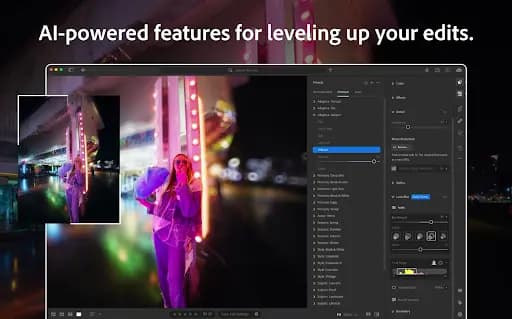
Lightroom Classic has been significantly updated with a range of new AI-powered features designed to enhance editing workflows, improve image quality, and simplify creative tasks.
- Generative Remove Tool: This tool has been designed to detect objects automatically and remove them from images with minimal user input. Smaller areas, especially those under 124 pixels squared, are handled with impressive resolution retention, ensuring high-quality edits.
- Scribble select and loop selection: Users are now able to roughly draw over unwanted elements, and the AI precisely identifies and isolates them for removal. The selection can be expanded or refined by additional scribbles, making the process highly intuitive and efficient.
- AI noise reduction: This feature has been enhanced to deliver superior denoising capabilities for high-ISO images. This update ensures that noise is reduced while fine details and textures are preserved. Support for additional RAW file types, including ProRAW from iPhone and Google Pixel devices, has also been added.
- Adaptive presets with AI masks: Seven new Adaptive Presets have been introduced, each utilizing AI masking technology to detect and enhance specific areas of an image.
- HDR tone mapping with gain map: A revolutionary Gain Map feature has been incorporated to optimize HDR images for viewing on both HDR and SDR displays. This technology creates a dual-format file, ensuring that HDR images appear vibrant and detailed on compatible screens while remaining clear and balanced on non-HDR displays.
- Content credentials for digital provenance: You can embed creator information and edit history directly into export files with Content Credentials. In addition, attribution and licensing details can also be published to Adobe's Content Credentials Cloud. With Web3 wallet integration, creators in the NFT space are now supported.
- Tethering improvements for Nikon cameras: Nikon cameras' tethering functionality has been optimized to match the speed and reliability of the previously updated Sony tethering. Cameras can now be unplugged and reconnected without requiring a restart, ensuring uninterrupted workflows for studio photographers.
Pros and Cons
- Pros
- Easy-to-use interface for beginners and professionals.
- Supports RAW files for high-quality editing.
- Customizable presets for basic adjustments.
- Non-destructive editing protects originals.
- Syncs across desktop, mobile, and tablet.
- Built-in tools for photo organization.
- Cons
- Requires a Creative Cloud subscription.
- Limited retouching compared to Photoshop.
- Advanced features take time to master.
- Relies heavily on cloud storage and internet.
Who It's For
Lightroom is ideal for professionals handling large numbers of photos. Its intuitive interface and powerful editing tools make it the perfect solution for achieving polished, professional-quality results, whether you're a landscape photographer, portrait artist, or hobbyist.
Facetune
- Beautify your selfies with AI technology
- Enhance, brighten & retouch in seconds
Facetune is a popular app to edit images that specializes in enhancing selfies and portraits, making it a go-to tool for anyone looking to create flawless photos. Facetune is designed with simplicity in mind, offering intuitive tools for retouching and beautifying images.
Whether you’re a social media enthusiast, influencer, or casual user, Facetune helps you achieve a polished look with just a few taps.
Key Features
Facetune is packed with tools designed specifically for enhancing selfies and portraits, making it one of the best photo editing apps for personal use. Here are some of its standout features:
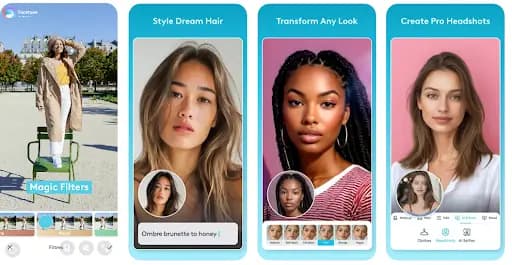
- Skin smoothing and retouching: Users can effortlessly smooth skin and remove imperfections like wrinkles, blemishes, and acne. By using Facetune, users can create a flawless and natural-looking complexion, perfect for selfies.
- Teeth whitening: This feature allows users to brighten their teeth instantly, enhancing smiles realistically and naturally. The tool is designed to work seamlessly without making edits look overdone, ensuring a balanced and professional result.
- Face reshaping: Enables subtle adjustments to facial features like jawlines, noses, and cheekbones. These tools are perfect for refining portraits while maintaining a natural look that doesn’t distort the image.
- Eye and hair enhancements: With the ability to brighten eyes, remove red-eye, and add volume or color to hair, Facetune ensures that every detail of your appearance is picture-perfect.
- Makeup application: Facetune includes virtual makeup tools that allow users to apply lipstick, blush, contouring, and other cosmetic effects directly onto their photos.
- Background customization: The app enables users to easily blur or replace backgrounds, ensuring the subject remains the focal point of the photo. Whether you want a subtle enhancement or a dramatic change, the background customization tools provide endless possibilities.
- Filters and effects: There is a wide range of attractive filters and effects to transform photos into visually striking creations
- One-tap auto retouch: For quick edits, Facetune’s AI-powered auto-retouch feature adjusts lighting, tones, and textures with just one tap.
Pros and Cons
- Pros
- Quick and intuitive for beginners.
- Excellent tools for face, skin, and hair edits.
- Adjustable settings for subtle or bold results.
- Ideal for quick touch-ups and social posts.
- Free version available; premium is affordable.
- Includes tools for portrait video editing.
- Cons
- Limited to portrait-specific editing.
- Advanced tools require a subscription.
- Overediting can look unnatural.
- Free version includes ads.
Who It's For
Facetune is a great option for content creators, social media influencers, and casual users. Its intuitive tools and quick editing capabilities are perfect for those who want polished, professional-looking results without the complexity of advanced editing software.
Canva
- Built for easy team collaboration
- Internal content scheduler and publisher
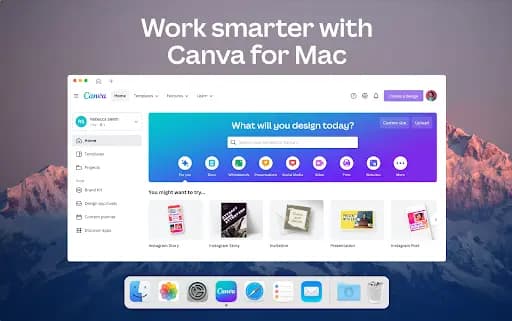
Canva is an all-in-one graphic design platform that empowers users to create stunning visuals with ease. With its user-friendly interface and a wide range of templates, Canva caters to both beginners and professionals. With Canva mobile editing app, you can create social media posts, marketing materials, presentations and edit photos with intuitive tools that make creativity easy.
Key Features
- Drag-and-drop design: Intuitive interface for easy customization of templates and layouts.
- Extensive template library: Canva boasts an extensive library of templates tailored for a variety of uses, including social media posts, presentations, business cards, flyers, posters, and more.
- Photo editing tools: Canva also functions as a powerful photo editing app. Its suite of photo editing tools includes options for cropping, resizing, and rotating images, as well as advanced features for adjusting brightness, contrast, saturation, and other color settings.
- Graphic elements: Access millions of stock photos, icons, fonts, and animations. These elements allow users to elevate their designs with professional-quality visuals and creative flourishes.
- Collaboration features: Share projects with team members for real-time editing and feedback.
- Canva Pro features: Advanced tools like background remover, magic resize for multiple platforms, and brand kits for consistent branding.
- Cross-platform availability: Seamless functionality on desktop, iOS, and Android devices.
Pros and Cons
- Pros
- Easy for beginners with no design experience.
- Combines graphic design, photo editing, and video creation.
- Free version includes robust tools.
- Pre-made templates save time.
- Collaboration-friendly for teams.
- Cons
- Lacks advanced features for professionals.
- Requires internet for full functionality.
- Canva Pro requires a subscription.
- Templates can feel generic if not customized.
Who It's For
Individuals, small businesses, and marketers who need a simple and efficient tool for creating visually appealing content. It’s particularly ideal for beginners, social media managers, and non-designers who want to produce professional-quality graphics and enhance photos without mastering complex design software.
Figma
- Clean interface and simple learning curve
- Full suite for UI, UX, and marketing design
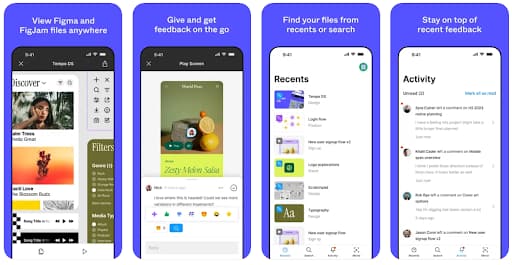
With Figma's cloud-based design platform, teams can create and collaborate on digital projects in real-time. Due to its real-time collaboration features, it is a favorite tool for designing UIs (user interfaces) and UXs (user experiences), as well as prototyping and graphics. Figma is completely web-based, eliminating the need for downloads and allowing access from any device.
Key Features
- Real-time collaboration: Allows multiple users to edit and comment on the same project simultaneously, enhancing teamwork.
- Cloud-based platform: Accessible from any device with a web browser, eliminating the need for installations or specific hardware.
- Design and prototyping tools: Offers robust features for wireframing, UI/UX design, and interactive prototyping.
- Version control: Tracks changes with automatic version history, ensuring no work is lost.
- Component libraries: Enables reuse of design elements for consistent branding and faster workflows.
- Cross-platform integration: Works seamlessly with tools like Slack, JIRA, and others to streamline design-to-development workflows.
- Plugins and extensions: Offers a variety of plugins for additional functionality, such as adding icons, stock photos, and illustrations.
Pros and Cons
- Pros
- Easy to use for beginners and advanced designers.
- Great for team collaboration across locations.
- Compatible with Windows, Mac, Linux, and mobile.
- Cloud-based with automatic updates.
- Scalable for individual and team projects.
- Cons
- Needs a stable internet connection.
- Limited offline functionality.
- Paid plan is required for advanced features.
- Advanced tools have a learning curve.
Who It's For
Figma is best for design teams, UI/UX designers, and product developers who require a collaborative, cloud-based platform to create and refine digital designs. Whether you’re a solo designer or part of a large organization, Figma’s versatile tools and collaboration features make it a top choice for modern design projects.
Pixlr

- Mobile-friendly tools for on-the-go edits
- Cloud-based for real-time team editing
Pixlr is a versatile photo editing platform designed for individuals of all skill levels. Known for its intuitive interface and extensive range of features, Pixlr makes professional-quality photo editing accessible to everyone. Whether you're looking to make quick adjustments, apply artistic filters, or create layered designs, Pixlr offers a suite of tools that deliver impressive results with minimal effort.
Key Features
- Web-based editing: Accessible directly from a web browser, eliminating the need for downloads or installations.
- Mobile app availability: Offers iOS and Android apps for editing on the go.
- Layer-based editing: Supports multiple layers for more advanced design and editing tasks.
- AI-powered tools: Features like background removal and auto-enhance streamline complex edits.
- Filters and effects: Wide range of artistic filters, overlays, and effects to stylize images.
- Basic and advanced tools: Includes crop, resizing, and color correction, along with advanced features like blending and masking.
- Template library: Pre-designed templates for social media posts, flyers, and other projects.
- Supports multiple file formats: Handles JPG, PNG, and PSD files, providing compatibility with other design tools.

Pros and Cons
- Pros
- Free version with offers many tools.
- Easy for beginners, with advanced options.
- Works on any device via the web.
- Lightweight, ideal for low-end devices.
- Offers creative filters, effects, and templates.
- Cons
- Free version includes ads.
- Requires internet for most features.
- Advanced tools need a subscription.
- Less powerful than professional software.
Who It's For
Pixlr is for casual users, small business owners, and budding creatives who need a flexible and easy-to-use app to edit images without investing in expensive software. Its intuitive tools and accessibility make it an excellent choice for quick edits, social media content, and lightweight design projects, while its premium features offer more advanced options for professionals seeking affordable alternatives.
Why Do Photo Editing Apps Matter?
Mobile photography has come a long way, but even the best cameras can't always capture the perfect shot. Factors like lighting, framing, and unwanted distractions can impact the quality of your images. That’s where apps for editing pictures come in. These apps help users refine their own images, making it easier to achieve professional-quality results. Some of the capabilities these tools have are:
- Adjust brightness, contrast, and colors
- Remove blemishes or distractions
- Add artistic effects or graphic elements
- Enhance sharpness and detail
- Apply presets and filters
- Crop and resize for composition
- Combine or merge multiple images
- Add text or captions
- Apply creative overlays
- Prepare photos for platforms like Instagram or Pinterest.
What Makes the Best Photo Editing App for iPhone or Android?
Choosing the best photo editing app for iPhone or Android depends on several factors that align with your personal or professional needs. The ideal app combines functionality, ease of use, and value to provide an editing experience that enhances creativity and efficiency. When selecting the best mobile editing app, consider powerful editing features, user-friendliness, repeatable results, and fair pricing. Here’s a closer look at the key features that define a top-tier app to edit images:
1. User-friendly interface
A great photo editing app should be easy to navigate, with intuitive tools that cater to users of all skill levels. Whether you're a beginner or a professional, the app should offer a seamless editing process without requiring extensive learning.
- For beginners: Look for apps like Pixlr or Canva, which offer simple layouts and one-tap features.
- For professionals: Apps like Adobe Photoshop or Lightroom provide customizable workspaces and advanced tools.
2. Comprehensive editing tools
The best photo editing apps should include both basic and advanced features:
- Basic tools: Cropping, resizing, brightness, contrast, and color adjustments are essential for everyday edits.
- Advanced tools: AI-powered features, layer-based editing, RAW file support, and precision tools like masking or retouching are ideal for professional workflows.
3. Customization and filters
Filters and presets allow users to transform images quickly, but the ability to customize these effects makes an app stand out. Apps like VSCO and Lightroom excel at offering preset filters while allowing fine-tuned adjustments.
4. Cross-platform compatibility
A great photo editing app works seamlessly across devices, allowing you to start a project on your phone and continue editing on a tablet or desktop. Apps like Adobe Creative Cloud Suite offer cloud syncing for this purpose.
5. Speed and performance
For a smooth editing experience, the app should load quickly, handle high-resolution images without lag, and apply edits efficiently. Lightweight apps like Facetune and Pixlr are optimized for mobile devices, ensuring fast performance even on older models.
6. Affordability
Cost is a key factor for many users. The best free photo editing apps often offer a solid range of features, while paid apps justify their pricing with advanced tools and capabilities. Look for flexible subscription models or affordable one-time payment options.
7. Creative flexibility
The app should support multiple creative outputs, such as:
- Portrait editing: Apps like Facetune specialize in enhancing selfies and facial features.
- Graphic design: Apps like Canva are perfect for adding text, overlays, and creating designs for social media.
- Professional editing: Photoshop and Lightroom are great for intricate edits and high-quality results.
8. Regular updates and support
Top apps consistently improve through updates, offering new features and bug fixes. Additionally, access to tutorials, customer support, and community forums adds value for users learning the ropes.
9. AI-powered features
Modern photo editing apps leverage AI to simplify complex tasks:
- Background removal: Apps like Canva and Pixlr offer one-tap background erasers.
- Auto-enhancements: AI tools in Lightroom and Photoshop adjust lighting and tones automatically.
10. Offline and online functionality
While cloud syncing is essential, the ability to edit offline is just as important, especially for users on the go. Apps like Snapseed and Lightroom Mobile offer offline editing modes.
Final Thoughts
The best apps for editing pictures provide a balance of powerful tools, user-friendliness, and flexibility. For casual users, apps like Pixlr, Canva, or Facetune might be the perfect fit. Advanced apps like Adobe Photoshop and Lightroom deliver unparalleled capabilities for professionals. With more than a decade of experience in photography and app usage, we can confidently recommend these tools. By considering your specific needs — be it quick social media edits, in-depth photo retouching, or professional-quality outputs — you can find the picture editing applications that suit you best.
FAQ
Q: Is a good free photo editing app suitable for professional use?
A: Yes, several free photo editing apps offer professional-grade tools. Popular options include Pixlr and, Canva (free version). These apps provide advanced features such as RAW editing, color grading, and layer support, making them ideal for professional work.
Q: Are there apps that combine photo editing and graphic design?
A: Yes, apps like Canva and Pixlr combine photo editing features with graphic design tools, making them ideal for creating social media posts, flyers, and other visual content.
Q: Do photo editing apps work offline?
A: Some apps, like Pixlr, allow offline editing. However, cloud-based apps like Canva and Adobe Creative Cloud apps may require an internet connection for full functionality.
Q: Which photo editing app is best for beginners?
A: For beginners, Canva and Pixlr are excellent choices. They offer simple, intuitive interfaces with easy-to-use tools for basic editing and creative projects.
See also
- Phone editing is one habit inside a bigger workflow, and the best creative tools hub shows where desktop and design apps take over.
- Batch exports, layer masks and raw files still want a computer, so heavier work belongs in best photo editing software.
- Adding a logo, a price or a headline to a shot is template work, which is what best social media graphic design tools handle.
- The same phone first approach works for footage, and best video editing apps cover trimming and captions without a laptop.